



- What Are WordPress User Roles and Permissions?
- The 6 Default WordPress User Roles (Explained)
- Administrator
- Editor
- Author
- Contributor
- Subscriber
- Super Admin
- WordPress Roles and Capabilities Reference Table
- How to Add Users and Change Roles
- How to Create a Custom WordPress Role (Two Ways)
- With a Plugin (No Code)
- With Code (The Developer Approach)
- Custom Roles for Real Business Scenarios
- The agency client handoff
- The WooCommerce Shop Manager tweak
- The LMS Instructor
- The multi-author Publisher
- Securing User Access: Least Privilege and Role Auditing
- User Roles on WordPress Multisite
- When Default Roles Are Not Enough (and You Need Custom Development)
- Common Mistakes and Myths
- Wrapping Up
- Frequently Asked Questions
- What are the default WordPress user roles?
- What is the difference between a role and a capability?
- What is the difference between Author and Contributor?
- How do I create a custom user role in WordPress?
- What role should I give a client or freelancer?
- Is it safe to have more than one administrator?
- How do user roles work on WordPress Multisite?
Quick Answer
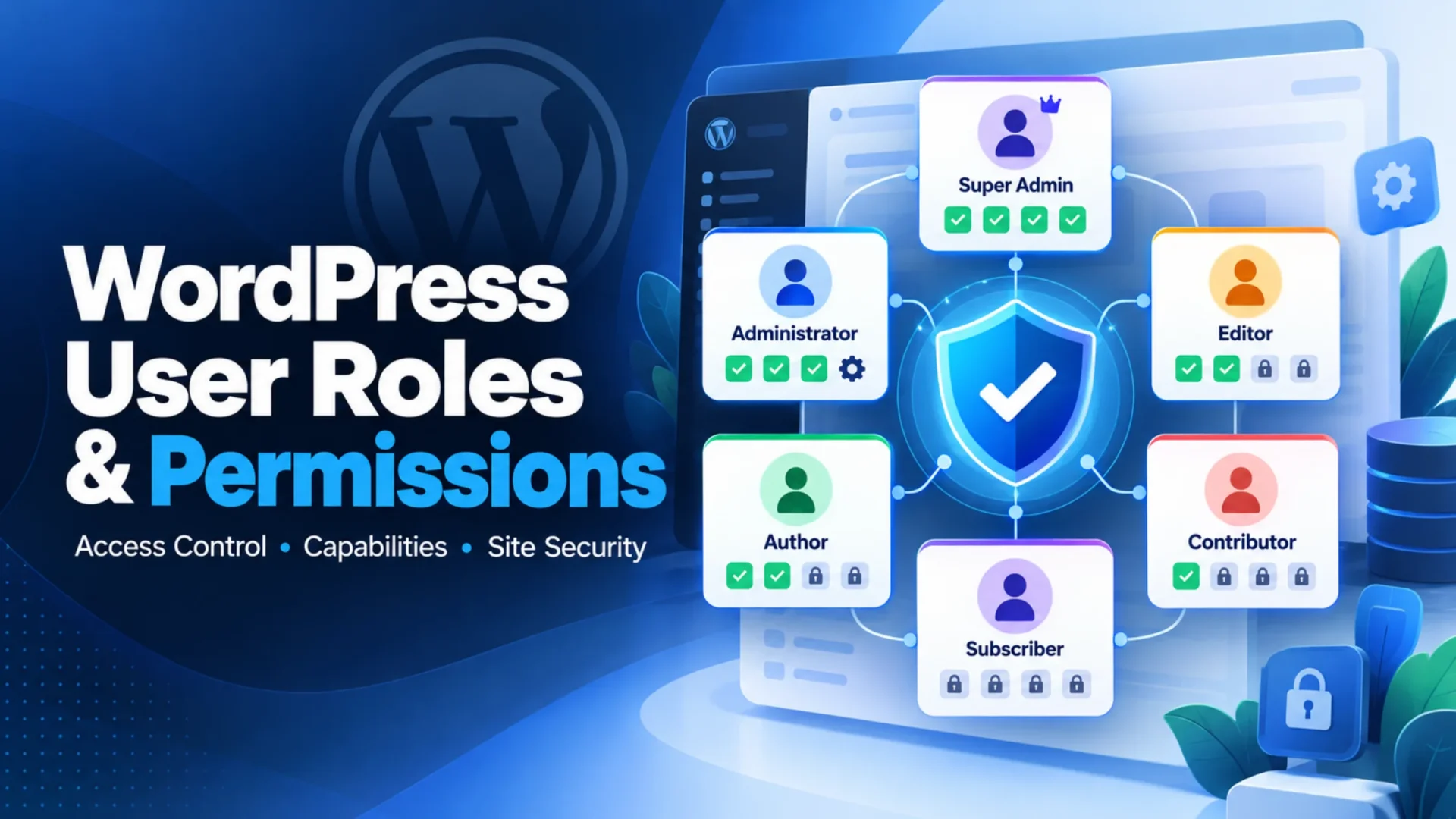
WordPress user roles decide what each person can do on your site. A standard site has five default roles: Administrator, Editor, Author, Contributor, and Subscriber. Multisite adds a sixth, Super Admin.
Each role is a bundle of capabilities, which are single permissions like publish_posts. The safest rule: give everyone the lowest role that still lets them do their job.
Giving a contractor full admin access is like handing over your house keys when they only needed the garage. Most of the time nothing goes wrong. Then a password gets reused, or an old account never gets deleted, and someone who came to fix a contact form can suddenly install plugins and delete users.
WordPress user roles are how you prevent that. Below you’ll find what each default role can do, a table to check at a glance, and then the harder stuff: custom roles in code, setups for agencies and stores, and a quick security check.
What Are WordPress User Roles and Permissions?
A WordPress user role decides what a person can do on your site. Each single action, like publishing a post or installing a plugin, is called a capability.
Think of it as two layers. Roles are job titles. Capabilities are the specific actions that job is allowed to perform. WordPress checks capabilities, not titles, whenever someone tries to do something. That’s why you can change what an Editor is allowed to do without inventing a new role, and why good code asks “can this user publish?” instead of “is this user an Editor?”
Plenty of guides blur the two. The official WordPress documentation on roles and capabilities is the reference every claim here was checked against.
The 6 Default WordPress User Roles (Explained)
Five or six? You’ll see both numbers online, and both are partly right. A standard single site has five default roles. Super Admin is the sixth, and it only exists once Multisite is switched on. Run one site and you’ll see five in the dropdown. Run a network and you’ll see six.
Administrator
Full control of a single site: plugins, themes, settings, and every user. Give it to the site owner and, at most, one trusted technical lead.
Editor
Manages all content, including posts and pages written by other people, plus categories and comment moderation. Editors can’t install plugins, change themes, or touch site settings. A managing editor or marketing lead fits here.
Author
Writes, publishes, and deletes their own posts, and can upload media. That’s the boundary. Authors can’t edit anyone else’s work and can’t edit pages. A staff writer you trust to publish without review is a typical match.
Contributor
Writes and edits their own posts but can’t publish them and can’t upload files. Drafts sit in a pending state until an Editor or Administrator approves them. Guest bloggers and new freelancers belong here.
Subscriber
Can read and manage their own profile. Nothing else. It’s useful on membership, community, and WooCommerce sites where visitors need accounts but shouldn’t reach the dashboard in any meaningful way.
Super Admin
Multisite only. This role controls the whole network, including creating sites, managing network wide users, and installing plugins and themes for every site.
So what separates Author, Contributor, and Editor? Publishing and reach. A Contributor can’t publish. An Author can publish, but only their own posts. An Editor can publish and manage everyone’s.
WordPress Roles and Capabilities Reference Table
Here are the capabilities people ask about most, mapped to each default role.
| Capability | Super Admin | Administrator | Editor | Author | Contributor | Subscriber |
| manage_options | Yes | Yes | No | No | No | No |
| install_plugins | Yes | Yes* | No | No | No | No |
| edit_users | Yes | Yes* | No | No | No | No |
| publish_posts | Yes | Yes | Yes | Yes | No | No |
| edit_others_posts | Yes | Yes | Yes | No | No | No |
| delete_posts | Yes | Yes | Yes | Yes | Yes | No |
| upload_files | Yes | Yes | Yes | Yes | No | No |
| read | Yes | Yes | Yes | Yes | Yes | Yes |
*Single site installs only. On Multisite, a site Administrator can’t install plugins or edit users by default. Those powers sit with the Super Admin.
Two caveats. Plugins add their own capabilities on top of this list, and WooCommerce and most LMS tools do exactly that. And the table shows defaults. Any plugin or snippet can change them, so a site’s real permissions can differ from what’s printed here.
How to Add Users and Change Roles
To add a user, go to Users, then Add New. Enter a username and email, pick a role from the dropdown, set a strong password, and send the notification email if you want the person to log in right away.
To change someone’s role, open Users, then All Users, hover over the name, and click Edit. Choose a new role and hit Update User. For several people at once, tick their checkboxes on the Users screen, use the “Change role to” dropdown at the top, and click Change.
One honest tip beats every setting here. Assign the lowest role that still lets the person do their job. You can always promote someone later. Taking access back after something goes wrong is much harder.
How to Create a Custom WordPress Role (Two Ways)
Default roles cover a lot, but they’re blunt. Sooner or later someone needs “Editor, except they can’t see pages” or “Shop Manager, minus the reports.” You can build that two ways.
With a Plugin (No Code)
A role editor plugin lets you clone an existing role, tick or untick capabilities, and save the result under a new name. For a one off change on a small site, that’s perfectly reasonable.
Before installing one, check its last update date, WordPress version support, and what happens to your roles if you deactivate it. Roles live in the database, so they usually survive. Usually isn’t a guarantee, so test on a staging copy.
With Code (The Developer Approach)
Code gives you roles that are versioned, repeatable, and identical across staging and production. The WordPress Plugin Handbook on roles and capabilities documents the functions used below.
Put this in a small custom plugin, not in your theme’s functions.php. A theme switch shouldn’t change who can do what. Also remember that add_role() writes to the database, so it only needs to run once. Hooking it to plugin activation handles that cleanly.
<?php
/**
 * Plugin Name: Client Roles
 * Description: Adds a Client Editor role for agency handoffs.
 * Version: 1.0.0
 */

register_activation_hook( __FILE__, 'cr_add_client_editor_role' );

function cr_add_client_editor_role() {
    add_role(
        'client_editor',
        'Client Editor',
        array(
            'read'                   => true,
            'upload_files'           => true,
            'edit_posts'             => true,
            'edit_others_posts'      => true,
            'edit_published_posts'   => true,
            'publish_posts'          => true,
            'delete_posts'           => true,
            'delete_published_posts' => true,
            'edit_pages'             => true,
            'edit_others_pages'      => true,
            'edit_published_pages'   => true,
            'publish_pages'          => true,
            'manage_categories'      => true,
        )
    );
}
To change an existing role instead, use get_role() with add_cap() and remove_cap(). These also save to the database, so run them once on activation as well.
register_activation_hook( __FILE__, 'cr_tweak_editor_role' );

function cr_tweak_editor_role() {
    $editor = get_role( 'editor' );

    if ( $editor ) {
        $editor->add_cap( 'edit_theme_options' );   // lets Editors manage menus and widgets.
        $editor->remove_cap( 'moderate_comments' ); // takes comment moderation away.
    }
}
Then check permissions in templates or plugins with current_user_can(). Always test the capability, never the role name.
if ( current_user_can( 'edit_others_posts' ) ) {
    // Show the editorial review panel.
}
If you need to delete a role you created, remove_role() does that. Never edit WordPress core files to change roles. The next update will wipe your work out.
Custom Roles for Real Business Scenarios
Here’s how the capability logic plays out in four situations that come up constantly.
The agency client handoff
The agency has built the site, and the client wants to update copy and publish news. The Client Editor role above gives them content control and nothing more. What stays out matters most: install_plugins, switch_themes, edit_theme_options, list_users, edit_users, and manage_options.
A client who can’t install plugins can’t break the build, and a compromised client login can’t reach the settings that matter. Teams offering custom WordPress development services often package this role into every handoff.
The WooCommerce Shop Manager tweak
WooCommerce has a Shop Manager role that includes orders, products, and customers. What if a store owner employs part time staff to pack orders? They need to view orders and print labels, but not sales reports. Deactivate the view_woocommerce_reports capability in a duplicate of the role (or the original role), and all is sorted. Capability titles might vary slightly between WooCommerce versions, so verify the latest release.
The LMS Instructor
Most learning plugins ship their own instructor role, which is fine until you need something slightly different. The cleaner route is giving your course post type its own capabilities:
- Register the post type with
capability_typeset tocourseandmap_meta_capset totrue. - WordPress then generates capabilities like
edit_courses,publish_courses, anddelete_courses. - Create an Instructor role with those, plus
readandupload_files. - Leave
edit_others_coursesoff so instructors only touch their own material.
The multi-author Publisher
A magazine with ten writers wants a gatekeeper. Contributors and Authors submit. A Publisher role holds edit_others_posts, publish_posts, and manage_categories, but not page editing, plugin access, or user management. It’s an Editor with a smaller footprint, and that’s the point.
Securing User Access: Least Privilege and Role Auditing
A compromised Administrator account is a compromised site. That’s the whole argument for least privilege, which simply means each person gets the minimum access their work requires.
Most real damage doesn’t come from clever attacks. It comes from admin sprawl. Four people with Administrator access because it was easier. A developer who left two years ago whose account still works. A shared login nobody owns. Every one of those is a door left open, and attackers don’t need much to walk through. For a wider view of the threats around that door, see this overview of WordPress security challenges and solutions.
A simple audit routine works well, and quarterly is plenty for most teams:
|
1
|
Open Users, filter by Administrator, and ask whether each person still needs it. |
|
2
|
Delete or downgrade accounts for anyone who has left. |
|
3
|
Look for accounts with generic names or email addresses you don’t recognize. |
|
4
|
Turn on two-factor authentication for every Administrator and Editor. |
|
5
|
Write down who holds which role and why. |
Honestly, step five gets skipped most often and pays off most. When something odd happens, you’ll know within a minute who had access.
User Roles on WordPress Multisite
Multisite changes the picture in ways that catch people out. One user account can exist across a whole network, but roles are assigned per site. The same person can be an Editor on one site, a Subscriber on another, and have no access to a third.
Then there’s the Super Admin, who sits above all of it. Super Admins manage the network itself: creating sites, installing plugins and themes, and managing users across every site. A site level Administrator has far less power than a single site Administrator does, which is deliberate.
This matters for enterprises and multi brand setups. When one network hosts ten brands, a careless Super Admin grant isn’t a ten minute problem. It’s a ten-site problem. Keep that role tiny. If you’re weighing whether a network is the right structure in the first place, the benefits of a WordPress multisite setup are covered separately, so they aren’t repeated here.
When Default Roles Are Not Enough (and You Need Custom Development)
Plugin-based roles carry most sites a long way. Some outgrow them, and the signals are fairly consistent:
- Access rules depend on conditions, such as “edit only posts in your own department” or “only during onboarding.”
- Custom capabilities need to be tied to several custom post types.
- Role logic has to stay consistent across integrations, like a CRM, an LMS, and a membership tool.
- Compliance requires documented, auditable access control.
If two or more of those sound familiar, you’re past clicking checkboxes. That’s development work: designing the capability model, writing it as code, testing it, and keeping it working through updates. A WordPress developer you can hire for that job should be able to show you a capability map before writing a line.
Common Mistakes and Myths
Giving everyone Administrator. Easier today, painful later. See the audit routine above.
Editing core role files. Updates overwrite them. Use add_role(), add_cap(), and remove_cap() from a plugin.
Forgetting offboarding. People leave. Their access doesn’t, unless someone removes it. Tie account removal to your exit checklist.
Believing more permissions mean faster work. Usually it just means bigger mistakes. A person with exactly the right access works at the same speed with far less risk. Teams that would rather not own this chore can hand it to a WordPress support plan that includes user and access management.
Wrapping Up
Set up your WordPress user roles well and you get a safer site and a team that can still work. Start with the defaults, give people the lowest role that fits, and check who has access every few months. If your rules get too complicated for a few checkboxes, that’s a job for a developer.
Want a quick first step? Open your Users screen and count how many Administrators you have.
Frequently Asked Questions
What are the default WordPress user roles?
There are five default roles for regular WordPress sites: Administrator Editor Author Contributor Subscriber. A sixth was introduced to WordPress Multisite: Super Admin, who controls the network. You can use the default roles in WordPress, for example from most capable (Administrator) to least capable (Subscriber, who can only read and manage own profile).
What is the difference between a role and a capability?
A role is a named group of permissions, like a job title. A capability is a single permission, such as publish_posts or manage_options. WordPress checks capabilities when deciding whether to allow an action. Roles simply bundle capabilities together so you can assign many permissions to a person in one step.
What is the difference between Author and Contributor?
Author – posts written and published by them, plus the ability to delete or upload media files. Contributor – posts written and edited by them, but they can’t publish or upload files. Since any draft from a Contributor has to be checked and published by an Editor or Administrator, it’s a safer role for guest writers.
How do I create a custom user role in WordPress?
A role editor plugin can copy a role and modify its capabilities, or you can use code. Use call add_role with a slug, name, and array of capabilities. Only run it once, like when you activate a small custom plugin, since roles are stored in the database.
What role should I give a client or freelancer?
Give the lowest role that covers the work. A freelance writer usually needs Contributor, or Author if you trust them to publish. A client who updates site content fits a custom Client Editor role, which allows content changes but blocks plugins, themes, users, and settings.
Is it safe to have more than one administrator?
It can be, but each extra Administrator raises your risk. Every Administrator account is a full site compromise waiting on one stolen password. Keep the number as small as practical, require two factor authentication, and review the list regularly. Give everyone else Editor or lower, or a custom role built for their tasks.
How do user roles work on WordPress Multisite?
On Multisite, a user account can exist across the network, but roles are assigned separately for each site. The same person might be an Editor on one site and a Subscriber on another. Super Admins sit above every site and control network wide settings, plugins, themes, and users.
Need Help Setting Up WordPress User Roles?
Our WordPress team can design a custom role structure for your site, from client handoffs to WooCommerce and multisite setups, so everyone gets exactly the access they need and nothing more.