



- Is This Connector Compatible with Your Setup?
- What Data Can You Sync Between Odoo and Zoho Books?
- How to Connect Odoo to Zoho Books
- Prepare your Odoo environment
- Install the correct connector version
- Create your Zoho API credentials
- Select the correct Zoho organization
- Test the connection and transfer sample records
- Enable Auto-Sync for the imports you need
- How to Test Invoice Sync Before Going Live
- What to Check When a Transfer Does Not Match
- Manual CSV, Zapier or an Odoo Connector?
- Pricing, Installation and Support
- Frequently Asked Questions
- Can I connect Odoo with Zoho Books?
- Which Odoo versions are supported?
- Does it work with Odoo Online?
- Does the connector support two-way transfers?
- What Zoho Books plan do I need?
- Is installation assistance included?
- Ready to Connect Odoo with Zoho Books?
Quick Answer
An Odoo Zoho Books integration exchanges records between the two platforms to reduce repeated entry. Elsner’s connector is listed for Odoo 19 and 20. Its published interface shows manual transfer controls and Auto-Sync for imports, while exports remain manual. Check the record-specific directions below before choosing your workflow.
Manual record transfers
- Import supported Zoho Books records into Odoo
- Export supported Odoo records to Zoho Books
- Review the directions for each record type below
Scheduled imports
- Choose an import interval through Auto-Sync
- Exports remain manual in the published interface
- Review logs and compare transferred records
Before you buy: choose the correct Odoo version and check hosting, Zoho account requirements and transfer directions. For custom Python add-on installation, use Odoo.sh or on-premise hosting. If you use Odoo Online, confirm the installation method with Elsner before purchase.
Your warehouse team confirms a sales order in Odoo. Someone in finance then enters the customer, line items and totals into Zoho Books. When the payment arrives, it gets recorded in both systems. Each manual copy takes time and creates another opportunity for a missed update.
An Odoo Zoho Books integration helps businesses exchange records between the two platforms. If your team uses Odoo for operations and Zoho Books for accounting, the first questions are practical: what can you sync, does the connector support your setup, and how do you check that the records match?
This guide covers Elsner’s Zoho Books Connector, its compatibility, supported records, setup process and purchase requirements. Start with the hosting and transfer-direction checks below.
The screenshots below are interface images published on Elsner’s Odoo Apps listing. They show connector controls and demo logs. The invoice example later in this guide is a checklist for your own test environment.
Is This Connector Compatible with Your Setup?
Check these requirements before purchasing:
| Requirement | Supported setup |
|---|---|
| Odoo version | Odoo 19 or Odoo 20 |
| Odoo edition | Community or Enterprise |
| Hosting | Odoo.sh or on-premise for custom add-on installation. Confirm any Odoo Online option with Elsner. |
| Odoo dependencies | Base, Product, Discuss, Sales, Inventory and Accounting/Invoicing |
| Zoho access | Active Zoho Books account, API credentials, refresh token and Organization ID |
The Odoo 20 listing describes the module’s requirements and supported capabilities. Choose the app version that matches your installed Odoo version.
Odoo Online compatibility: a custom Python add-on requires Odoo.sh or on-premise hosting. The updated listing mentions Odoo Online, but does not explain an Online-specific installation method. Official Odoo documentation restricts custom modules on Online. Obtain the appropriate installation instructions from Elsner before buying for that environment.
Zoho Books features and API limits can depend on the subscription plan. Confirm that your plan supports the records your workflow requires.
Prepare a useful compatibility request: give Elsner your Odoo version and hosting, Zoho organization/data center, required record types, transfer directions and preferred frequency. Include whether you need installation assistance. This makes the assessment specific to your workflow.
What Data Can You Sync Between Odoo and Zoho Books?
The listing covers six record groups. Its data-flow table and interface screenshots disagree about sales-order imports; confirm that direction for your installed version.
| Record type | Direction | Practical purpose |
|---|---|---|
| Products and items | Import and export | Exchange product information between systems |
| Customers and vendors | Import and export | Reduce repeated contact entry |
| Sales orders | Export: Odoo → Zoho Books. Confirm import support for your version. | Transfer sales-order information in the confirmed direction |
| Customer invoices and vendor bills | Import and export | Transfer billing documents without retyping them |
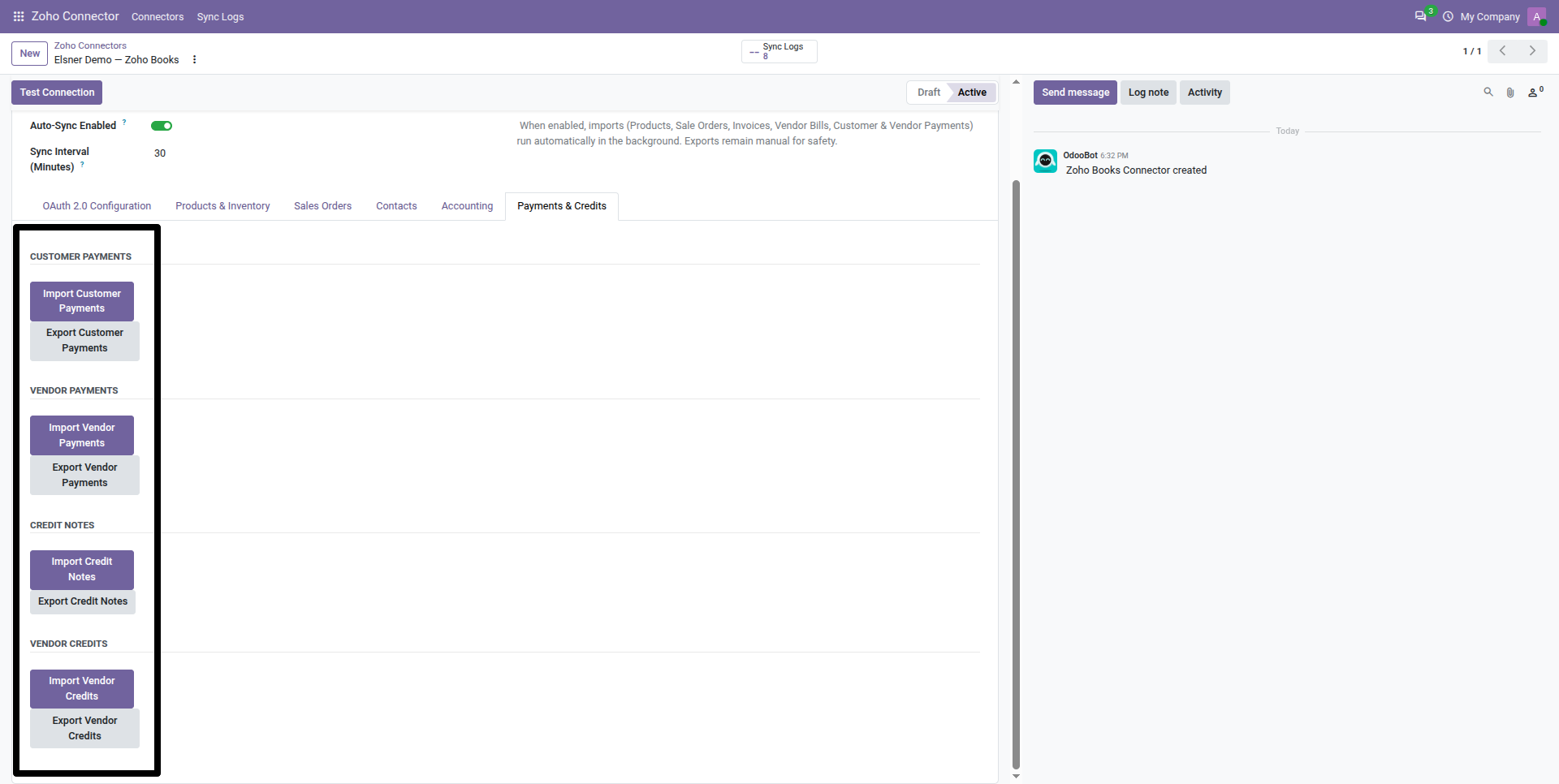
| Customer and vendor payments | Import and export | Exchange payment records |
| Credit notes and vendor credits | Import and export | Transfer financial adjustments |
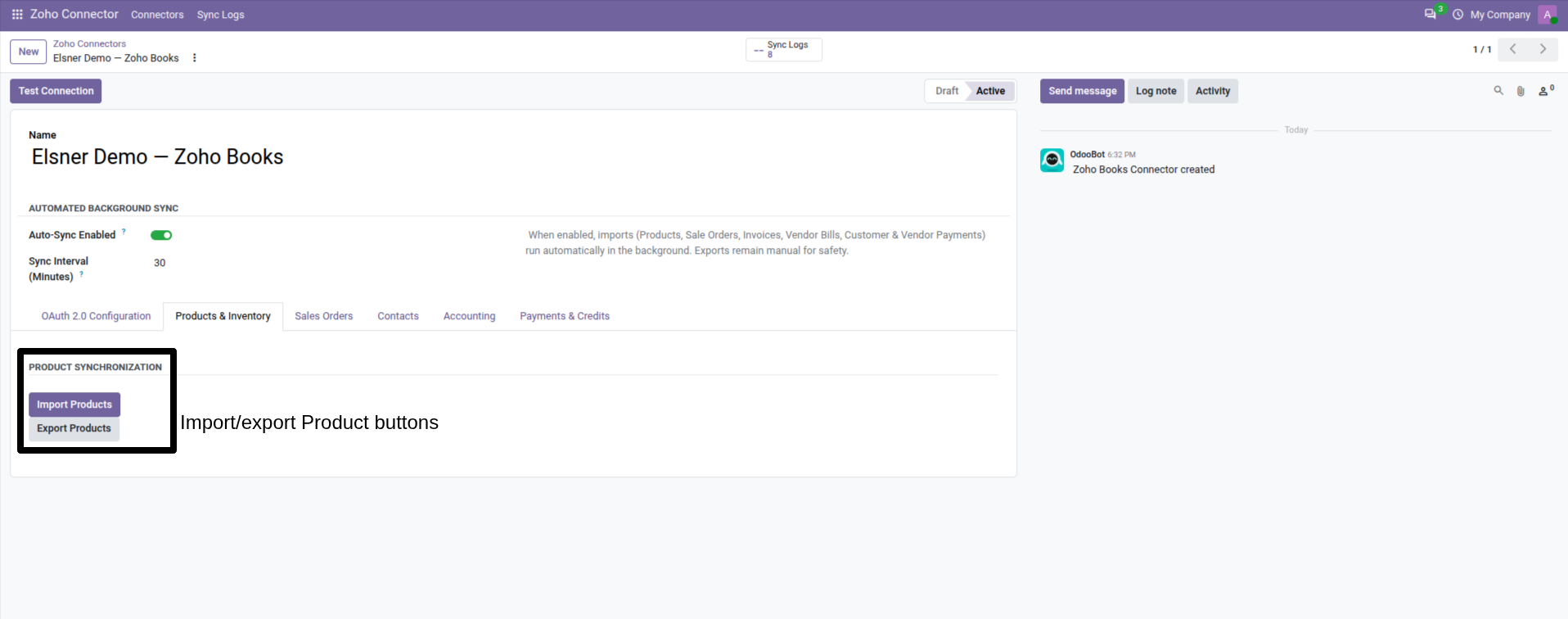
Import means bringing records from Zoho Books into Odoo. Export means sending records from Odoo to Zoho Books.
Choose the transfer direction deliberately. The published interface states that supported imports run automatically and exports remain manual. However, the listing’s data-flow table marks sales orders as export only, while its configuration help and demo logs mention sales-order imports. Confirm that difference with Elsner before relying on sales-order imports. A “Cron: Yes” label alone does not establish scheduled export support.
How to Connect Odoo to Zoho Books
Use an Odoo staging database connected to a dedicated test Zoho Books organization or an approved test environment. This lets you check transfers without creating test invoices in your live accounting records.
-
Prepare your Odoo environment
Confirm your Odoo version, hosting and required modules. Decide which records you want to exchange first and which system your team normally uses to create or update them.
For example, your operations team might maintain products in Odoo while your accounting team manages billing in Zoho Books. Clear ownership helps your team avoid conflicting edits.
-
Install the correct connector version
Purchase the connector for your installed Odoo version. Add the module to your Odoo.sh project or on-premise add-ons, then install it through Odoo’s Apps menu.
If you need assistance with installation or a customized workflow, Elsner’s Odoo development services team can review your requirements.
-
Create your Zoho API credentials
Sign in to the Zoho API Console and register the API client required by your connector setup. Obtain the appropriate client type and API scopes from Elsner’s installation guidance or support team before generating credentials.
If Elsner’s installation guidance uses a Self Client, generate a short-lived authorization code with the required scopes, then exchange it for access and refresh tokens through Zoho’s documented OAuth process.
The authorization code is not the refresh token. Enter the resulting refresh token wherever the connector requests one. Follow Zoho’s OAuth documentation for the token exchange.
Use the account endpoint for your organization’s actual Zoho data center. A business based in the United States may still have its Zoho account hosted in another region.
-
Select the correct Zoho organization
Find your Organization ID through the organization dropdown and Manage Organizations in Zoho Books. If you manage several organizations, select the one intended for this connection. See the Zoho Books API documentation.
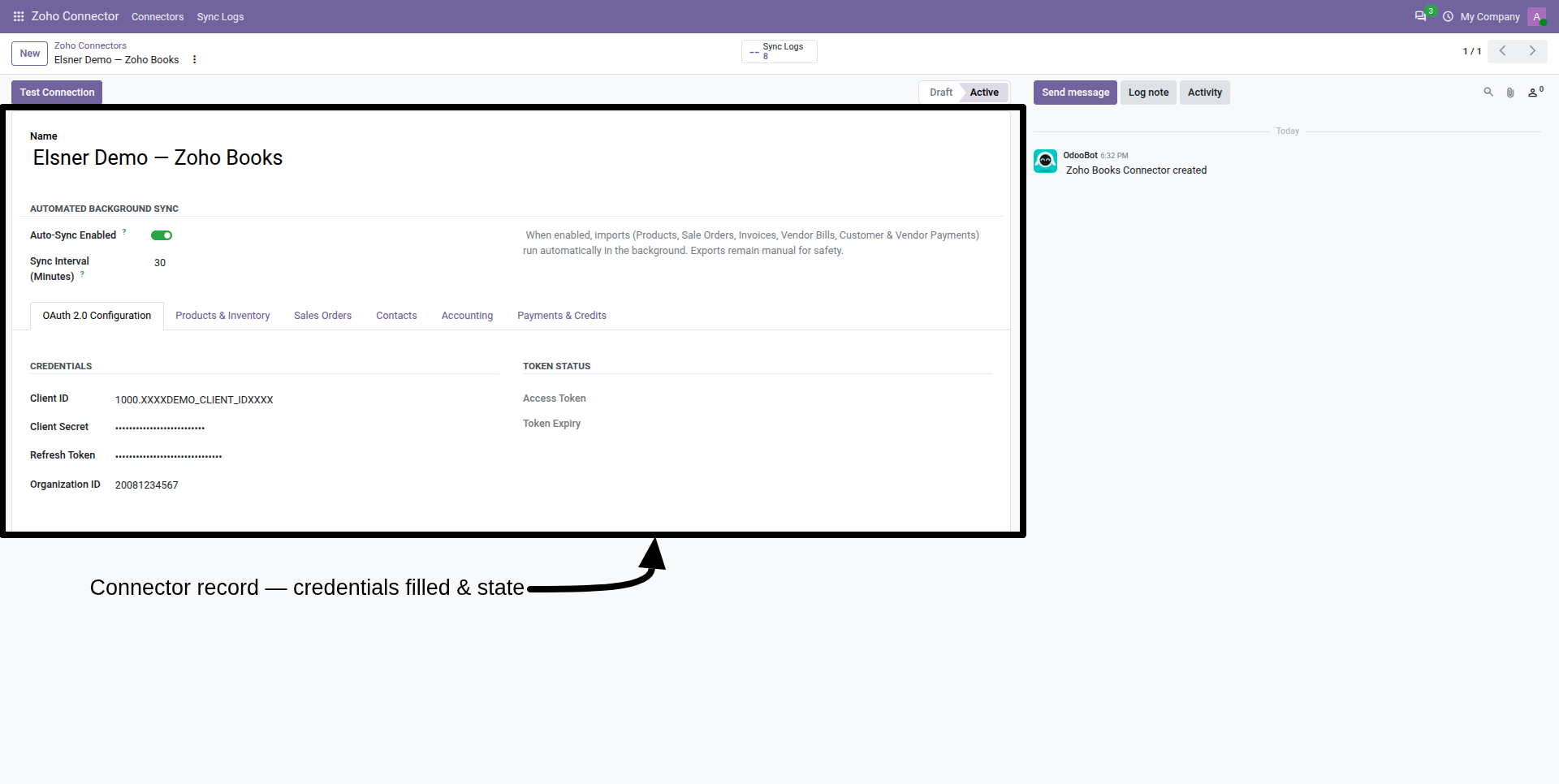
In Odoo, open Zoho Connector → Connectors, select your connector record and use the OAuth 2.0 Configuration tab to enter the Client ID, Client Secret, refresh token and Organization ID.
-
Test the connection and transfer sample records
Test the connection before moving data. Then run a small manual import or export, starting with a customer and a product.
Open the transferred records in both systems. Compare the relevant names, addresses, product details and prices.
-
Enable Auto-Sync for the imports you need
After your sample transfers match, enable Auto-Sync for the supported imports and choose an interval. The screenshot shows 30 minutes as an example; use a frequency appropriate to your workflow.
Review the log and destination records after the first scheduled runs. Keep Odoo-to-Zoho exports manual, as described in the published interface. Resolve the sales-order direction discrepancy before scheduling that workflow.
For assistance preparing your Zoho environment, contact Elsner’s Zoho development services team.
How to Test Invoice Sync Before Going Live
Use a small invoice whose totals you can verify by hand. The example below is illustrative staging data, not a completed connector test or customer result.
| Sample item | Quantity | Unit price | Line amount |
|---|---|---|---|
| Test product A | 2 | $125.00 | $250.00 |
| Test product B | 3 | $50.00 | $150.00 |
| Subtotal before discounts and tax | $400.00 |
Apply the tax and discount settings appropriate to your test organization, then record the expected final total. Do not assume that every US sales-tax scenario is handled automatically.
- Create a test customer and a USD invoice in Odoo using the sample line items.
- Export the customer to Zoho Books.
- Export the invoice using the connector’s relevant action.
- Open the corresponding invoice in Zoho Books.
- Compare the customer, invoice date, due date, currency, quantities, unit prices, discounts, configured tax amounts, final total and status.
- Record the destination invoice identifier and review the sync log for success or error details.
- In that test environment, transfer the same invoice again. Check whether it updates the existing record or creates another one; record the result before allowing repeated production transfers.
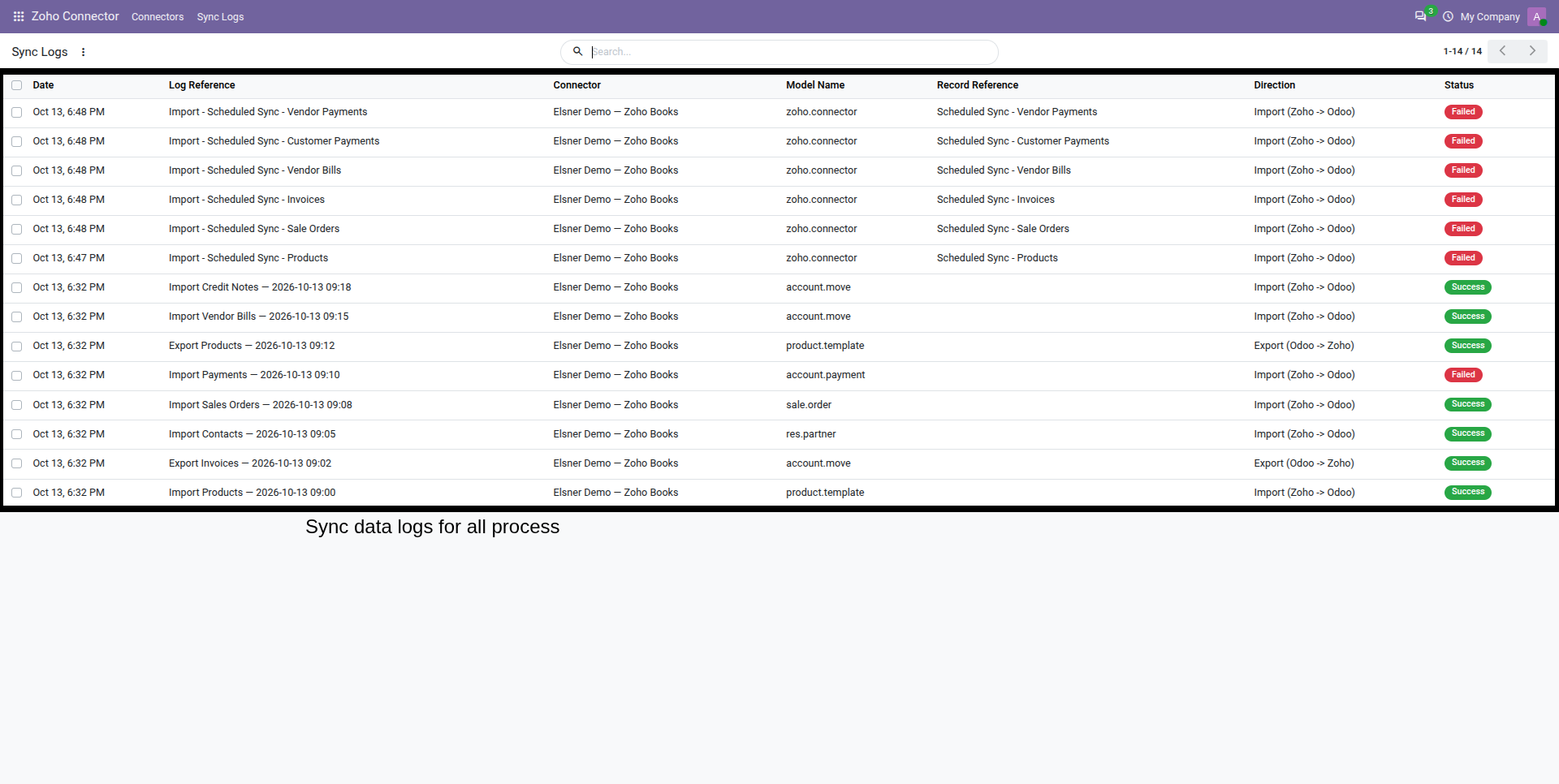
Check the records themselves as well as the log. A successful transfer should produce the expected information in the destination system.
If anything differs, review the recorded error and resolve the issue before transferring production records. Test other workflows you need, such as payments or credits, separately.
What to Check When a Transfer Does Not Match
Use the logged error and the source record to narrow the problem. These are diagnostic checks, not guarantees about the connector’s error handling.
| Symptom | Checks to make |
|---|---|
| Connection test fails | Check the Client ID, Client Secret, refresh token, API permissions, Organization ID and account data center. Share the error message with Elsner; keep credentials private. |
| Invoice amount or status differs | Compare line items, discounts, tax amounts, rounding and document status in both systems. Check the transfer direction and the record shown in the log. |
| Repeated transfer creates another record | Pause repeated production transfers. Compare source/destination identifiers and logs, and establish the expected matching behavior with Elsner. |
| Scheduled import does not run | Check that Auto-Sync is enabled, review the configured interval and inspect the scheduled-action and sync-log results. |
Manual CSV, Zapier or an Odoo Connector?
Choose an integration approach around the records you need and how often they move.
| Approach | What to consider |
|---|---|
| Manual CSV transfers | Can suit occasional imports. Your team exports, prepares, imports and checks the data each time. |
| Zapier | Check available triggers and actions against your workflow, along with task limits and subscription costs. |
| Elsner connector | Manual transfer controls inside Odoo, scheduled imports and sync logs. Confirm sales-order import support for your installed version. |
Zapier offers an Odoo ERP Self Hosted and Zoho Books integration. Compare the options using your actual requirements: supported records, transfer directions, frequency, setup effort and ongoing costs.
Pricing, Installation and Support
Both version listings showed the following prices on October 14, 2026:
| Version | Listed price |
|---|---|
| Odoo 19 | $19.99 |
| Odoo 20 | $19.99 |
Check the current price before buying, and select the version that matches your Odoo installation on the Apps listing.
View the Odoo 20 Zoho Books Connector
Before purchasing, ask Elsner whether installation assistance is included, what support is provided and whether your workflow needs paid customization. Also account for your Odoo hosting and Zoho Books subscription.
The module is listed under the OPL-1 license. Support details appear on its app listing. You can also explore Elsner’s Odoo apps.
Frequently Asked Questions
Can I connect Odoo with Zoho Books?
Yes. Elsner’s connector lists products, contacts, sales orders, invoices, bills, payments and credits. Check the supported directions for each record type and confirm sales-order import support for your installed version.
Which Odoo versions are supported?
The connector is listed for Odoo 19 and Odoo 20, including Community and Enterprise editions on Odoo.sh or on-premise hosting.
Does it work with Odoo Online?
Confirm the installation method before buying for Odoo Online. A custom Python add-on requires Odoo.sh or on-premise hosting. The updated listing mentions Online, but does not document a separate Online-specific setup; the hosting section explains this distinction.
Does the connector support two-way transfers?
Most listed record groups show manual import and export controls. The sales-order table specifies export only, while configuration help and demo logs mention imports. Confirm that direction for your installed version. The published interface describes automatic imports and manual exports.
What Zoho Books plan do I need?
A plan with API access and the features required by the records you intend to exchange. Plan requirements and API limits belong in your compatibility assessment.
Is installation assistance included?
The public listing does not specify that installation is included. Obtain the installation and support terms before purchase, as described in the pricing section.
Source review: Elsner’s Odoo 19 and 20 Apps listings and published interface screenshots were reviewed on October 14, 2026. This guide also uses official Odoo and Zoho documentation. The screenshots are publisher-provided demo examples; the guide has not independently validated connector operations. The invoice and troubleshooting sections provide a method for testing your own environment.
Ready to Connect Odoo with Zoho Books?
Share your Odoo version, hosting setup and the records you need to sync. Talk to Elsner about connector compatibility and implementation requirements before you buy.