




- Why the Default Odoo 19 List View Slows Down Daily Work
- What Odoo 19 Already Does vs What List View Pro Adds
- 7 Odoo 19 List View Upgrades That Save Time Every Day
- Automatic serial number column
- Inline column filter row
- Custom header colors
- Resizable columns
- Copy value on click
- Duplicate records from the list
- Row highlight on hover
- Which Teams Benefit Most
- How to Set Up List View Pro in Four Steps
- Install the module
- Open the settings
- Choose header colors
- Use it anywhere
- App, Studio or Custom Development: How to Choose
- Common Mistakes When Upgrading Your Odoo List View
- Limits to Know Before You Buy
- Conclusion
- Frequently Asked Questions
- Does List View Pro work on every list view in Odoo 19?
- Does it replace Odoo’s standard filters and search?
- Do I need a developer to install it?
- Can I turn individual features off?
- How much does it cost and what support is included?
- What license does it use?
- Final Thoughts
Quick Answer
Odoo 19 list view upgrades come down to seven small behaviors: automatic serial numbers, inline column filters, custom header colors, resizable columns, click to copy, duplication from the list and row highlighting. Odoo 19 already lets you resize columns by dragging, but most of the other behaviors are either not built in or take extra clicks. List View Pro, built by Elsner Technologies, adds all seven to every list view with no coding.
|
Add List View Pro if
|
Skip it or go custom if
|
Short version: match the upgrade to the daily friction your team actually feels, not to the longest feature list. This guide shows what Odoo 19 already does, what each upgrade adds and when custom work is the better call.
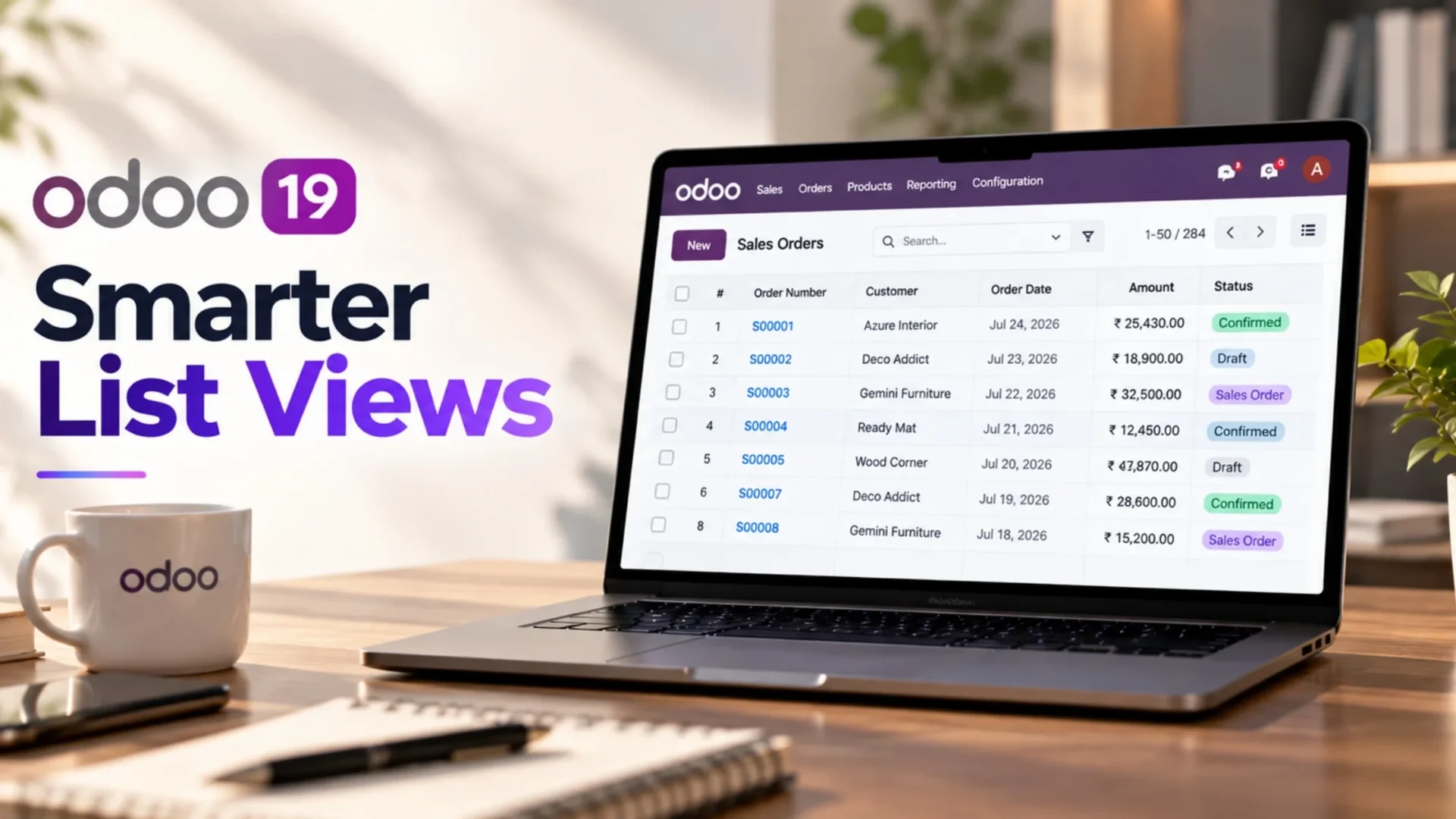
Open any list view in Odoo 19 and you are looking at the screen your team uses most. Sales orders, purchase orders, stock transfers, invoices, leads: all of them are lists. The list view is clean and fast, but the daily work inside it still takes more clicks than it should.
Filtering means opening menus in the search bar. Finding the 47th row means counting by eye. Copying a phone number means selecting text by hand. None of this is broken, yet across a full workday these small steps add up to real lost time.
Most teams assume the fix is a custom build. Often it is not. The real strength of Odoo is its ecosystem of Odoo modules, and a lightweight add-on can close exactly this gap. This guide covers seven list view upgrades, what Odoo 19 does natively, and when custom work really is the better call.
Why the Default Odoo 19 List View Slows Down Daily Work
A quick technical note first, because many people search for it. In the Odoo 19 view architecture documentation, the root element of a list view is list, and the older name was tree. Same screen, new tag.
The default list is built for analysis. You search at the top, apply filters, group records and save favorites. That works well when you already know what you are looking for. It works less well when your team scans, compares and copies data all day. Users on the official Odoo forum have asked how to filter directly under each column instead of relying only on the top search bar, which shows the need is real.
The friction points teams mention most often:
- No visible row numbers, so referring to “row 34” on a call means counting
- Filtering one column takes several clicks through search menus
- Copying an email, reference or phone number means selecting text manually
- Repeating a similar record means opening the form first
- Wide tables with long text are hard to read row by row
Worth saying plainly: the upgrades below change how you interact with a list, not what the list contains. Standard Odoo filters, group by and favorites keep working exactly as before. The module adds on top of them and never replaces them.
What Odoo 19 Already Does vs What List View Pro Adds
Before you install anything, it helps to know what you already have. This comparison separates native behavior from the upgrade, so you only pay for what you actually need.
| Feature | Default Odoo 19 | With List View Pro |
| Serial number column | Not shown | Automatic on every list, continues across pages |
| Column filters | Top search bar and filter menus | Filter boxes under each column header |
| Header colors | Standard theme styling | Your own background and text colors |
| Resizable columns | Yes, drag the header edge | Included as a toggle in the same settings screen |
| Copy a cell value | Select and copy manually | One click copies to the clipboard |
| Duplicate a record | Through the form or the Actions menu | Straight from the list row menu |
| Row highlight on hover | Light default styling | Clear highlight as you move the mouse |
Notice that resizing is already native. That is exactly why checking your own database first matters before buying anything. If list view polish is only one item on your wishlist, browse more Odoo apps from Elsner Technologies covering AI, ecommerce, and finance workflows.
7 Odoo 19 List View Upgrades That Save Time Every Day
Each upgrade is small on its own. Together they change how a list feels after a full day of use.
|
1
|
Automatic serial number columnEvery list gets a numbered column, and the numbering keeps going across pages. You always know which row you are on, and so does the colleague you are talking to.
|
|
2
|
Inline column filter rowThis is the upgrade most teams notice first. A row of filter boxes appears under the column headers, spreadsheet style. Type in a box and the list narrows instantly, with no filter menu in between.
|
|
3
|
Custom header colorsPick a header background and text color from Settings, and every list follows your palette. It sounds cosmetic, but readable headers reduce misreads on dense tables.
|
|
4
|
Resizable columnsOdoo 19 already lets you drag a header edge to change column width. List View Pro keeps that behavior as a switch in the same settings screen as everything else, so an admin manages all list behavior in one place.
|
|
5
|
Copy value on clickClick a cell and its value goes to your clipboard. It is a tiny change that removes a surprising number of selection mistakes, especially with long references.
|
|
6
|
Duplicate records from the listRepetitive data entry is where teams lose the most patience. With this upgrade you duplicate a record straight from the row menu and skip the trip through the form view.
|
|
7
|
Row highlight on hoverAs you move the mouse, the row under it lights up clearly. On wide tables with many columns, your eyes stop drifting to the wrong line.
|
Want to see every feature, the configuration guide and the support terms in one place? The List View Pro page on the Odoo Apps Store has all of it.
Which Teams Benefit Most
Because the module works on every list view, the payoff depends on where your team spends its time. Here is a practical way to match upgrades to roles.
Sales and CRM teams. Inline filters help reps find a customer’s orders fast, and click to copy speeds up emails and phone numbers. Best upgrades: inline filter row, copy on click.
Purchase and inventory teams. Long transfer and purchase lists are easier to check line by line when rows are numbered and long text columns are readable. Best upgrades: serial numbers, resizable columns.
Accounting and admin teams. Matching references across invoices and payments is where small copy and reading errors creep in. Best upgrades: row highlight, copy on click, duplicate from list.
How to Set Up List View Pro in Four Steps
|
1
|
Install the moduleGo to Apps, search for List View Pro and click Activate. All features switch on for every list view. |
|
2
|
Open the settingsGo to Settings > General Settings > List View Pro and switch each feature on or off. |
|
3
|
Choose header colorsSet the header background and text colors in the same section, save and refresh the page. |
|
4
|
Use it anywhereOpen any list view, type in the filter row, click a cell to copy, or duplicate a record from the row menu. No per-view setup is needed. |
Practical tip: install on a staging copy first and let two or three daily users try it for a week. Their feedback tells you which toggles to keep on for the whole team.
App, Studio or Custom Development: How to Choose
Not every list view need is the same size. A ready-made module makes sense for behavior changes that many businesses share. Custom work makes sense when the logic is unique to you. For a deeper cost view of this exact decision, read our breakdown of app versus custom development.
| Approach | Best for | Setup effort | Trade-off |
| Ready-made module | Common list view improvements | Install and toggle | Fixed feature set |
| Odoo Studio | Adding fields and adjusting layouts | Low, no code | Not aimed at new interaction behavior |
| Custom development | Unique logic and workflows | Higher, needs developers | Ongoing maintenance and upgrade work |
Worth saying plainly: none of these is the “right” answer in general. They are different places the effort shows up. A module puts it in a small purchase; custom work puts it in project time and long-term upkeep.
Common Mistakes When Upgrading Your Odoo List View
Buying an add-on for something Odoo already does. Column resizing is the classic example, because dragging a header edge works in Odoo 19 without any module. Check the native behavior on your own database first.
Rolling it out to everyone on day one. A staging trial with a few daily users catches conflicts with other customizations before they reach the whole team.
Expecting business logic from an interaction module. Serial numbers and filter rows make lists faster to use. They do not add fields, reports or workflow rules.
Leaving every toggle on without asking users. Some teams love click to copy, others accidentally trigger it. Keep the features people actually use and switch off the rest.
Ignoring the license. The module is licensed under OPL-1, so it belongs on databases you own or operate. Sharing or reselling the source is not allowed.
Limits to Know Before You Buy
No module fits everyone, so here is an honest checklist.
- This release is built for Odoo 19 only, and other versions need their own release
- It covers seven interaction features and does not add new fields, reports or business logic
- It is a frontend enhancement, so test it alongside any list view customizations you already run
- Your hosting must allow third-party modules
If your needs go past these seven features, such as record-specific logic, new reports or deeper workflow changes, that is genuine custom work. Our Odoo development services cover it, and List View Pro can still handle the everyday interaction layer underneath.
Conclusion
The Odoo 19 list view does not need a rebuild to feel faster. It needs a few well-chosen behaviors: numbered rows, filters under the columns, readable headers, one-click copy and quicker duplication. Each saves seconds, and a list view gets opened hundreds of times a week.
The smart path is to check what Odoo 19 already gives you, try the upgrades on staging, and keep custom development for the problems that are truly unique to your business.
If you are still weighing it, a one-week staging trial costs far less than guessing. Let your daily users tell you which upgrades earn their place.
Frequently Asked Questions
Does List View Pro work on every list view in Odoo 19?
Yes. According to the Odoo Apps Store listing, it works on all list views across every app, including Sales, Purchase, Inventory, Accounting, CRM, HR and custom modules.
Does it replace Odoo’s standard filters and search?
No. It works together with standard filters, group by, and favorites. It adds on top of them and never replaces them.
Do I need a developer to install it?
No coding is needed. You install it from the Apps menu and activate it. Optional settings let you switch individual features on or off.
Can I turn individual features off?
Yes. Go to Settings, then General Settings, then List View Pro, and switch the serial number column, inline filter row, resizable columns, copy on click, hover highlight, and duplicate action on or off separately.
How much does it cost and what support is included?
It is a one-time purchase of about $20 on the Odoo Apps Store. Elsner Technologies includes 90 days of free support for bugs and installation issues, and offers paid customization if you need extra features.
What license does it use?
It uses the Odoo Proprietary License (OPL-1). You can use it on Odoo databases you own or operate and modify it for internal use, but you cannot redistribute or resell the source code.
Final Thoughts
A blog post cannot tell you exactly which upgrades your team needs. That depends on the lists your people open most and the small annoyances they have stopped mentioning. The fastest way to find out is to try it on a copy of your database.
Whether you want to roll out List View Pro on your database or need a feature that goes beyond these seven upgrades, our Odoo team at Elsner Technologies is ready to help.