




- Start With These Five Checks
- Common WordPress Mistakes That Break Your Site
- The White Screen of Death
- 500 Internal Server Error
- Error Establishing a Database Connection
- Parse and Syntax Errors
- Memory Exhausted
- Failed Updates and Stuck Maintenance Mode
- Too Many Redirects
- 403 Forbidden
- Login and Admin Mistakes
- Content, Layout and Email Glitches
- The Quiet Common WordPress Mistakes That Cost You Traffic
- Judging Traffic From the Wrong Place
- Analytics That Were Never Set Up Properly
- A Slow Site
- Hosting That Can’t Keep Up
- Indexing and Technical Mistakes
- How to Check Website Traffic on WordPress the Right Way
- Tools to Check Your Traffic
- Speed Fixes That Make a Visible Difference
- Security Mistakes That Turn Small Errors Into Big Ones
- Fix It Yourself or Call a Developer?
- A Quarterly WordPress Health Checklist
- Wrap Up: Fix One Thing This Week
- FAQs
- What is the most common WordPress error?
- How do I fix the WordPress White Screen of Death?
- Why does my WordPress login page keep refreshing?
- How do I fix the error establishing a database connection?
- Should I fix WordPress errors myself or hire a developer?
- How do I check my WordPress site traffic for free?
- Can poor hosting affect my search rankings?
- How often should I check WordPress performance and analytics?
- Stuck on an Error, or Not Sure Your Site Is Tracking and Performing the Way It Should?
Quick Answer
Most common WordPress mistakes come down to a plugin or theme conflict, low PHP memory, a damaged .htaccess or wp-config.php file, weak hosting, or analytics that were never set up properly. Back up your site, clear the cache, deactivate plugins, switch to a default theme and turn on debug logging. That sequence solves most problems, and the sections below cover each fix in detail.
Every WordPress site breaks eventually. One morning you load the homepage and get a blank white screen. Or the login page keeps refreshing and you can’t get into your own dashboard. Annoying, sure. Also completely normal.
WordPress runs roughly 42 percent of all websites, according to W3Techs, so the common WordPress mistakes are well mapped and most have a clear fix. Some are loud, like a fatal error that takes the whole site down. Others are quiet. Your analytics might be counting every visitor twice, or a struggling server might be pushing people away before the page finishes loading, and you’d never see an error message about either one.
This guide covers both kinds. First come the visible errors you can usually fix in minutes. After that, the hidden mistakes that hold back your traffic. Jump to whatever applies to you.
Start With These Five Checks
Before you chase a specific error, run through this list. It sorts out a surprising number of problems on its own.
|
1
|
Take a BackupEven a quick one from your host’s control panel will do. Fixes sometimes make things worse before they make things better.
|
|
2
|
Clear Every CacheThat means your browser (Ctrl+F5), your caching plugin, and your host’s server cache if it has one.
|
|
3
|
Deactivate All PluginsIf the dashboard won’t load, open your file manager or FTP, go to wp-content, and rename the plugins folder to plugins-off. If the error disappears, rename it back and reactivate plugins one at a time until the culprit shows itself.
|
|
4
|
Switch to a Default WordPress ThemeIf you can’t reach the dashboard, rename your active theme’s folder and WordPress falls back to a default one automatically.
|
|
5
|
Turn On Debug LoggingAdd these lines to wp-config.php: define( 'WP_DEBUG', true ); define( 'WP_DEBUG_LOG', true ); define( 'WP_DEBUG_DISPLAY', false ); Errors now land in wp-content/debug.log while visitors see nothing. Switch it off again when you’re done. |
Common WordPress Mistakes That Break Your Site
These are the ones that put an error on screen. Each fix assumes you’ve already run the five checks above.
The White Screen of Death
You load the site and get nothing. No message, no layout, just white. Usually it’s a plugin or theme conflict, an exhausted memory limit, or a fatal PHP error hiding behind switched off error display. It also loves to appear after a rushed move to a new host, which is one reason a careful WordPress site migration is worth the extra planning.
Fix: Disable plugins through FTP, then reactivate them one by one. Still blank? Read debug.log, and raise the memory limit with define( 'WP_MEMORY_LIMIT', '256M' ); in wp-config.php.
500 Internal Server Error
Vague on purpose. The server is telling you something went wrong without saying what.
Fix: A damaged .htaccess file is the most common cause, so rename it to .htaccess_old over FTP and reload the site. If it works, go to Settings > Permalinks and click Save to generate a clean one.
Error still there? Look at a PHP version mismatch or a server timeout. Your host’s error logs will tell you which, and this is a fair moment to open a support ticket.
Error Establishing a Database Connection
WordPress can’t reach its database.
Fix: Open wp-config.php and compare DB_NAME, DB_USER, DB_PASSWORD and DB_HOST with what your host shows in its MySQL section. A changed password or a typo causes most cases.
If the details are right, the database server might be down or a table might be corrupted. Add define( 'WP_ALLOW_REPAIR', true ); to wp-config.php, visit yoursite.com/wp-admin/maint/repair.php, and delete that line afterward.
Security warning. The repair page doesn’t ask for a login, so don’t leave it switched on.
Parse and Syntax Errors
“Parse error: syntax error, unexpected…” almost always follows a code edit. A missing semicolon, a stray bracket, a bad paste into functions.php.
Fix: The message names the file and line number, so undo the edit over FTP and you’re back.
Don’t edit theme files on a live site. Use a child theme or a code snippets plugin instead.
Memory Exhausted
You’ll see “Allowed memory size exhausted” in a fatal error message.
Fix: Raise WP_MEMORY_LIMIT as shown above, or set memory_limit = 256M in php.ini. Plenty of hosts let you change this from their control panel.
If the error comes back even at 256M, something is eating memory, usually a heavy plugin. A bigger limit just hides it.
Failed Updates and Stuck Maintenance Mode
Both come from an interrupted update. While updating, WordPress drops a .maintenance file in your root folder, and if the process dies halfway, the file stays behind. Visitors then see “Briefly unavailable for scheduled maintenance.”
Fix: Delete .maintenance over FTP and rerun the update from Dashboard > Updates. If updates keep failing, check disk space and file permissions before you blame WordPress itself.
Too Many Redirects
Your browser gives up after bouncing between URLs. The usual suspects are an http and https mismatch, a redirect plugin fighting a server rule, or a CDN with the wrong SSL setting.
Fix: Check Settings > General. Both the WordPress Address and Site Address should use the same protocol, normally https.
Locked out of the dashboard? Set them in wp-config.php instead:
define( 'WP_HOME', 'https://yoursite.com' );
define( 'WP_SITEURL', 'https://yoursite.com' );
Then clear your cache.
403 Forbidden
Access denied. Wrong file permissions are the first thing to check: folders should be 755 and files 644. After that, look for a security plugin or firewall rule blocking you, then try the .htaccess rename from the 500 fix. If your own IP got blocked at the host level, only support can lift it.
Login and Admin Mistakes
Few things feel worse than being locked out of your own site. These are the usual causes.
Locked Out of the Dashboard
Start simple with the Lost your password link. If reset emails never arrive (the email section below explains why), reset the password in phpMyAdmin. Open the users table, edit the user_pass field, choose MD5 from the function dropdown and enter a new password. WordPress upgrades the hash the next time you log in. Your table prefix might differ from the default wp_ one, so check yours first.
You can also use WP-CLI: wp user update 1 --user_pass=YourNewPassword, swapping in your user ID.
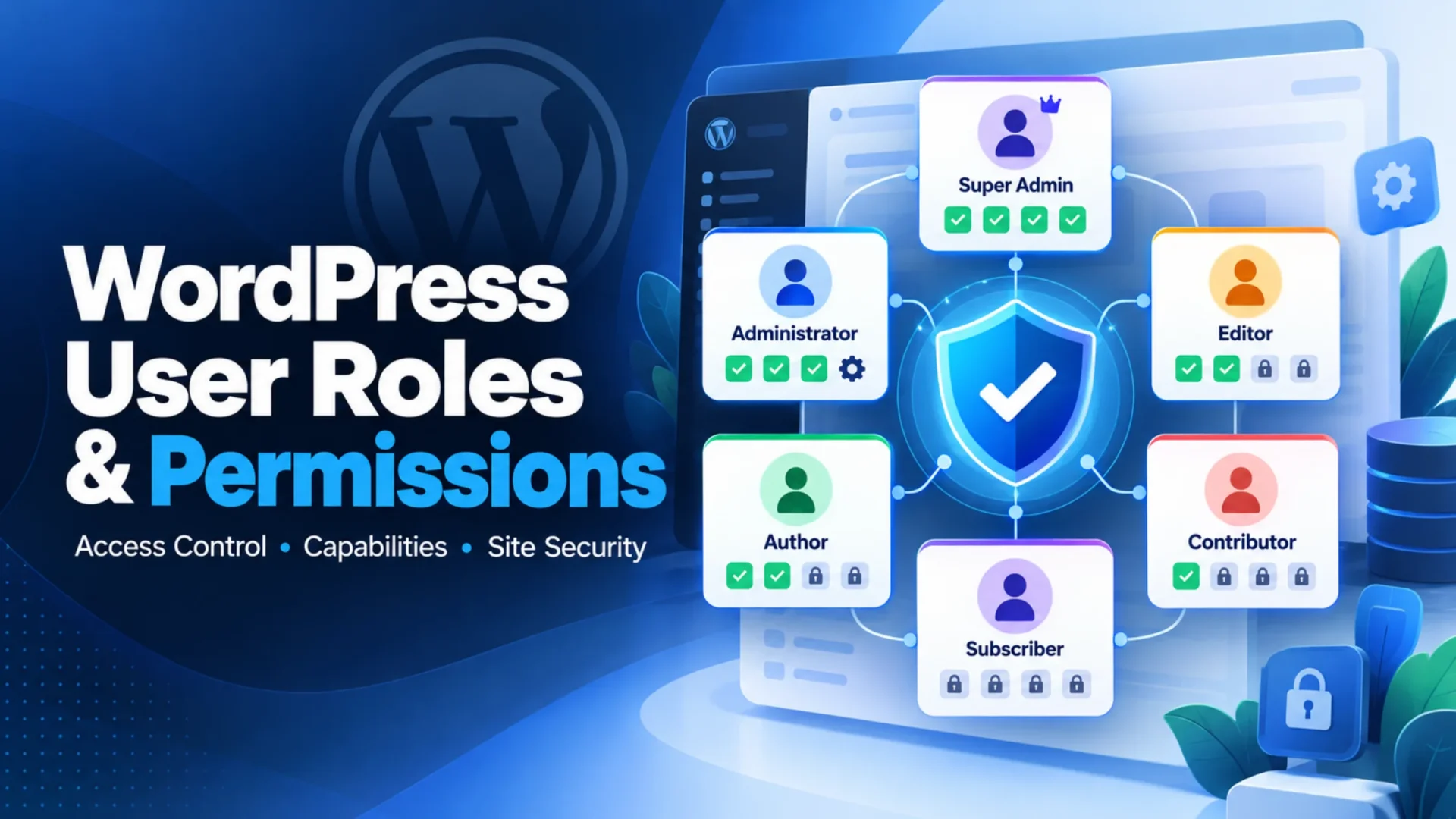
One more thing. If you can log in but suddenly can’t reach certain settings, the account’s role has probably changed. Our guide to WordPress user roles and permissions explains what each role can and can’t do.
Login Page Keeps Refreshing
You type the right password, the page reloads, nothing happens. Corrupted cookies, a plugin conflict, mismatched URLs in Settings > General, or a rogue redirect in .htaccess are the usual causes. Clear cookies, deactivate plugins, and reset .htaccess. If you run a caching plugin, exclude wp-login.php and the admin area from caching.
WordPress Keeps Logging You Out
It’s the same family of problems. A mix of www and non www addresses, cached admin pages, or session rules in a security plugin do most of the damage, so fix those first.
You’ll also see advice to change the AUTH_KEY values in wp-config.php. Regenerating those salts logs everyone out on purpose, which makes it a tool for a suspected hack, not a fix for random logouts.
“Are You Sure You Want to Do This?”
That’s a failed nonce check, WordPress’s way of confirming a request is genuine. Go back, refresh and try again. If it keeps happening, deactivate plugins, update core, and check that your upload limits aren’t smaller than the file you’re uploading.
Skip this popular “fix.” Some guides tell you to paste code into functions.php that creates a new admin account. It works, but forget to remove it and you’ve left a backdoor with a password anyone can guess.
Content, Layout and Email Glitches
Images Won’t Upload
Check permissions on wp-content/uploads (755), then raise upload_max_filesize and post_max_size in php.ini, for example to 64M. Also make sure your hosting account hasn’t run out of disk space. People forget that one.
Visual Editor Acting Strange
White text or missing buttons usually mean a cached script, a conflicting plugin, or damaged TinyMCE files. Clear your cache, deactivate plugins, and if nothing helps, re-upload wp-includes/js/tinymce from a fresh download of the same WordPress version.
Sidebar Dropping Below Content, or Admin Bar Overlapping the Page
Look for an unclosed div tag in the post or template first. Then test with a default theme. A CSS patch will hide the problem, but treat it as temporary. If the theme itself is the cause and you depend on it, a proper fix or a WordPress website redesign is cleaner than stacking patches.
WordPress Isn’t Sending Email
By default it uses PHP mail, which many hosts block and many inboxes treat as spam. Install an SMTP plugin such as WP Mail SMTP, connect it to your email provider or a transactional email service, and send a test. For Gmail, use the OAuth connection rather than a plain password.
RSS Feed Errors
An “XML or text declaration not at start of entity” message almost always means stray whitespace or a blank line before the opening PHP tag in functions.php or wp-config.php. Remove it and the feed comes back.
PHP Warnings Showing on Pages
Hide them from visitors with WP_DEBUG_DISPLAY set to false, as in the debug lines above. But warnings usually point to a badly coded plugin or theme. Hiding them isn’t fixing them.
The Quiet Common WordPress Mistakes That Cost You Traffic
Now for the expensive category. Nothing breaks. No error appears. You just lose visitors slowly, and your numbers stop telling you the truth.
Judging Traffic From the Wrong Place
Lots of site owners check their hosting dashboard and call it done. That figure counts server requests, bots and crawlers included, not people. You can’t tell which pages pull readers in, where they came from, or when they leave. Decisions made on that data are guesses.
Analytics That Were Never Set Up Properly
Installing a plugin is step one, not the finish line. The usual gaps:
- The tracking code is loaded twice, once by a plugin and again in the theme, so every visit counts double
- Your own visits are included in the data
- No key events are set up (called goals in older versions of Google Analytics), so you can’t see whether anyone signs up, buys or fills in a form
- Search Console isn’t connected, which hides the queries bringing people in
- The code is missing from some templates, so parts of the site go untracked
Fixing it is mostly an audit. Check theme files, plugin settings and any tag manager, remove duplicates, then keep one tool.
A Slow Site
Google’s mobile speed research from 2017 found that the chance of a visitor bouncing climbs steadily as load time stretches.
The data is dated and mobile focused, but the direction hasn’t changed. Slow pages lose people, and Core Web Vitals feed that into rankings too. The three metrics to watch are Largest Contentful Paint, Interaction to Next Paint (which replaced First Input Delay in 2024) and Cumulative Layout Shift.
The causes are usually boring: oversized images, too many plugins, no caching, a heavy theme. We cover them in depth in our guide to fixing a slow WordPress website.
Hosting That Can’t Keep Up
Cheap shared hosting is fine for a new site. Then your audience grows, and the limits start to hurt. Pages crawl during a traffic spike. Visitors hit timeouts. Your reputation takes a hit you never see in a report.
The bigger mistake is waiting too long to upgrade. Most owners tolerate weeks of poor performance, lose traffic, and then find that winning it back is harder than keeping it. When we audit slow WordPress development projects, hosting is usually the first thing we look at.
Do the math before you balk at the price. A managed plan costs more each month than shared hosting. Losing a chunk of your visitors costs more.
When you compare hosts, ask for specifics. Which PHP version do you support? Is there server level caching? How are databases optimized? Look for an uptime commitment in writing, a CDN option, easy upgrade paths, and support staffed by people who actually know WordPress.
Indexing and Technical Mistakes
Search engines can’t send you traffic for pages they can’t find. Four problems cause most of the damage:
|
1
|
The “Discourage Search Engines” BoxIt sits under Settings > Reading, developers tick it during a build, and it quietly stays on after launch. Check it today.
|
|
2
|
Blocking RulesA robots.txt file or a noindex tag from your SEO setup can hide whole sections. Our roundup of the best WordPress SEO plugins shows where to find those settings in each tool.
|
|
3
|
Duplicate URLsThe same page reachable with and without www, over http and https, or with different trailing slashes splits your ranking signals.
|
|
4
|
Buried PagesIf key pages sit five clicks deep with no internal links, crawlers give up before they arrive.
|
The quickest way to catch all four. Search Console’s page indexing report shows which pages Google has indexed and why it skipped the rest.
How to Check Website Traffic on WordPress the Right Way
Start with the vocabulary, because the numbers mean different things. A visitor is one person. A session is one visit, and a pageview is one page loaded during it.
Example: say Sarah reads three posts on Monday and two more on Wednesday. That’s one visitor, two sessions and five pageviews. Many pageviews per visitor suggests people dig in. Plenty of visitors with few pageviews suggests they leave fast.
Where traffic comes from matters just as much. Organic visitors arrive from search, referral visitors from links on other sites, direct visitors from typed URLs or bookmarks, and social visitors from platforms like LinkedIn. Each needs its own approach, so don’t lump them together.
Tools to Check Your Traffic
For tools, you’ve got good options:
Google Analytics with Site Kit
Free and detailed. It takes time to learn, but it’s worth the effort.
MonsterInsights
Puts your analytics inside the WordPress dashboard. Handy if you’d rather see charts than spreadsheets.
Jetpack Stats
Simple, from the WordPress team. Fewer features, much easier to read.
Matomo
Privacy focused, can keep data on your own server. Needs more technical setup.
Pick one. Several tracking codes slow your site and give you numbers that don’t match.
For a clean setup, remove every existing tracking code first. Install one tool, then confirm it’s firing using your platform’s real time report. Define your key events (newsletter signups, purchases, form submissions), connect Search Console, and test by visiting from a phone. Don’t rush it. A correct setup now saves a lot of cleanup later.
Speed Fixes That Make a Visible Difference
You don’t need to do everything below. Start at the top and stop when your pages feel fast.
|
1
|
Hosting FirstServer response time, database speed and uptime all start here. If pages hesitate before anything appears, the server is usually the bottleneck.
|
|
2
|
CachingWithout it, WordPress rebuilds each page for every visitor. Full page caching serves a ready made copy instead. Object caching goes further by keeping database query results in memory. Together they cut server load and handle traffic spikes far better.
|
|
3
|
ImagesCompress them, serve modern formats like WebP, and lazy load anything below the fold.
|
|
4
|
Scripts and CSSThemes and plugins often load everything on every page. Trim it:
|
|
5
|
Database CleanupOld revisions, spam comments and leftover plugin data pile up. A regular tidy keeps the admin snappy.
|
|
6
|
Compression and CDNTurn on GZIP or Brotli so files travel smaller, and use a CDN for visitors far from your server.
|
Then keep watching Core Web Vitals. A one time fix decays as plugins update and content grows. If you’d rather not babysit it monthly, a WordPress support plan can handle the monitoring and updates.
Security Mistakes That Turn Small Errors Into Big Ones
An error is annoying. An error on a hacked site is a crisis. Most compromised WordPress sites share the same weaknesses: outdated plugins and themes, weak or reused passwords, no two factor login, and no recent backup to restore from.
Fix the basics. Update on a schedule, delete plugins you don’t use, never install nulled (pirated) themes, use a password manager, switch on two factor authentication for every admin, and store backups off the server. That list is dull. It’s also what actually works.
Fix It Yourself or Call a Developer?
A Quarterly WordPress Health Checklist
Review this every three months. Your site changes, so your checks should too.
✅ Analytics
One tool installed and verified, key events tracking, Search Console connected, internal traffic excluded, no duplicate codes.
✅ Performance
Images compressed, caching active, unused plugins removed, Core Web Vitals passing on mobile.
✅ Hosting
Plan matches your current traffic, a clear upgrade path, automated backups running.
✅ Technical
Important pages indexed, no accidental noindex rules, “Discourage search engines” unticked, internal links in good shape.
Wrap Up: Fix One Thing This Week
Most WordPress errors, from a white screen to a 403, take minutes to fix once you know where to look. The quiet mistakes take longer to spot, but they cost more. Broken tracking, slow pages and an overloaded host quietly cap what your site can do.
Don’t try to fix everything at once. Take the backup. Run the five checks. Then pick one item from the checklist and finish it this week.
FAQs
What is the most common WordPress error?
The White Screen of Death. It usually comes from a plugin or theme conflict or a low PHP memory limit.
How do I fix the WordPress White Screen of Death?
Deactivate your plugins, switch to a default theme, and raise the memory limit in wp-config.php. Check debug.log if the screen stays blank.
Why does my WordPress login page keep refreshing?
Usually corrupted cookies, a plugin conflict, mismatched site URLs, or a bad redirect in .htaccess. Clear cookies, deactivate plugins and check Settings > General.
How do I fix the error establishing a database connection?
Confirm that the database name, user, password and host in wp-config.php match your hosting details. If they do, ask your host whether the database server is running.
Should I fix WordPress errors myself or hire a developer?
Cache, plugin, memory and permission fixes are safe to try yourself. Hire a developer for repeat errors, code edits, database repairs or a suspected hack.
How do I check my WordPress site traffic for free?
Install Google Analytics through a plugin like Site Kit or MonsterInsights, then connect Search Console. Setup takes about fifteen minutes.
Can poor hosting affect my search rankings?
Yes. Slow servers produce slow pages, and downtime stops crawlers from reaching your content. Both hurt user experience, which search engines factor in.
How often should I check WordPress performance and analytics?
Glance at key metrics weekly, review trends monthly, and run a full audit every quarter. Add uptime monitoring so you hear about downtime straight away.
Stuck on an Error, or Not Sure Your Site Is Tracking and Performing the Way It Should?
Our WordPress team can audit your setup, fix what’s broken and keep it stable. Get in touch for a no cost consultation.