




- Start Here: Match Your Symptom to the Right Fix
- Before You Touch Anything: Two Quick Safety Moves
- 9 Fixes for a Plugin Not Working in WordPress
- Use WordPress Recovery Mode for Critical Errors
- Confirm the Basics, Then Clear Every Cache Layer
- Read the Actual Error Before Guessing
- Test for Conflicts Without Taking the Site Down
- Rule Out the Theme
- Check PHP and Plugin Requirements
- Update in Small Batches, or Roll Back
- Reinstall a Clean Copy
- Look at Hosting Limits
- How to Disable a Broken Plugin When You Can’t Log In
- Plugin Broke After a WordPress Core Update?
- Common Plugin Errors and Their Usual Fix
- How to Stop It Happening Again
- When to Bring in a WordPress Developer
- Get a Second Pair of Eyes on the Error
- FAQs
- The Short Version
A plugin not working in WordPress usually isn’t random. Something changed in the last day or two: a core update, a PHP switch, a new plugin, a theme tweak, or a host-side limit. Find that change and you’ve found most of the problem.
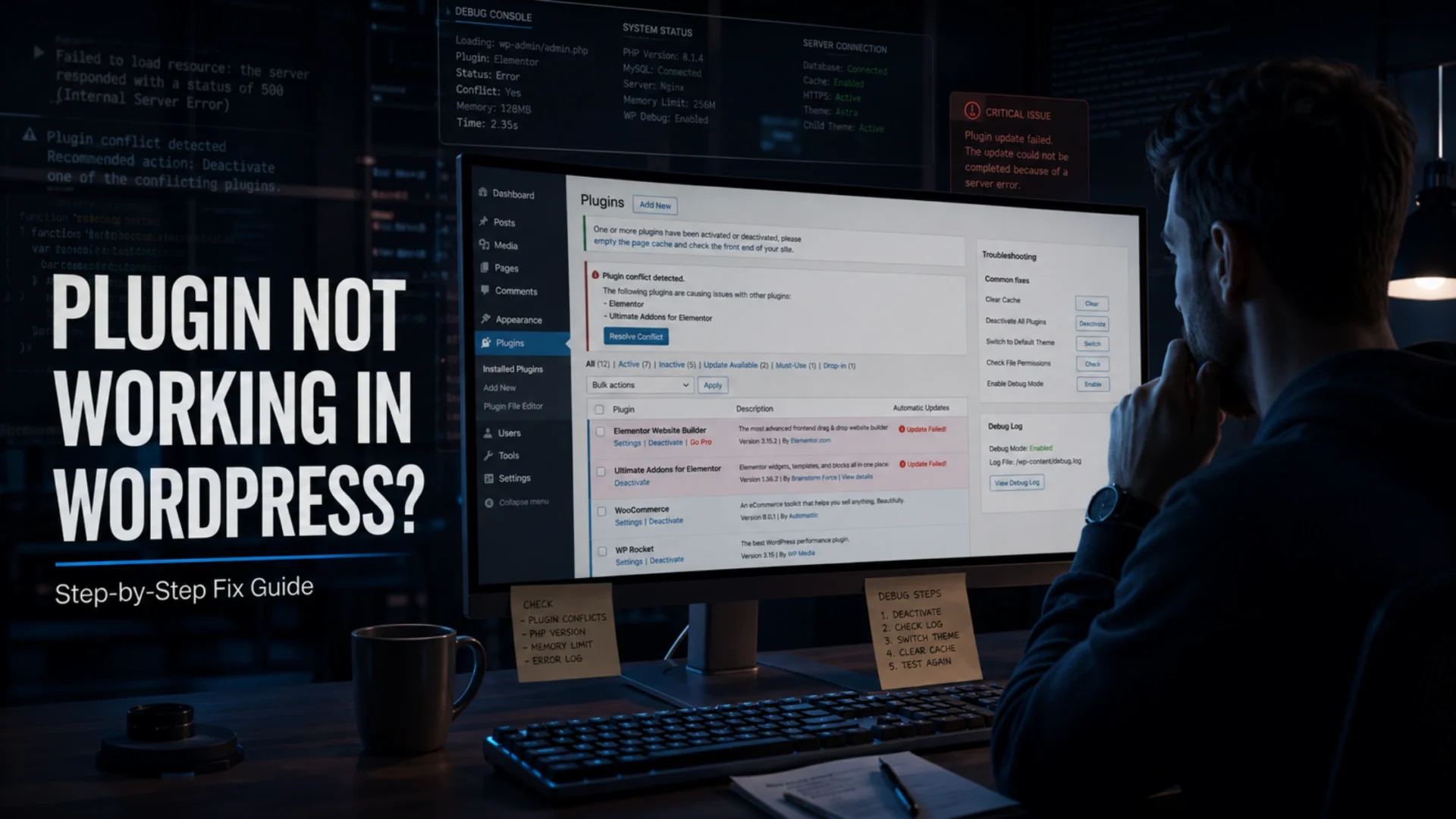
To fix a plugin that isn’t working in WordPress, first take a backup, then check for the recovery mode email, clear every cache layer, and read the actual error in Site Health or the debug log. Test for conflicts using Troubleshooting Mode, confirm your PHP version, and roll back or reinstall the plugin only after that.
Most guides give you a flat checklist and tell you to deactivate every plugin on your live site. That works, but on a store or a lead-gen site it also breaks things for real visitors while you test. This guide is ordered differently. It starts with what you can see, moves to safe testing, and only then touches anything destructive.
Start Here: Match Your Symptom to the Right Fix
Skip the full checklist if your symptom is obvious. This table sends you to the shortest path.
| What you see | Most likely cause | Go to |
|---|---|---|
| “There has been a critical error” | PHP fatal error in a plugin or theme | Fix 1 (recovery mode) |
| Plugin is active but does nothing | Cache, JavaScript error, or wrong settings | Fixes 2 and 3 |
| Broke right after an update | Version mismatch or new PHP requirement | Fixes 6 and 7 |
| Two plugins clash, or the layout breaks | Plugin or theme conflict | Fixes 4 and 5 |
| Locked out of wp-admin | Fatal error or security plugin lockout | Manual disable section |
| Fails only on big imports or heavy pages | Memory or execution time limit | Fix 9 |
Before You Touch Anything: Two Quick Safety Moves
Take a full backup of files and database. Your host’s backup tool or a plugin like UpdraftPlus both work. If the dashboard is already down, use the host panel.
Then ask one question: what changed in the last 48 hours? Check the Plugins screen for recent updates, your host’s activity log for PHP changes, and your team chat for anyone who installed something. Honestly, this five-minute habit solves more cases than any tool.
Never test fixes on a live store during peak hours. If you run checkout or lead forms, use a staging copy or Troubleshooting Mode (Fix 4) so visitors don’t see the breakage.
9 Fixes for a Plugin Not Working in WordPress
Work top to bottom unless the table above sent you somewhere specific.
Use WordPress Recovery Mode for Critical Errors
Since WordPress 5.2, a fatal error triggers an email to the site admin address with a special recovery link. Opening it puts you in a safe session where the failing plugin or theme is paused for you, so wp-admin loads and you can deactivate the culprit. It’s built in, and almost nobody mentions it.
Check the address under Settings, General, and look in spam. On agency-built sites that address is often the client’s, not yours. The design and logic are explained in the WordPress core team’s recovery mode announcement.
Confirm the Basics, Then Clear Every Cache Layer
Is the plugin actually activated? Did a setting reset? Does the changelog mention a feature change? Skipping these feels silly until it’s the answer.
Then clear caches in order: browser (Ctrl+Shift+R or Cmd+Shift+R), your caching plugin such as WP Rocket or LiteSpeed Cache, then the CDN. Cloudflare and similar services keep their own copy. Clearing one layer isn’t enough, and a fixed plugin can look broken for hours behind a stale page.
Cache trouble often hides a slower problem. If pages feel sluggish even after purging, our breakdown of how to fix a slow WordPress website covers the usual offenders.
Read the Actual Error Before Guessing
Open Tools, Site Health first. It flags outdated PHP, failing REST API calls and inactive plugins in plain language. Then open your browser’s developer console (F12) on the broken page. A red JavaScript error usually names the script, which usually names the plugin.
Still nothing? Turn on logging in wp-config.php with these three lines:
define(‘WP_DEBUG_LOG’, true);
define(‘WP_DEBUG_DISPLAY’, false);
Errors then land in /wp-content/debug.log, often with the exact file path of the offender. Switch debug mode off when you’re done. The full option list sits in the WordPress debugging documentation.
Test for Conflicts Without Taking the Site Down
The classic advice is to deactivate everything and reactivate one by one. It works. It also hits every visitor on a live site.
A better route: install the free Health Check & Troubleshooting plugin, go to Tools, Site Health, Troubleshooting, and enable Troubleshooting Mode. It disables plugins and switches the theme for your browser session only. Visitors see the normal site while you test. Re-enable plugins one at a time inside that session until the problem returns.
Order matters a little. Turn on security and caching plugins last, since they hook into almost everything and tend to cause the loudest clashes.
Rule Out the Theme
Sometimes it’s the theme pretending to be the plugin. Switch to Twenty Twenty-Five, the current default theme, inside Troubleshooting Mode or on staging. If the plugin behaves, the theme is using outdated functions or overriding templates. Update it, or ask the developer. Custom themes built years ago are the usual suspects.
Check PHP and Plugin Requirements
WordPress.org now recommends PHP 8.3 or higher, with MySQL 8.0 or MariaDB 10.11 or higher. Older PHP 7.4 and MySQL 5.5.5 still run, but that’s a legacy floor, not a target. The current numbers are on the official WordPress requirements page.
Two-way problem to remember: too old breaks new plugins, and too new can break abandoned ones. If a plugin fails right after a host-side PHP upgrade, open its WordPress.org page and check “Tested up to” and the required PHP version. You can see which PHP releases still receive fixes on the PHP supported versions page.
Update in Small Batches, or Roll Back
Update WordPress core first, then plugins, then themes, and do it in batches of three or four. When something breaks after a bulk update, you’ll know which batch to blame.
If the newest version is the problem, the WP Rollback plugin adds a Rollback link to free plugins and lets you step back one release. For premium plugins, download the previous version from the vendor account. Roll back, then report the bug to the developer so it actually gets fixed.
Reinstall a Clean Copy
Interrupted updates leave half-written files. Deactivate, delete, then install a fresh copy from WordPress.org or the vendor. Settings normally survive because they live in the database. Never install nulled or pirated plugins. They’re one of the quickest ways to pick up malware, and the breakage they cause is the least of your worries.
Look at Hosting Limits
Plugins that only fail on large imports, big backups, or image-heavy pages are often hitting the PHP memory limit or max execution time. Site Health shows both under Info, Server. Ask your host to raise them, or move up a plan. On cheap shared hosting this is the most overlooked cause on the list.
A plugin that keeps failing across several of these fixes may also be a security problem in disguise. Our guide to WordPress security challenges and solutions shows what infected or tampered plugins look like.
How to Disable a Broken Plugin When You Can’t Log In
If recovery mode isn’t available, you have three manual options. All of them work because WordPress deactivates any plugin whose folder it can’t find.
File Manager or FTP: open wp-content/plugins/ and rename the suspect folder, for example woocommerce to woocommerce-off. Not sure which one? Rename the whole plugins folder to disable everything at once.
WP-CLI: if you have SSH, run wp plugin deactivate plugin-name, or add --all to switch every plugin off in seconds.
Database (last resort): in phpMyAdmin, edit the active_plugins row in the options table. Back up first, because one typo here breaks the whole option.
Plugin Broke After a WordPress Core Update?
WordPress 7.0 landed in May 2026, and major releases are when compatibility complaints spike. Plugins that rely on older admin screens, editor hooks or unsupported PHP versions are the first to misbehave.
The safe pattern is boring but reliable: clone the site to staging, update there, click through the plugins that matter (forms, checkout, SEO, caching), and only then repeat on production. If your host offers automatic updates with rollback, enable it for minor releases and keep major ones manual.
Common Plugin Errors and Their Usual Fix
| Error or behaviour | Typical cause | Fix |
|---|---|---|
| White screen | Fatal PHP error | Recovery mode or rename folder |
| Fatal error after upgrade | PHP or WordPress version mismatch | Check requirements, roll back |
| Settings page missing | Corrupted files | Clean reinstall |
| Buttons or forms do nothing | JavaScript error or cache | Console check, purge caches |
| Form submits, no email arrives | Mail delivery, not the plugin | Set up SMTP |
| Slow right after install | Heavy or poorly coded plugin | Profile, then replace |
How to Stop It Happening Again
Most repeat failures come from habits, not bad luck. Keep the plugin list lean and audit it quarterly. Before installing anything, check the last update date and the “Tested up to” field. A plugin untouched for a year is a risk even if it still works today.
Keep a staging site, keep daily backups, and put someone’s real email on the admin address so recovery links reach a person. Our WordPress maintenance checklist turns this into a monthly routine.
Choosing between two plugins for the same job? Comparing maintenance history and support quality beats comparing feature lists. Our review of the best WordPress security plugins shows that approach in practice.
When to Bring in a WordPress Developer
Hand it off when crashes return after every fix, when checkout or payments are affected, when you suspect malware, or when the plugin is custom code. Losing a day of orders costs more than an hour of developer time.
Elsner’s team handles these cases through WordPress development services and ongoing WordPress support plans.
Get a Second Pair of Eyes on the Error
Send us the error message or debug log and our WordPress developers will tell you what’s failing and how long a fix should take.
FAQs
Why is my plugin not working in WordPress?
Usually something changed recently: a core, plugin or PHP update, a new plugin, or a theme change. Check for a recovery mode email, clear all caches, read the error in Site Health or the debug log, then test for conflicts in Troubleshooting Mode.
How do I find which plugin is causing the problem?
Enable Troubleshooting Mode from the Health Check plugin, then reactivate plugins one at a time until the issue returns. The debug log often names the file directly, which can save the whole exercise.
Can a WordPress update break my plugins?
Yes, especially major releases. Back up first, test on staging, and update core, plugins and themes in small batches so you can trace any breakage to its source.
What PHP version should I use for WordPress plugins?
WordPress.org recommends PHP 8.3 or higher. PHP 7.4 still runs WordPress but is a legacy minimum. Check each plugin’s stated PHP requirement before switching versions.
How do I disable a plugin if I can’t access wp-admin?
Use the recovery mode link WordPress emails you, rename the plugin’s folder over FTP or File Manager, or run wp plugin deactivate plugin-name through WP-CLI.
What causes the white screen of death?
Most often a fatal PHP error from a plugin or theme, and sometimes a memory limit. Turn on debug logging to see the error, then disable the responsible plugin.
Should I delete inactive plugins?
Yes. Inactive plugins still sit on the server and can carry unpatched vulnerabilities. Remove what you don’t use and reinstall a fresh copy if you ever need it again.
The Short Version
Back up, find what changed, read the error, test safely, then fix. In most cases that sequence gets a broken plugin working again in well under a day, and the same habits keep the next one from happening. For anything touching revenue, get a developer involved early. It’s usually cheaper.