
 Zoho
Solutions
 Ecommerce
Development
 Web
Development
 AI
Solutions





- Why Sync Accuracy Matters More Than Sync Speed
- The Three Ways to Connect WooCommerce to QuickBooks or Xero
- 1. Off-the-Shelf Plugin: Fastest, Cheapest, Most Opinionated
- 2. Middleware Connector: More Flexibility, More Moving Parts
- 3. Custom API Integration: Highest Upfront Cost, Lowest Cost at Scale
- Setting Up QuickBooks Online with WooCommerce
- Setting Up Xero with WooCommerce
- The Xero Setup Checklist
- Tax Mapping: The Decision That Costs Most Stores Money
- If You Sell in the US
- If You Sell in the EU or UK
- If You Sell in India
- If You Sell Across Australia and New Zealand
- Multi-Currency
- Common Errors and How to Fix Them
- Already Live, and Something Feels Off?
- When to Build Custom Instead of Buying a Plugin
- Maintenance: What Breaks and When
- Final Checklist Before You Go Live
- FAQs
- Can WooCommerce be integrated with QuickBooks?
- Can WooCommerce be integrated with Xero?
- What is the best QuickBooks plugin for WooCommerce?
- How much does WooCommerce accounting integration cost?
- Do I need a plugin or custom integration for WooCommerce accounting?
- How do I sync WooCommerce refunds with QuickBooks?
- Wrapping Up
- Outgrown the Plugin Approach?
Checked November 2026
Vendor details in this guide were checked against MyWorks, WooCommerce, Intuit, and Xero documentation in November 2026.
It’s 9 p.m. and you’re still matching orders to deposits. Your WooCommerce dashboard shows one revenue number. Your bank feed shows another. Then your accountant sends a polite email that, translated, means “this is taking longer than it should,” and the invoice grows by a few hours.
Sound familiar? Most of the time the plugin isn’t the villain. The mapping is. Somebody made a few quick choices on day one, and every order since has carried them.
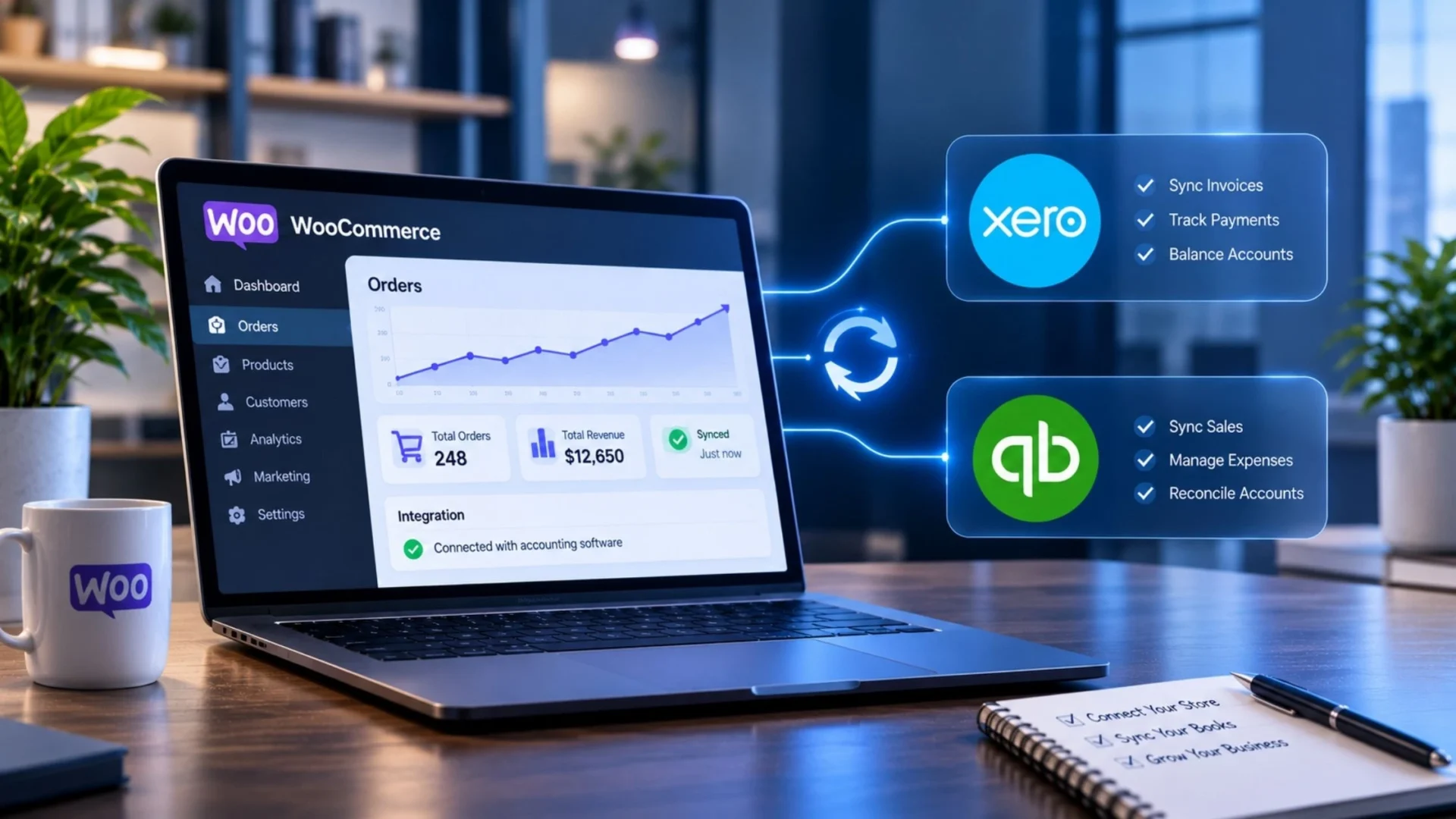
This guide covers a WooCommerce Xero integration and a QuickBooks Online setup side by side, because the two behave differently in places that matter. It’s a practical setup and troubleshooting guide, not a plugin pitch. You’ll get a way to pick your approach, the mapping decisions that count, tax by region, the errors worth knowing, and when custom makes sense.
Why Sync Accuracy Matters More Than Sync Speed
Fast syncs look great in a demo. Orders show up in your books within minutes and everyone nods. Then month end arrives.
A badly mapped integration costs you quietly. Hours disappear into cleaning journal entries by hand. Gross revenue looks inflated. Margin reports stop matching reality, which is a rotten place to be when you’re deciding what to reorder or how much to spend on ads.
Here are the five quiet failures we run into most:
⚠️ Gateway Fees Go Missing
Gateway fees never reach your books, so deposits don’t match sales.
⚠️ Tax Lines Get Duplicated
Tax lines get duplicated, or land in the wrong account.
⚠️ Shipping Is Lumped Into Sales
Shipping gets lumped into product sales.
⚠️ Refunds Don’t Post
Refunds don’t post at all.
⚠️ Currency Conversions Are Skipped
Foreign orders carry the wrong value.
None of these throw an error. That’s the nasty part. The sync says “success” while your books drift.
The good news is that it’s mostly a one time fix. Make the mapping decisions once, make them correctly, and test them before real money flows through. After that, upkeep is light. It’s also the kind of recurring task a WooCommerce support plan usually covers alongside updates and backups.
A slower, accurate sync beats a faster, broken one every time.
The Three Ways to Connect WooCommerce to QuickBooks or Xero
Every project we’ve seen lands in one of three patterns. Pick the wrong one and you’ll either overpay, or replace the whole setup in a year.
1. Off-the-Shelf Plugin: Fastest, Cheapest, Most Opinionated
Think MyWorks Sync, Intuit’s WooCommerce Connector for QuickBooks, or the official WooCommerce Xero extension. You install, connect, map, and you’re running.
This works best for 100 to 3,000 orders a month, a standard catalog, one or two tax jurisdictions, and no custom order fields.
The catch? The mapping model is fixed, so anything unusual becomes a workaround. Plans typically run somewhere between $15 and $100 a month depending on the vendor and your order volume. Check each vendor’s pricing page before you commit, since tiers change.
2. Middleware Connector: More Flexibility, More Moving Parts
Picture a store that sells through WooCommerce and a marketplace, and needs both channels to land in one set of books with different rules for each. A plugin can’t really do that. Middleware like Zapier or Make can, while Celigo and Workato sit at the heavier end for bigger teams.
You get conditional logic and multi system flows. You also get per task pricing that climbs with order volume, and debugging that needs someone technical. When a workflow fails at 2 a.m., somebody has to know why.
3. Custom API Integration: Highest Upfront Cost, Lowest Cost at Scale
This connects the WooCommerce REST API straight to the QuickBooks or Xero API. No middle layer, no per order fees, full control.
One warning. Somebody has to own it. APIs change, tokens expire, tax rules shift, so you need an engineer or a partner on the hook long term.
It fits stores past 5,000 orders a month, marketplaces, multi-store setups, and anything close to ERP territory. As an illustrative budget, think $4,000 to $15,000 upfront. That assumes one store, one accounting platform, a standard tax setup, and a small US- or UK-based team. More platforms or stranger tax models push the number up.
If you’re weighing this route, our WooCommerce development services page shows how we scope projects.
Moreover, our WooCommerce development cost breakdown helps with budget context.
Here’s the quick decision table. Read it top to bottom and stop at the first row that sounds like you. If two rows fit, go with the more demanding one, because it’s cheaper to start with the right tool than to migrate later.
Setting Up QuickBooks Online with WooCommerce
This walkthrough uses MyWorks Sync, since it’s a common plugin route. Intuit’s own connector and other plugins follow a similar flow, but screens and mapping options differ, so check yours.
|
1
|
Prep Your Chart of AccountsDo this before you connect anything. Create these in QuickBooks first: sales income (split by category if your P&L needs it), shipping income, discounts as contra income, sales tax payable for each jurisdiction, merchant fees, refunds, and gift card liability. If an account doesn’t exist, the sync drops money into something generic, and you’ll be hunting for it later. A good test: could your accountant build your P&L from these accounts alone? If not, add what’s missing now.
|
|
2
|
Choose Your Product MappingMap every product individually, or roll them up by category? Under roughly $2M in revenue, category rollups are usually enough. Your accountant doesn’t need 900 income lines. Above that, product-level reporting starts earning its keep. Clean categories do double duty here. They keep your books tidy and they help search, which our WooCommerce product SEO guide covers in detail. |
|
3
|
Connect and AuthorizeClick through the OAuth flow and approve every permission it asks for. Skip one and parts of the sync can fail quietly, with no loud error to tip you off.
|
|
4
|
Map the Six Critical TouchpointsThis is the heart of the setup. Six things have to land in the right place, every time. Why discounts as contra income and not a plain expense? Because you want gross sales and discounts visible separately. Otherwise, a 20 percent sale weekend just makes revenue look weaker than it was, and you can’t tell why. One plugin detail worth knowing: on MyWorks, syncing transaction fees sits on the paid plans as of this writing, so check your tier before you count on it. |
|
5
|
Test With a $1 OrderPlace a real $1 order. Then check five things.
Fail any one, and you fix it before moving on. |
|
6
|
Decide on the Historical ImportWait two weeks on go-forward sync before backfilling. Rushed backfills copy a mapping mistake onto every old order at once, and cleaning that up is miserable.
|
Setting Up Xero with WooCommerce
Same bones as QuickBooks. Accounts first, then mapping, connect, test, wait, backfill. Xero just differs in three places, and each one trips people up.
Difference 1: Tax Rates, Not Accounts
Xero treats tax rates as their own objects. Every tax rate in WooCommerce needs a matching tax rate in Xero before you sync, or orders stall on a missing rate. That includes GST, VAT, HST, state sales tax, and EU OSS rates for each destination country. Tedious? Yes. Do it anyway.
Difference 2: Invoice or Receive Money
Xero can log a sale as an invoice or as a Receive Money entry. Receive Money is quicker, but you lose each customer’s history. Go with invoice mode. The official WooCommerce Xero extension does it this way. It creates an invoice marked “awaiting payment” for each order, then adds the payment later. That way every customer has a record, and repeat buyers and unpaid orders are easy to track.
Difference 3: Bank Feed Reconciliation
Use the payout date as the payment date, not the order date. Say a customer pays on the 3rd. Stripe sends your money on the 5th, and that’s when it shows up in your bank feed. If Xero shows the payment on the 3rd, nothing matches and you end up guessing. Many setups use the order date by default, so check that setting.
The Xero Setup Checklist
- ✅ Create every account you need in Xero (income, shipping, discounts, merchant fees, refunds, gift cards).
- ✅ Create a matching Xero tax rate for every WooCommerce tax rate, including OSS rates if you sell across the EU.
- ✅ Choose product mapping and category rollup for most stores under $2M.
- ✅ Connect and authorize, approving every permission.
- ✅ Set invoice mode and set the payment date to the payout date. Then run a $1 test order and check the six touchpoints.
- ✅ Wait two weeks, then schedule the historical import.
Tax Mapping: The Decision That Costs Most Stores Money
Most setup guides skip this part, which is odd, because it’s where the expensive mistakes live.
A quick note first. Tax rules change, and what follows is general guidance, not tax advice. Check your specific situation with a tax professional.
If You Sell in the US
Start with state nexus. Know where you owe tax, and let a tool like TaxJar (now part of Stripe), Avalara, or similar calculate the rates at checkout. Then hand that tax data to your accounting platform with each state in its own liability account. One misrouted state means one wrong return filed, and that usually ends in a notice from the state. Small stores often assume this only affects big sellers. It doesn’t. Economic nexus rules can reach a store with modest sales in a state, so check each state’s threshold rather than guessing.
If You Sell in the EU or UK
Since Brexit, UK VAT and EU VAT are separate regimes. Keep them separate in your books. For consumer sales into other EU countries, the One Stop Shop (OSS) scheme lets you report VAT per destination country, so each country needs its own mapped rate.
If You Sell in India
GST has three parts. CGST and SGST apply to sales inside a state, IGST applies to sales between states. Your mapping has to know which one fits each order. Standard plugin mappings often struggle with that, and it’s the strongest argument for a custom build. If that’s you, it’s worth finding someone who’s mapped GST before, and you can hire a WooCommerce developer with that experience.
If You Sell Across Australia and New Zealand
GST applies in both countries. Xero grew up in this region, so its GST handling feels natural. QuickBooks Online works too, but confirm that every tax code lines up with a WooCommerce tax class before you go live.
Multi-Currency
Pick one method: the exchange rate at the time of the transaction, or an end-of-day rate. Either can work. Switching halfway can’t. Decide with your accountant, set it, then lock it. Also confirm your accounting plan supports multi-currency before you rely on it.
Common Errors and How to Fix Them
The same five problems show up again and again.
⚠️ Duplicate Customers on Sync
Almost always the email match setting. Turn on matching by email so repeat buyers map to one record.
⚠️ “Tax Rate Not Found”
A WooCommerce rate has no twin in your accounting system. Create the missing rate and map it.
⚠️ Refunds Posting as Expenses
They should post as credit notes in Xero or refund receipts or credit memos in QuickBooks. Check your refund mapping, then repost the affected orders.
⚠️ Payout Doesn’t Match the Invoice Total
The gateway fee isn’t being pulled. Map the fee to its own account and confirm your plan syncs fees.
⚠️ Old Orders Sync, New Ones Fail
Usually an expired or revoked OAuth connection. Reconnect and approve every permission again.
Already Live, and Something Feels Off?
Don’t rebuild yet. Pull ten recent orders and trace each one through six checks: product line, shipping, tax, discount, gateway fee, refund. Compare the WooCommerce order to the accounting record, then to the actual bank deposit.
If the same touchpoint is wrong on all ten, it’s a mapping problem, and it’s fixable in settings. If it’s wrong on only some orders, look for a pattern. A specific gateway, a coupon type, a country, a product category. That pattern usually points straight at the cause.
And if you’ve already swapped plugins twice chasing the same issue, stop. That’s the signal the plugin approach has run out of road.
When to Build Custom Instead of Buying a Plugin
Think of it as a short decision tree.
There’s also a middle road. Use a plugin for the base sync and add a small custom script for the one or two edge cases. It’s often the cheapest and cleanest fix. If you land there, a short engagement is usually enough; no full rebuild required. You can bring in a WooCommerce developer for just that script and keep the plugin doing the heavy lifting. Scope it tightly: name the edge cases, define what correct output looks like, and test against real orders.
Maintenance: What Breaks and When
Integrations don’t rot overnight. They drift.
- API updates: review plugin changelogs quarterly
- Tax rate changes: update the rate in both systems, every time
- New product categories: unmapped ones quietly land in “uncategorized sales”
- New payment gateways: each needs its own merchant fee mapping
- Connection expiry: QuickBooks refresh tokens stay valid with regular use but expire after 100 idle days and have a five-year maximum, while Xero refresh tokens expire after 60 unused days, so put a calendar reminder on both
Budget about 1 to 2 hours a month for a stable setup. If sync jobs ever start slowing your admin or checkout, our WooCommerce performance hacks are worth a look.
Final Checklist Before You Go Live
Tick these off before real orders flow:
- ✅ Chart of accounts matches your P&L structure
- ✅ Every tax jurisdiction mapped end to end
- ✅ Products mapped at category or SKU level
- ✅ Shipping, discounts, gateway fees, and refunds each have a dedicated account
- ✅ Payment date set to the payout date
- ✅ $1 test order verified
- ✅ Historical sync scheduled two weeks out, not today
- ✅ Someone owns the monthly maintenance check
A printable PDF version of this checklist is available as a free download below.
Once the books are solid, put the same care into traffic. Our WooCommerce SEO guide is a good next read.
What this guide doesn’t cover: NetSuite, SAP, and Microsoft Dynamics integrations. Those are ERP projects for larger operations, and our eCommerce development services team handles that work separately.
FAQs
Can WooCommerce be integrated with QuickBooks?
Yes. You can use a plugin such as MyWorks Sync or Intuit’s WooCommerce Connector, a middleware tool, or a custom API build. Which one fits depends mostly on order volume and how unusual your tax setup is.
Can WooCommerce be integrated with Xero?
Yes. The official WooCommerce Xero extension and MyWorks Sync for Xero are two common routes. Middleware and custom API builds work too.
What is the best QuickBooks plugin for WooCommerce?
There isn’t one winner. MyWorks Sync and Intuit’s own connector both work well for standard stores, and they differ on mapping depth, sync features, and plans. Match the plugin to your order volume, tax needs, and any custom fields.
How much does WooCommerce accounting integration cost?
Plugins typically run from free tiers up to roughly $100 a month. Middleware pricing grows with task volume. Custom builds often land between $4,000 and $15,000 upfront for a standard scope, which is an illustrative range, not a quote.
Do I need a plugin or custom integration for WooCommerce accounting?
Under 3,000 orders a month with a standard catalog and one or two tax jurisdictions, a plugin is usually enough. Past 5,000 orders, with marketplace payouts or non standard tax rules, custom starts to pay off.
How do I sync WooCommerce refunds with QuickBooks?
Map refunds to their own account and make sure your plugin posts them as refund receipts or credit memos, not expenses. Test with a small refunded order before you trust it. Then spot check the first few real refunds against your bank.
Wrapping Up
Here’s the whole thing in a breath. Get the mapping right at setup and the sync mostly looks after itself. Get it wrong and you pay for it every month, in cleanup hours and numbers nobody trusts.
Run the six touchpoint check: product, shipping, tax, discount, gateway fee, refund. Know your triggers for going custom: 5,000+ orders a month, a non standard tax model, marketplace payouts, custom fields, or two plugins already replaced.
Outgrown the Plugin Approach?
If you’ve outgrown the plugin approach, or your tax model is more than your current stack can handle, we’d be glad to talk it through. We’ll map what you have, find where it’s leaking, and tell you honestly whether a plugin fix or a custom build makes more sense.