 Zoho
Solutions
Zoho
Solutions
 Ecommerce
Development
Ecommerce
Development
 Web
Development
Web
Development
 AI
Solutions
AI
Solutions





- Why the Native Odoo Import Process Feels Like a Chore
- What This Actually Costs You
- This Is Exactly Why We Built BSI All Import
- What You Can Import
- Why This Works Better Than the Default Wizard
- How It Works
- Install from the Odoo Apps store
- Open the Import Dashboard
- Prepare your file
- Upload, import, check the log
- Frequently Asked Questions
- Does BSI All Import require any coding?
- Which Odoo modules does it depend on?
- What file formats are supported?
- How much does it cost?
- What happens if some rows fail during import?
- Stop Fighting With Imports
- Ready to Stop Importing Data the Hard Way?
Quick Answer
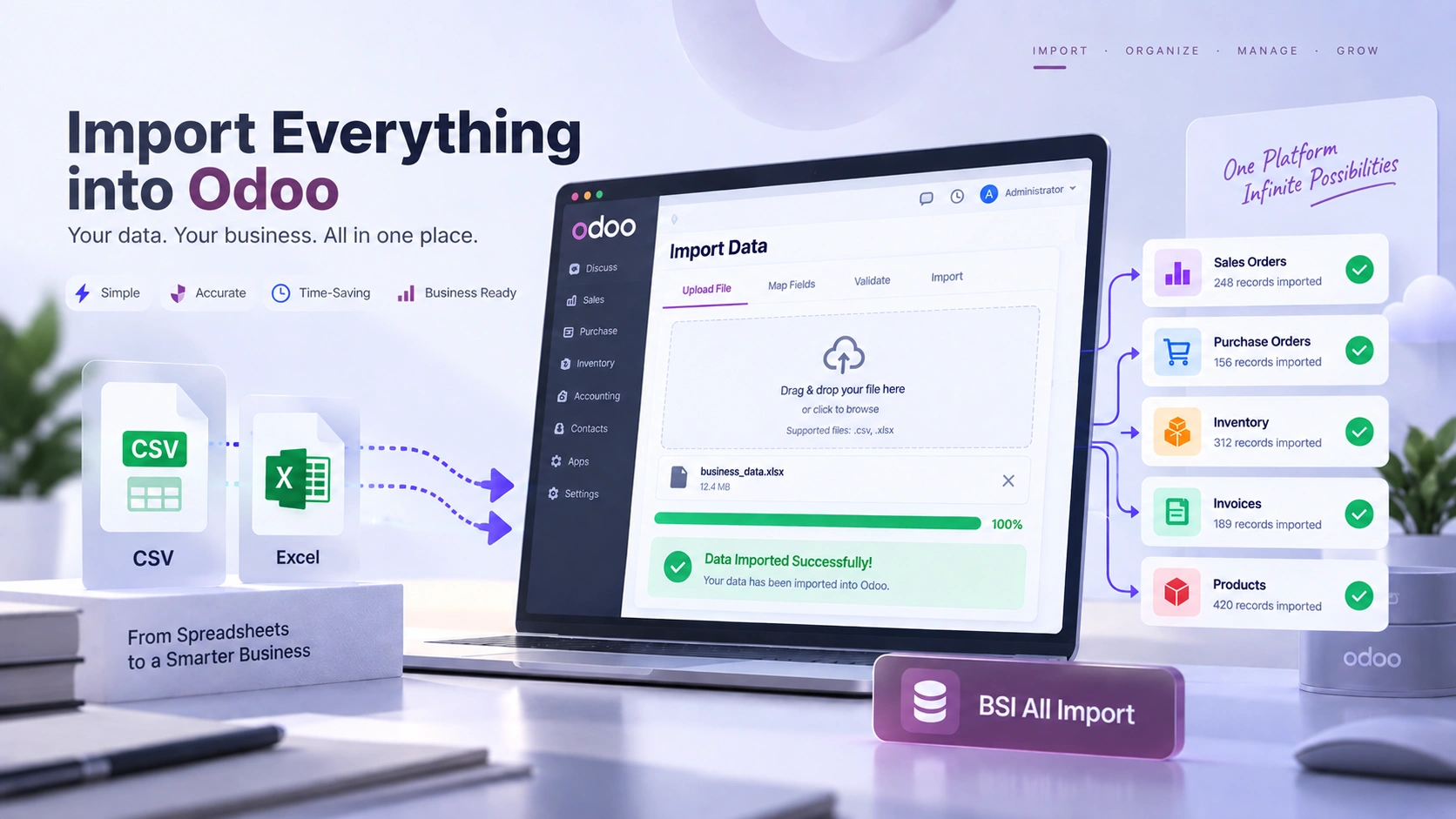
BSI All Import is an Odoo 19 app that lets you bulk import Sales, Purchase, Inventory, Invoices, Payments, Journal Entries, Products, Partners, BOM, and Pricelists from CSV or Excel, all from one dashboard, with no coding involved. It replaces the slower, per-module native import wizard with a single validated workflow and an import log that tells you exactly what succeeded and what didn’t.
Set up a new Odoo instance lately, or moved over from another system? Then you already know how this usually goes. Hundreds of products waiting to be added. A list of customers and vendors that seems to never end. Old invoices, opening stock numbers, price lists, all of it needs to land in the new system somehow, and more often than not, someone just sits down and types it all in one record at a time.
It gets the job done. But those are hours you could’ve spent on things that actually move the business forward, not copy-pasting the same fields over and over.
Why the Native Odoo Import Process Feels Like a Chore
Odoo’s built-in import wizard isn’t bad exactly, but use it for more than one kind of data, and you start noticing the friction.
- No single place where everything happens. Sales orders live in the Sales app, purchase orders in Purchase, inventory numbers somewhere else entirely.
- Field mapping trips people up. Anything that references another record needs an external ID format with a slash ID or slash dot ID suffix.
- No central log showing what went through and what didn’t. If ten rows out of a thousand fail, you’re digging through error messages one by one.
- Large datasets, tens of thousands of records or more, start hitting the wizard’s limits, pushing you toward RPC calls or community modules.
What This Actually Costs You
None of these issues sink a project by themselves. They just pile up quietly.
- A go-live date slips because the data isn’t fully in yet.
- A report comes out wrong because a handful of invoice lines never made it.
- Stock counts don’t add up because an inventory import silently dropped a few rows without telling anyone.
- A developer gets pulled in just to fix records the wizard couldn’t handle on its own.
If your team is regularly stuck untangling Odoo setup and configuration issues, a chunk of that time usually traces back to how data gets in.
This Is Exactly Why We Built BSI All Import
We put every type of data import into a single dashboard, no coding needed anywhere in the process. You’re not switching apps or relearning a different set of rules each time. Pick what you want to import, upload the file, and let the tool take care of the rest.
What You Can Import
If you’re running more than one location, data import is only half the picture. Our Odoo multi branch management guide walks through setting up role-based visibility so each branch only sees its own data.
Why This Works Better Than the Default Wizard
- Everything lives in one dashboard, so you’re not relearning a process every time you switch data types.
- Every import gets validated before anything commits, and results land in an import log.
- Nobody touches code at any point. Guided wizards make it manageable even without backend experience.
- One-time purchase, nineteen dollars and ninety-nine cents per major Odoo version, no recurring fees.
- Ninety days of free bug fix support included if something needs a second look after setup.
How It Works
|
1
|
Install from the Odoo Apps storeDependencies come along automatically; nothing extra to set up on your end. |
|
2
|
Open the Import DashboardPick whichever data type you’re working with from the main menu. |
|
3
|
Prepare your fileFormat as CSV or Excel, matching the columns that the import type expects. |
|
4
|
Upload, import, check the logRun the import, then review the log to confirm everything went through cleanly. If a few rows need fixing, correct just those and re-import. |
Frequently Asked Questions
Does BSI All Import require any coding?
No. Every import runs through a guided wizard. You upload a CSV or Excel file, map the columns, and run the import without touching any code.
Which Odoo modules does it depend on?
It depends on Sales, Purchase, Accounting, Inventory, Manufacturing, and Product. All dependencies install automatically with the app.
What file formats are supported?
Both CSV and Excel files are supported across all 10 import types.
How much does it cost?
It is a one-time purchase of $19.99 per major Odoo version, with no recurring subscription fees.
What happens if some rows fail during import?
Every import is recorded in an import log, so you can see exactly which rows failed and why, fix your file, and re-import just those rows.
Stop Fighting With Imports
Typing everything in by hand, or bouncing between separate wizards for each data type, shouldn’t be part of setting up or updating Odoo every single time. BSI All Import keeps it all in one place, checks your data before it commits, and gets things in without needing a developer standing by. If your team needs deeper implementation help beyond imports, our Odoo development team can assist with that too.
Ready to Stop Importing Data the Hard Way?
Get BSI All Import for Odoo 19 and bring Sales, Purchase, Invoices, Inventory, and more into your system from one dashboard, no coding required.