




- What Is Salesforce Performance Optimization?
- Quick Tweaks vs. Root-Cause Optimization
- Why a Slow CRM Costs More Than Patience
- How to Measure Salesforce Performance Before You Change Anything
- Tools Worth Knowing
- What to Record
- Match the Symptom to the First Place to Look
- Optimizing Salesforce Lightning Experience Performance
- Simplify What Loads First
- Audit Custom and Third-Party Components
- Design Around the Task, Not the Object
- Improving Apex Code and SOQL Query Performance
- Stop Querying Inside Loops
- Write Selective Queries
- Apex Habits That Pay Off
- Optimizing Salesforce Flows and Automation
- Managing Large Data Volumes Without Slowing Down
- Indexes and Selectivity
- Data Skew and Row Locking: The Hidden Slowdown
- Reports, Archiving, and Realistic Retention
- Improving Salesforce Integration Performance
- A Practical Salesforce Performance Optimization Process
- Keeping Performance Stable After Every Release
- Fix It In-House or Bring in a Specialist?
- What a Performance Engagement Can Include
- Key Takeaways
- Frequently Asked Questions
Nobody files a ticket that says the CRM feels slow. They write that the Opportunity page spins for six seconds, or the pipeline report times out, or an overnight integration job failed again. Salesforce performance optimization starts with those complaints, because slowdowns in a CRM rarely arrive in one dramatic moment. They build up through one more flow, one heavier page, one more connected system.
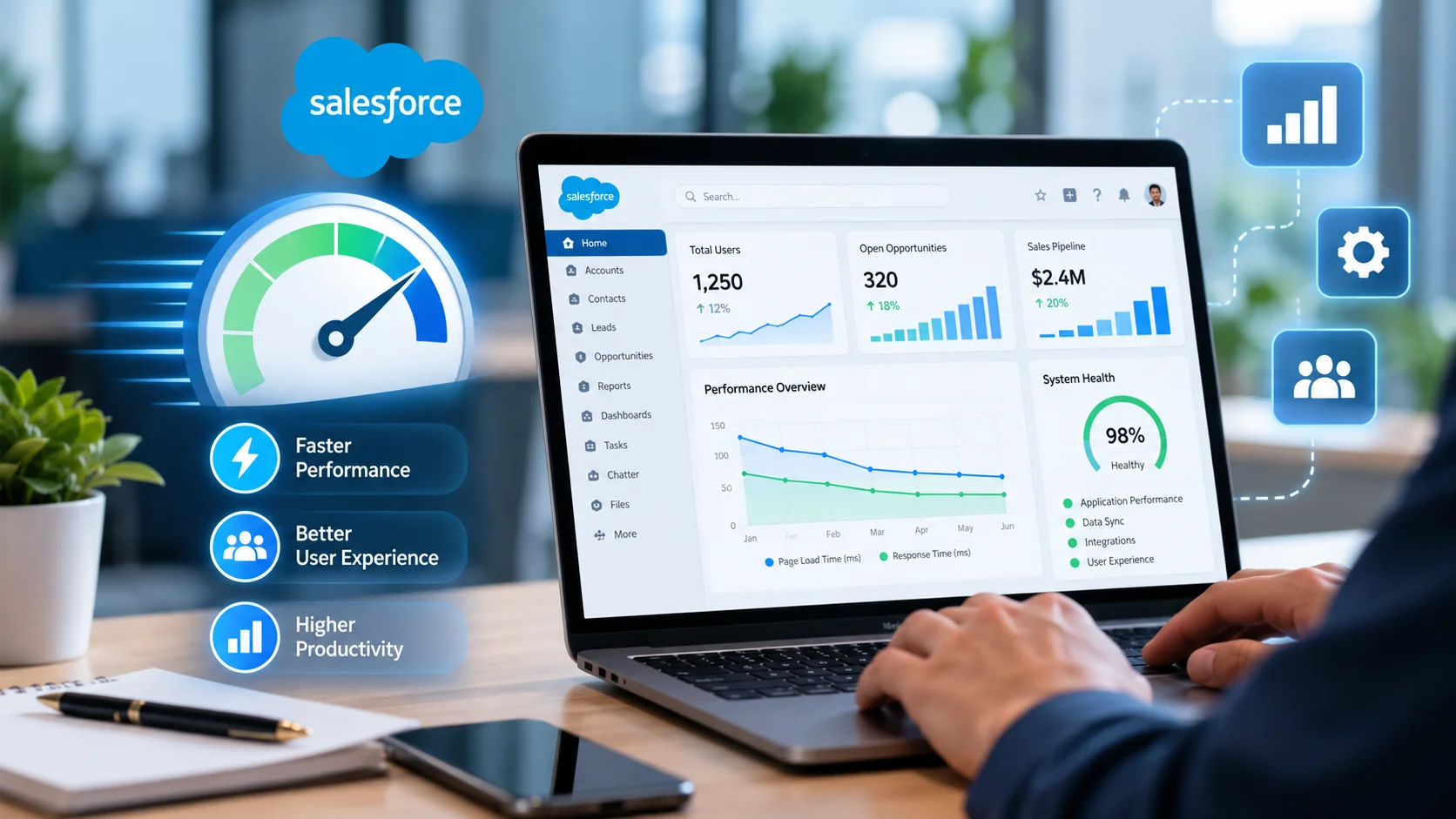
Put plainly, it’s the work of finding where time is really lost across pages, code, automation, data, and connected systems, then fixing the biggest causes first. It isn’t one setting or one tool. It’s a diagnostic habit, and it works best when every change gets measured against a baseline.
This guide covers how to measure a slow org, where to look first, which fixes usually pay off, and how to stop gains from eroding after each release. It also covers topics most guides skip, such as data skew, row locking, retired tools, and the automation cleanup that follows the end of support for Workflow Rules and Process Builder. Elsner has delivered software for 20+ years with 200+ developers, and the approach below reflects how our team triages slow CRM environments.
Quick Answer
Salesforce performance optimization means measuring where a slow org loses time, then fixing causes in order of impact: heavy Lightning pages, bulk-unsafe Apex, non-selective SOQL, overlapping automation, data skew, and slow integrations. Capture a baseline first, change one layer at a time in a sandbox, and compare results after every change. Often, the earliest wins come from consolidating automation and fixing a handful of expensive queries rather than rewriting the org.
What Is Salesforce Performance Optimization?
Salesforce performance optimization is the process of measuring how quickly pages, automations, reports, and integrations complete work in an org, tracing delays to a specific cause, and reducing that cause without breaking business rules. The goal isn’t a faster page in isolation. It’s a faster path from click to saved record to connected system.
Slowness rarely has a single source. A page can feel sluggish because of browser rendering, a heavy component, a query scanning a million rows, or a trigger waiting on an outside service. Lumping those together is how teams lose weeks tuning the wrong layer. Custom code and configuration from Salesforce development add real power, but every addition also adds work to each save and each page load.
Quick Tweaks vs. Root-Cause Optimization
Both have a place. Just know which one you’re doing.
| Area | Quick Tweak | Root-Cause Optimization |
|---|---|---|
| Typical action | Remove a component, hide a related list, or reschedule a report | Trace the slow transaction and fix the code, query, or automation behind it |
| Evidence used | User complaints and gut feel | Baseline timings, debug logs, and query plans |
| How long it lasts | Often a few weeks | Holds through data growth and the next releases |
| Main risk | The delay simply moves to another screen | Needs sandbox testing and regression checks |
| Best fit | Emergency relief before a big sales event | Recurring or steadily worsening slowness |
Why a Slow CRM Costs More Than Patience
Delay compounds quietly. A few extra seconds per save, multiplied across sales, service, and finance, turns into hours nobody budgeted for. In its fifth edition, Salesforce’s State of Sales research found that reps spend just 28% of their week actually selling, with deal management, data entry, and other tasks absorbing the rest. A sluggish CRM adds to that overhead.
- Adoption: Slow screens push reps toward side spreadsheets, and forecasts get weaker with every workaround.
- Reliability: Transactions that sit near governor limits fail under bulk loads, usually at the worst possible moment.
- Capacity: Wasteful automation and chatty integrations burn API and processing limits you’d rather save for growth.
- Scalability: An org tuned for today’s record counts can struggle badly in two years.
- Release resilience: Clean orgs absorb seasonal upgrades with fewer surprises.
Decision Checkpoint
Before spending on optimization, write down which workflow is slow, who feels it, how long it takes today, and what acceptable looks like. If the pain comes from poor fit rather than poor tuning, step back and compare platforms honestly, for example with this Zoho versus Salesforce comparison. Tuning can’t fix a CRM that doesn’t match how the business sells.
How to Measure Salesforce Performance Before You Change Anything
Tuning without a baseline is guesswork. Record how the slow workflows behave today, at realistic data volumes, before touching a single setting.
Tools Worth Knowing
- Scale Center: Found in Setup, it shows org performance and lets you start analyses on Apex, database, flow, row lock, and integration activity. Salesforce’s Scale Test page also describes ApexGuru, which uses AI-based insights to flag inefficiencies in Apex and SOQL or DML usage.
- Developer Console and debug logs: A timeline of Apex execution, SOQL, DML, and flow steps. The Query Plan tool shows whether an index will be used.
- Lightning App Builder Analyze button: Predicts load time for a record page and suggests fixes such as trimming related lists.
- Lightning Usage app: Reports Experienced Page Time (EPT), the measure Salesforce uses for how long a Lightning page takes to load fully.
- Chrome DevTools: Separates browser delay from server delay, which saves a lot of arguing.
- Event Monitoring: Deeper timing data, though it may need an extra license depending on your edition.
- Org Check: Salesforce retired the Optimizer app starting with Winter ’26, and Org Check from Salesforce Labs is the free, community-supported stand-in. It has no official Salesforce support, so treat it as a helper, not a verdict.
One habit separates useful measurement from noise: watch the slow tail, not the average. Averages hide the handful of saves that take twenty seconds, and those are the ones users remember. Run each test several times at different hours, since caching and concurrent load shift the numbers.
If a rollout will push far more users or records through the org, performance testing services can simulate that load before real users find the limits first.
What to Record
Capture timings for the five pages people complain about most, save times on your busiest objects, Apex CPU and query counts for the slowest transactions, flow run times, report run times, and response times from your main integrations. Write the data volume and user count next to each figure. Without that context, a before-and-after comparison means very little.
Match the Symptom to the First Place to Look
| Symptom | Look First | Likely Direction |
|---|---|---|
| A record page takes ages to open | Analyze button and component audit | Trim components, add tab or visibility rules |
| Saves feel slow on one object | Debug log and Flow Trigger Explorer | Consolidate automation, fix bulk-unsafe code |
| UNABLE_TO_LOCK_ROW errors at busy hours | Row lock analysis in Scale Center | Check data skew and parallel batch jobs |
| Reports time out | Filters, report type, and data volume | Narrow scope, add selective filters, archive |
| Overnight integration jobs fail | Callout and API logs, batch sizes | Smaller batches, capped retries, async patterns |
| Whole org slows down gradually | Data growth and index coverage | Review indexes, retention, and archiving |
Optimizing Salesforce Lightning Experience Performance
Page speed is the complaint users notice first, and it’s often the cheapest layer to fix because many gains come from configuration instead of code.
Simplify What Loads First
Record pages gather clutter over the years. Report charts, long related lists, and custom components each run their own queries. Move rarely used items into tabs, and use Dynamic Forms and component visibility rules so elements render only when a user needs them. Test the effect on your own pages, because the payoff depends on how each component is built.
Audit Custom and Third-Party Components
Components that call Apex repeatedly on load, or fetch far more fields than the page displays, are the usual suspects. Lightning Data Service can share cached record data across components, so the same record isn’t requested again and again. For installed packages, disable one in a sandbox and re-run the Analyze button. If the number drops sharply, you’ve found a conversation to have with the vendor.
Test from the user’s side as well. A page that loads in two seconds on a developer workstation can take far longer on a three-year-old laptop over a VPN. Measure under the same conditions your people actually work in, or the numbers will flatter you.
Design Around the Task, Not the Object
Picture an Opportunity page carrying five report charts, a twelve-column activity list, and two custom components that each call Apex. A rep working a deal needs stage, amount, next step, and key contacts. Put those first, tuck the rest behind tabs, and the page gets lighter and easier to scan. Elsner’s overview of Salesforce features that boost user productivity covers the user-facing side of this in more detail.
Improving Apex Code and SOQL Query Performance
Apex runs inside strict per-transaction limits. Salesforce’s documentation lists 100 SOQL queries and 10,000 milliseconds of CPU time for synchronous transactions, rising to 200 queries and 60,000 milliseconds for asynchronous ones, with 50,000 retrieved rows in both cases. Check the current figures in the Apex Developer Guide before designing around them, since limits get revised between releases.
Stop Querying Inside Loops
A query inside a loop runs once per record, so a 200-record trigger batch can burn through the limit before the logic finishes. Collect the IDs first, query once, and look results up through a map.
Set<Id> accountIds = new Set<Id>();
for (Contact con : contacts) {
    if (con.AccountId != null) {
        accountIds.add(con.AccountId);
    }
}

Map<Id, Account> accountsById = new Map<Id, Account>([
    SELECT Id, Name
    FROM Account
    WHERE Id IN :accountIds
]);

for (Contact con : contacts) {
    Account acc = accountsById.get(con.AccountId);
    if (acc != null) {
        // Use the account data here.
    }
}
That’s one Account query instead of one per Contact. Apply the same thinking to DML: build a list inside the loop and run a single insert or update afterward. Bulkified DML is necessary, but it doesn’t make code bulk-safe on its own. CPU time, heap size, recursion, and other automation in the same transaction still count.
Write Selective Queries
The query optimizer only drives a query with an index when the filter targets fewer records than a threshold. Salesforce’s developer blog puts it at 30% of the first million records plus 15% beyond that for standard indexes, and 10% of the first million plus 5% beyond that for custom indexes. A not-equal filter on a status field can’t use its index at all. Run the Query Plan tool, and treat a relative cost above 1 as a sign the query isn’t selective.
Apex Habits That Pay Off
- Select only the fields the logic needs.
- Keep one trigger per object and push logic into handler classes, so execution order stays predictable.
- Guard against recursion with explicit state checks.
- Move non-urgent work to Queueable or Batch Apex. Async still consumes resources, so it shifts the cost out of the user’s wait rather than erasing it.
- Test with 200 records per trigger batch, not just single saves.
- Review ApexGuru findings in Scale Center for hot spots you didn’t suspect.
A Useful Principle
Fix the transaction, not the symptom. A slow page, a failed import, and a timeout often trace back to the same overloaded save. Find that save first.
Optimizing Salesforce Flows and Automation
Every trigger, flow, validation rule, and workflow action on an object runs inside the same save. Pile those up over several years, built by different people, and nobody remembers what fires when.
Salesforce ended support for Workflow Rules and Process Builder on December 31, 2025. Existing automations still run, but they receive no bug fixes or customer support, so this is the moment to consolidate rather than merely convert. Running Migrate to Flow across twenty processes can leave you with twenty flows that still overlap. Merge by object and trigger point instead. Teams carrying years of old automation sometimes treat this as a legacy software modernization project, and that framing often helps.
- See what runs: Flow Trigger Explorer in Setup lists record-triggered flows on an object and their order.
- Use before-save flows for same-record updates: They skip an extra database save, so they’re generally faster than after-save flows for that job.
- Tighten entry criteria: Run only when the relevant fields change.
- Keep Get Records and DML out of loops: Gather records in a collection, then act once after the loop.
- Stop update loops: Compare old and new values before writing.
- Test in bulk: One record behaving well proves very little.
Caution
Swapping a flow for Apex, or the reverse, doesn’t speed anything up by itself. Measure before and after, and keep business rules and data consistency intact.
Approvals and handoffs that span several systems deserve a wider look too. Our overview of enterprise workflow automation explains why the slowest step in a process is so often outside Salesforce.
Managing Large Data Volumes Without Slowing Down
Accounts, contacts, cases, activities, and custom records pile up fast. Design for the data you’ll have in two years, not the data you have this quarter.
Indexes and Selectivity
Standard indexes cover fields such as record IDs, names, and lookups, and External ID and unique fields are indexed automatically. Custom indexes on other fields generally require a request to Salesforce Support, so raise it early for large objects. A query that behaves with 5,000 records can crawl or fail at 5 million, so test at realistic scale in a full-copy or large-data sandbox where possible.
Data Skew and Row Locking: The Hidden Slowdown
Salesforce’s Large Data Volumes training defines data skew as more than 10,000 child records tied to one parent. It comes in three forms: account skew, ownership skew where one user owns an outsized share of records, and lookup skew. The cost appears as lock contention. When many updates touch the same parent, the others wait, and Salesforce’s engineering blog notes that a wait beyond 10 seconds ends in an UNABLE_TO_LOCK_ROW error.
The classic culprit is a catch-all Unassigned account that quietly collects hundreds of thousands of contacts or cases. If saves slow down at busy hours but look fine in testing, check for skew before touching code. The row lock analysis in Scale Center is a fast way to confirm it.
Reports, Archiving, and Realistic Retention
- Narrow date ranges and filters, and cap the number of components on each dashboard.
- Archive or delete historical records when compliance and reporting rules allow it.
- Use pagination for large result sets instead of loading everything at once.
- Offload heavy cross-object history to a business intelligence layer when native reports start straining.
Retention decisions need care, since archived data can still feed reports, relationships, and downstream integrations. Agree on the rules with finance and compliance before anything gets deleted.
Seeing Slow Saves, Timeouts, or Failed Bulk Jobs?
Tell us where it hurts and what your org looks like today. Elsner’s team can help you trace the cause, rank the fixes by impact, and plan changes that won’t disrupt daily work.
Improving Salesforce Integration Performance
Salesforce rarely works alone. ERP, billing, marketing, and warehouse connections can each stall a save, particularly when a user waits on an outside response.
- Too many API calls for data that could travel in bulk
- Payloads carrying fields nobody uses
- Slow responses from the external system
- Synchronous calls that block the user’s save
- Retry logic that hammers a struggling service
- Rate limits and failed requests that nobody monitors
Bulk-oriented APIs such as Bulk API suit large loads better than thousands of single-record calls. When a process doesn’t need an immediate answer, event-driven patterns like Platform Events or Change Data Capture, paired with Queueable or Batch Apex, take the wait out of the user’s transaction. And if the connection needs custom middleware or a queue between systems, custom software development is often cleaner than stretching Apex callouts.
A quick sanity check helps here. List every system that touches Salesforce, note whether each call is synchronous, and mark the ones a user waits on. That short inventory usually exposes the worst offender within an hour.
Keep callout rules in mind. A transaction can make a limited number of callouts, each has a maximum timeout, and Apex can’t call out after uncommitted DML in the same transaction. Build in timeout handling, capped retries, monitoring, and idempotency, so a retried request can’t create duplicate records. Named Credentials keep endpoints and authentication tidy.
The other side of the connection matters just as much. Review API development best practices with whichever team owns the external endpoint, because a slow API will beat any amount of Apex tuning.
A Practical Salesforce Performance Optimization Process
A repeatable process keeps tuning focused on evidence. These seven steps work for a small cleanup or a large remediation.
Step 1: Pick the Workflows That Matter Most
Choose the three slowest workflows that carry real business value, such as opportunity saves, case creation, or the weekly pipeline report. Ignore the loudest complaint if it affects only a few users.
Step 2: Capture Baselines
Collect timings, debug logs, and Scale Center data at realistic volumes. Write down user counts and record counts next to every number.
Step 3: Find the Layer
Decide whether the delay lives in the browser, the page, Apex, automation, the database, or an integration. One tool rarely answers that alone, so compare two or three.
Step 4: Rank by Impact and Effort
Plot fixes on a simple grid. Consolidating overlapping flows and fixing one expensive query usually beat a sweeping rewrite.
Step 5: Change One Layer at a Time
Work in a sandbox and change a single thing per test. Otherwise you’ll never know which change helped, or which one quietly hurt.
Step 6: Regression Test, Then Deploy
Run functional tests and bulk tests before release. Teams with frequent releases benefit from automated regression testing, since it catches side effects while they’re still cheap to fix.
Step 7: Monitor and Repeat
Compare against the original baseline after deployment, then schedule the next review. Performance work is a cycle, not a project with an end date.
Keeping Performance Stable After Every Release
Salesforce ships three releases a year, with Spring typically in February, Summer in June, and Winter in October. Winter ’27 has just rolled across production orgs, with exact timing set by instance. Each release can change behavior, retire features, or enforce release updates, so rerun your baseline timings after every upgrade and test in a preview sandbox first.
New workloads deserve the same discipline. Teams adding AI agents on top of CRM data should treat them like any other heavy consumer of the org: measure the extra queries and API calls they create, and test before rollout. If that work is on your roadmap, our AI agent development team can help scope it.
Fix It In-House or Bring in a Specialist?
Both routes work. The right mix depends on how deep the problem sits and how much time your admins can spare.
| Decision Factor | Internal Team | Specialist Partner |
|---|---|---|
| Speed to diagnosis | Fast for known issues, slower for unfamiliar ones | Faster on tricky causes such as skew or lock contention |
| Depth on code and data | Depends on developer bench and experience | Broad exposure to similar orgs and patterns |
| Objectivity | Close to the design decisions already made | Fresh eyes and no attachment to old choices |
| Cost model | Staff time and opportunity cost | Scoped engagement with defined deliverables |
| Best fit | Configuration cleanup and routine tuning | Code-level, data-model, and integration problems |
A hybrid often wins: a specialist diagnoses and sets priorities, and your admins own day-to-day fixes. Here’s a look at why companies hire a Salesforce consultant if you’re weighing that split.
What a Performance Engagement Can Include
Scope drives price far more than org size alone. Ask any provider to define deliverables before quoting.
Health Check
Baselines, a ranked list of findings, and quick wins your team can apply right away.
Scope: Narrow
Targeted Fix
Deep work on two or three slow workflows, with before-and-after measurements.
Scope: Focused
Deep Remediation
Code refactoring, automation consolidation, data model and skew fixes, and integration redesign.
Scope: Broad
Ongoing Monitoring
Release-by-release regression checks and a recurring review of performance trends.
Scope: Continuous
Final pricing depends on org complexity, code volume, data size, and how much testing the changes require, so request a scoped proposal instead of relying on generic numbers.
Key Takeaways
- Salesforce performance optimization is a measured, layer-by-layer process: pages, code, automation, data, and integrations.
- Capture a baseline at realistic data volumes before changing anything, and watch slow-tail results instead of averages.
- Bulkified, selective Apex and SOQL prevent most governor-limit failures.
- End of support for Workflow Rules and Process Builder is a good reason to consolidate automation, not just convert it.
- Data skew and row locking cause slowdowns that code reviews often miss, so check for them early.
- Rerun your baseline after every Salesforce release, and retest whenever you add a new integration or AI workload.
Frequently Asked Questions
Why is Salesforce running slowly?
Common causes include heavy Lightning pages, inefficient Apex, non-selective SOQL, overlapping automation, large data volumes, data skew, and slow integrations. Network and browser conditions play a part too. Measure first so you fix the actual layer.
How can I improve Salesforce Lightning page performance?
Simplify layouts, move rarely used components into tabs, apply component visibility rules, review related lists, and audit custom and third-party components. Use the Analyze button in Lightning App Builder and the Lightning Usage app to confirm results.
How do I find slow Apex code or SOQL queries?
Use Developer Console debug logs to see queries, DML, and processing time, and run the Query Plan tool on suspect queries. Scale Center and ApexGuru can point to hot spots across the whole org.
Can Salesforce Flows slow down record saves?
Yes. Overlapping or poorly scoped flows add processing time to every save. Tighten entry criteria, use before-save flows for same-record updates, keep Get Records and DML out of loops, and test with bulk data.
How does data volume affect Salesforce performance?
Large datasets make queries, reports, and integrations more expensive, and data skew adds lock contention. Selective filters, indexes, archiving, and well-distributed record ownership keep growth manageable.
Does Salesforce performance optimization require custom development?
Not always. Cleaning up automation, simplifying pages, and adjusting reports can deliver real gains through configuration alone. Code or integration changes become necessary when diagnostics point to those layers.
What replaced the Salesforce Optimizer app?
Salesforce retired Optimizer starting with Winter ’26. Org Check, a free tool from Salesforce Labs, is a common replacement for org health reviews, though it isn’t officially supported by Salesforce.
How often should Salesforce performance be reviewed?
Monitor continuously and run a deeper review after major changes to automation, integrations, data models, or key pages. A quick check after each of the three yearly releases is a sensible habit.
Get Your Salesforce Org Running Faster
If your org is slowing down and you’re not sure where to start, Elsner can assess your setup, find the real bottlenecks, and plan fixes that hold up through growth and release cycles.
About This Guide
Written by the Elsner Technologies engineering and CRM team. Elsner has delivered web, mobile, CRM, and enterprise software for more than 20 years with 200+ developers. Governor limits, thresholds, and release dates change over time, so confirm current values in Salesforce documentation before applying any figure to a production org.