 Zoho
Solutions
Zoho
Solutions
 Ecommerce
Development
Ecommerce
Development
 Web
Development
Web
Development
 AI
Solutions
AI
Solutions




- What “Disapproved” Actually Means in Merchant Center
- Why Odoo Stores Run Into This More Than Other Platforms
- The Most Common Disapproval Reasons for Odoo Sellers
- How to Diagnose the Exact Cause Before You Touch Anything
- How to Fix It at the Source in Odoo
- Where Manual CSV Exports Break Down
- Tired of chasing the same feed errors every month?
- What a Dedicated Sync App Fixes That Manual Exports Can’t
- A Practical Checklist to Stop Recurring Disapprovals
- Frequently Asked Questions
- Why do my Odoo products keep getting disapproved on Google Shopping?
- What’s the difference between a disapproval and a warning in Merchant Center?
- Do all Odoo products need a GTIN?
- How often should I sync my Odoo catalog to Google Merchant Center?
- Can I fix a disapproved product without waiting for a manual review?
- Why does Odoo need a separate app for Google Shopping instead of a native connection?
- Stop losing sales to preventable Google Shopping disapprovals
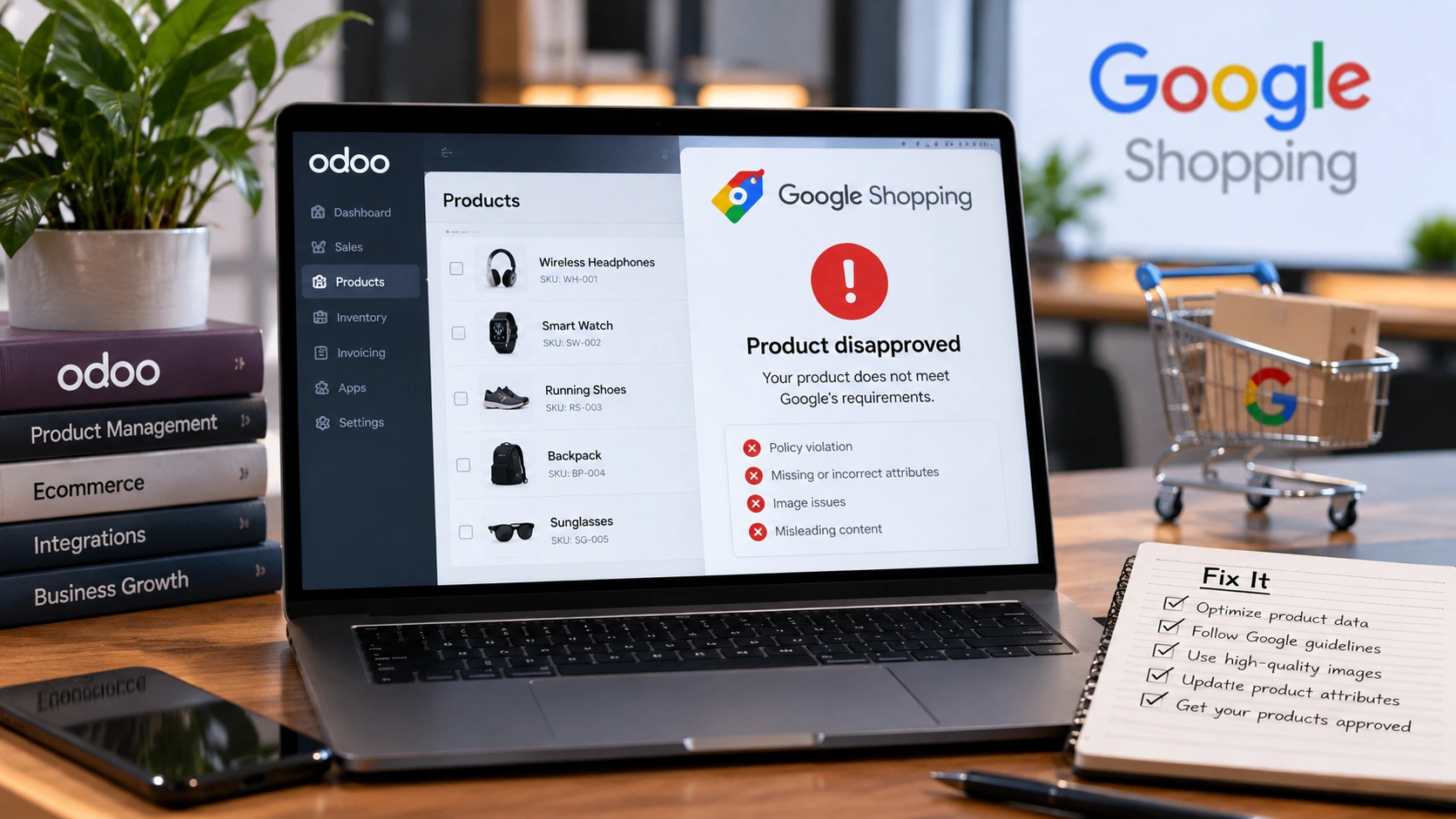
You export your Odoo catalog, upload it to Google Merchant Center, and wait. A few hours later, half your products show a red warning icon: disapproved. No impressions, no clicks, no sales, and the error message rarely tells you what actually went wrong in plain language.
If this sounds familiar, you’re not doing anything unusually wrong. Odoo stores run into a specific set of disapproval patterns more often than other platforms do, mostly because the connection between an Odoo product record and a Google-compliant Google Shopping Feed isn’t built in by default. Something has to translate one into the other, and when that translation is manual or incomplete, Google catches it.
This guide walks through why Odoo products specifically get disapproved, how to read what Google is actually telling you, and what fixes the problem at the source instead of patching it product by product every week.
Quick Answer
Odoo products get disapproved on Google Shopping mainly because of missing or invalid GTINs, price and availability values that don’t match the live product page, product categories that aren’t mapped to Google’s taxonomy, and incomplete shipping or image data. These issues happen more often on Odoo stores because manual CSV exports and one-time field mappings drift out of sync as the catalog changes. Fixing it means correcting the underlying Odoo data, not just resubmitting the same feed.
What “Disapproved” Actually Means in Merchant Center
It helps to separate three different things Merchant Center throws at you, because they’re not the same severity and they don’t need the same response.
A data quality warning means your product still shows on Shopping ads and free listings, but with reduced performance, usually fewer impressions. A disapproval means the product is invisible until you fix it. It won’t appear in any auction, no matter how good your product or your bid is. An account-level suspension is the serious one: if enough products, or your account settings, violate Google’s policies, your entire catalog can be pulled, not just individual listings.
According to Google’s own Merchant Center documentation, disapprovals happen when submitted product data doesn’t match what’s on your website or doesn’t comply with Google’s product data specification. That distinction matters: Google isn’t just checking your feed in isolation, it’s checking your feed against your actual live product page.
Why Odoo Stores Run Into This More Than Other Platforms
Shopify and BigCommerce both ship with a native Google Shopping channel that handles most of the translation work automatically. Odoo doesn’t, at least not out of the box. That gap gets filled in one of a few ways, and each one carries its own risk of drift.
The most common setup is a manually exported CSV, cleaned up in a spreadsheet, and uploaded to Merchant Center on some rough schedule. That works for a week or two. Then someone changes a price in Odoo, a product goes out of stock, or a new variant gets added, and the feed doesn’t know any of it happened. Google compares the stale feed against the live page and flags the mismatch.
The second issue is category mapping. Odoo’s product categories are built around how your business organizes inventory internally. Google’s product taxonomy is a completely separate structure with its own hierarchy and naming. Nothing maps one to the other automatically, so without deliberate mapping work, products either get pushed into the wrong Google category or get rejected outright for missing category data. Getting this right usually needs someone who understands both sides of an Odoo implementation and Google’s requirements, not just one or the other.
Third, Odoo doesn’t have a dedicated GTIN field on the standard product form the way some ecommerce platforms do. Merchants often leave it blank, fill in a barcode field that isn’t actually a GTIN, or reuse the same identifier across variants that should each have their own. All three of those trigger disapprovals.
The Most Common Disapproval Reasons for Odoo Sellers
Here’s what actually shows up on the Diagnostics tab for most Odoo stores, roughly in order of how often we see it.
1. Missing, invalid, or restricted GTINs
Google checks GTINs against manufacturer records and against restricted prefix ranges. A GTIN that starts with a restricted prefix, or one that’s been copied across multiple variants of the same product, gets rejected. According to Google’s identifier requirements documentation, products with incorrect or missing identifiers either won’t sync at all or will show with limited performance until the correct value is provided.
2. Price or availability mismatch
The feed says $89, the live page says $79 after a sale you forgot to sync. Or the feed still says in stock on a product Odoo shows as zero on hand. This is a timing problem, not a data problem, and it’s the single most common cause we see on stores running manual or infrequent exports.
3. Category mapping errors
A product landing in an unrelated or overly generic Google category, or missing a category entirely, either gets disapproved or shows with reduced visibility. This almost always traces back to categories that were mapped once, early on, and never revisited as the catalog grew.
4. Missing shipping information
Google requires shipping cost and time information to display most products. If that’s configured at the account level in Merchant Center but your Odoo shipping rules changed, or if it was never set up per country, products get flagged for missing shipping data even though everything else about the listing is correct.
5. Image quality and policy issues
Placeholder images, watermarked photos, stock images that don’t match the actual product, or images below Google’s minimum resolution all get rejected. This one’s usually simple to fix once flagged, but it’s easy to miss across a large catalog without a systematic check.
6. Missing brand or MPN
Required for most product categories, with narrow exceptions for things like movies, books, and music. A blank brand field on an Odoo product that isn’t a custom or handmade item is an easy, avoidable disapproval.
How to Diagnose the Exact Cause Before You Touch Anything
Don’t guess. Merchant Center tells you exactly what’s wrong, product by product, if you know where to look.
- Open Products → Diagnostics for a catalog-wide view grouped by issue type
- Click into the Item issues tab to see which specific products are affected by each issue
- Download the affected-products report for bulk issues instead of clicking through one product at a time
- Read the exact error text, not just the category. “Invalid GTIN” and “GTIN not recognized” need different fixes
- Fix errors before warnings. Errors mean the product is invisible right now. Warnings mean it’s underperforming
One thing worth being direct about: Google’s Diagnostics tab is the source of truth here, not a support forum thread or a generic checklist. Every fix should start with the exact error message on the exact product.
How to Fix It at the Source in Odoo
Patching the feed file fixes the symptom for one submission cycle. Fixing the Odoo data fixes it for good.
For GTIN issues: assign each product and variant a real, manufacturer-issued GTIN in a dedicated field, not a reused internal SKU. If a product genuinely has no GTIN, such as a custom or handmade item, mark it accordingly rather than leaving the field blank or guessing at a number.
For price and availability mismatches: the fix isn’t a better export, it’s a shorter gap between when Odoo changes and when the feed reflects it. A price change at 10am shouldn’t still be wrong on Google at 6pm.
For category mapping: build a proper mapping table between your Odoo categories and Google’s product taxonomy once, with the ability to override it at the individual product level for edge cases, rather than mapping by hand every time a new product line launches. This is often where an experienced Odoo development team saves weeks of trial and error, since Google’s taxonomy has thousands of categories and getting the hierarchy right isn’t obvious on a first pass.
For shipping and images: these are usually one-time setup problems, not recurring ones. Get them right at the account and product level and they tend to stay fixed.
Where Manual CSV Exports Break Down
A manual export isn’t a bad idea for a ten-product catalog you touch once a month. It falls apart at scale, and most stores hit that wall faster than they expect.
| Manual CSV Export | Dedicated Sync App |
|---|---|
| Updates whenever someone remembers to re-export | Syncs automatically on a set schedule |
| Category mapping done by hand, product by product | Category mapping set once, applied catalog-wide |
| Errors discovered after Google rejects the feed | Pre-flight checks catch missing mappings before submission |
| No per-product status visibility | Pending, synced, error, and excluded states tracked per product |
| Multi-country feeds mean multiple manual files | One feed per country, currency, or website, managed centrally |
None of this means manual exports are wrong for every store. It means the failure points are predictable, and they get worse, not better, as your catalog grows.
Tired of chasing the same feed errors every month?
Elsner’s Google Shopping Feed app for Odoo 19 connects directly to Google Merchant Center, with built-in field and category mapping, a pre-flight feed debugger, and hourly auto-sync, so disapprovals get caught before Google sees them.
What a Dedicated Sync App Fixes That Manual Exports Can’t
A purpose-built feed app doesn’t just move data faster. It closes the specific gaps that cause the disapprovals covered above.
- Field mapping: every Google attribute, including GTIN, brand, price, and availability, gets mapped to an Odoo field, a static value, or an expression, once, instead of being re-typed in a spreadsheet
- Category mapping: Odoo categories map to Google’s official taxonomy catalog-wide, with per-product overrides available for exceptions
- A built-in feed debugger: pre-flight checks catch missing mappings, missing values, and missing categories before you sync, plus live item-level issues pulled straight from Google
- Per-product feed status: pending, synced, error, and excluded states tracked per product per shop, with the exact payload sent and Google’s response stored for review
- Hourly auto-sync: every active shop stays current automatically, with the option to trigger an on-demand sync whenever needed
- Per-product overrides: GTIN, MPN, brand, condition, and custom labels are set directly on the product, right next to the fields they depend on
The point of the debugger specifically is worth calling out. Most tools tell you what went wrong after Google rejects the feed. Catching missing mappings before submission means fewer disapprovals show up on the Diagnostics tab in the first place, rather than needing to be cleaned up after the fact.
A Practical Checklist to Stop Recurring Disapprovals
- Every product and variant has a real, manufacturer-issued GTIN, or is correctly marked as not needing one
- Price and stock status in Odoo and in the feed stay within minutes of each other, not hours or days
- Every Odoo category maps to a specific Google taxonomy category, not a generic catch-all
- Shipping cost and time are configured for every country you’re targeting
- Product images meet Google’s resolution requirements and match the actual product
- Brand is filled in for every product that isn’t exempt
- Diagnostics is checked weekly, not only after a disapproval email arrives
- Multi-country or multi-currency stores run separate feeds per market instead of one blended file
If working through that list feels like more manual upkeep than your team has time for, that’s usually the signal it’s time to bring in someone to hire an Odoo developer for, rather than absorbing the ongoing maintenance internally.
Frequently Asked Questions
Why do my Odoo products keep getting disapproved on Google Shopping?
Most Odoo disapprovals trace back to missing or invalid GTINs, price or availability values that don’t match the live product page, unmapped or mismatched product categories, or missing shipping and brand data. Odoo doesn’t have a native Google Shopping connection, so manual exports and one-time field mappings tend to drift out of sync as the catalog changes.
What’s the difference between a disapproval and a warning in Merchant Center?
A warning means the product still shows in Shopping ads and free listings but with reduced performance. A disapproval means the product is completely invisible until the underlying issue is fixed. Errors should always be prioritized over warnings.
Do all Odoo products need a GTIN?
No. Products that genuinely don’t have a manufacturer-issued GTIN, such as custom, handmade, or vintage items, should be marked as not having an identifier rather than left blank or assigned a fake value. Products that do have a GTIN but submit it incorrectly are one of the most common disapproval causes.
How often should I sync my Odoo catalog to Google Merchant Center?
Frequently enough that price and stock changes in Odoo reach Google before a shopper sees a mismatch. Hourly automated syncing is a reasonable baseline for most stores, with on-demand sync available for urgent updates like a flash sale or sudden stockout.
Can I fix a disapproved product without waiting for a manual review?
Most data-quality disapprovals resolve automatically once you correct the underlying issue and resubmit the feed. Policy-related disapprovals that require a manual review request typically take a few business days after the request is submitted.
Why does Odoo need a separate app for Google Shopping instead of a native connection?
Unlike some ecommerce platforms, Odoo doesn’t ship with a built-in Google Shopping channel. A dedicated app fills that gap by handling field mapping, category mapping, and scheduled syncing directly inside Odoo, instead of relying on manual CSV exports maintained outside the system.
Stop losing sales to preventable Google Shopping disapprovals
Elsner’s Google Shopping Feed app for Odoo 19 handles field mapping, category mapping, and hourly sync in one place, with a built-in debugger that catches errors before Google does.