 Zoho
Solutions
 Ecommerce
Development
 Web
Development
 AI
Solutions




- What Should You Automate First?
- Workflow Rules, Blueprint or an Approval Process?
- How to Set Up a Zoho CRM Workflow Rule
- 1. Write a testable outcome
- 2. Check access and open the rule builder
- 3. Choose the trigger and criteria
- 4. Configure the action and timing
- 5. Test, release and assign an owner
- Example: A Qualified Enquiry Needs a Sales Follow-Up
- Connecting Workflows to Accounting and Other Apps
- Troubleshooting: Why Did the Rule Not Work?
- The rule never ran
- Tasks or emails repeat unexpectedly
- A scheduled action is missing or moved
- An external action failed
- Planning Your Zoho CRM Automation for 2027?
- Frequently Asked Questions
- What is workflow automation in Zoho CRM?
- Can I automate Zoho CRM without coding?
- Why is my Zoho CRM workflow not triggering?
- What is the difference between a workflow rule and Blueprint?
- Can a workflow create an invoice or order in another app?
A new enquiry reaches CRM, but nobody creates the follow-up task. A deal is marked won, yet the delivery team is still waiting for a handover. These are good starting points for Zoho CRM workflow automation: small, repeatable actions with a clear owner and an outcome you can check.
For your 2027 automation plan, start with one missed handoff. Decide what should happen, what should prevent it and how the team will know it worked. Adding more rules before answering those questions can create duplicate tasks and confusing notifications.
Quick answer
A Zoho CRM workflow rule combines a trigger, criteria and actions. Use it for background work such as follow-up tasks, notifications and field updates. Check your edition, permissions and available actions, then test eligible records, exceptions and repeated edits before enabling it for the wider team.
What Should You Automate First?
Pick work that already has an agreed business rule. The examples below are planning patterns, not preconfigured features or promises that every action is available in every edition.
| Business need | Rule to define and test |
|---|---|
| Qualified-enquiry follow-up | When an enquiry becomes qualified, create the agreed sales task. Specify the owner, due date and information the rep needs. |
| Renewal preparation | Use a reliable renewal date to start a review before expiry. Decide what happens if that date changes or the renewal is cancelled. |
| Proposal follow-up | Use an agreed follow-up date and status condition to create a reminder. Avoid treating every unrelated record edit as a new request. |
| Won-deal handover | Create an internal delivery task after the agreed stage change. Treat any external project, order or invoice as a separate integration requirement. |
Name a business owner for each rule. For example, sales operations can approve the follow-up criteria while a sales manager confirms who receives the task. If the process itself is unclear, use Zoho consulting to settle the workflow before configuration.
Workflow Rules, Blueprint or an Approval Process?
| Requirement | Approach to assess |
|---|---|
| Run a background action | A workflow rule for a defined event and matching criteria. |
| Guide a user through required stages | Blueprint for controlled transitions and the information needed to progress. |
| Obtain a formal business decision | An approval process with named approvers and acceptance or rejection handling. |
| Send work to another application | A supported native integration, an available Flow action or scoped custom logic. |
Zoho’s Blueprint overview and approval-process guide explain the distinction. A notification email alone is not an approval control. If you are still choosing a CRM, our Zoho Bigin overview provides context for assessing a simpler setup.
How to Set Up a Zoho CRM Workflow Rule
Use Zoho’s workflow configuration guide alongside your account. Menu placement and available options can differ; do not build a 2027 scope around an action you have not confirmed.
1. Write a testable outcome
Record the module, trigger, qualifying values, action, owner and expected result in one short brief. Add an exception: when should the rule do nothing? Agree whether later edits should repeat the action.
2. Check access and open the rule builder
Confirm that your edition supports the required behaviour and that the administrator has Manage Automation permission. Go to Setup → Automation → Workflow Rules → Create Rule. Select the module and give the rule a descriptive name.
3. Choose the trigger and criteria
Select the relevant record event or date-based trigger, then restrict the rule to the intended records. A qualifying status change is more precise than reacting to every edit. Verify the actual field values and include the exclusions your team agreed.
4. Configure the action and timing
Choose an available action such as a task, notification or field update. Use instant or scheduled execution to match the need. Review recipient, owner and field mappings. If an action is shared with another automation, assess the impact before changing it.
5. Test, release and assign an owner
Use a sandbox where supported, or an agreed controlled test that cannot send real customer messages or create production orders. Compare the record timeline and resulting task or destination record with your brief. Release only after the exceptions pass, then document who monitors failures.
Zoho’s automatic-actions documentation covers action choices and reuse. For layouts, mandatory fields and related configuration, refer to our Zoho CRM customisation guide.
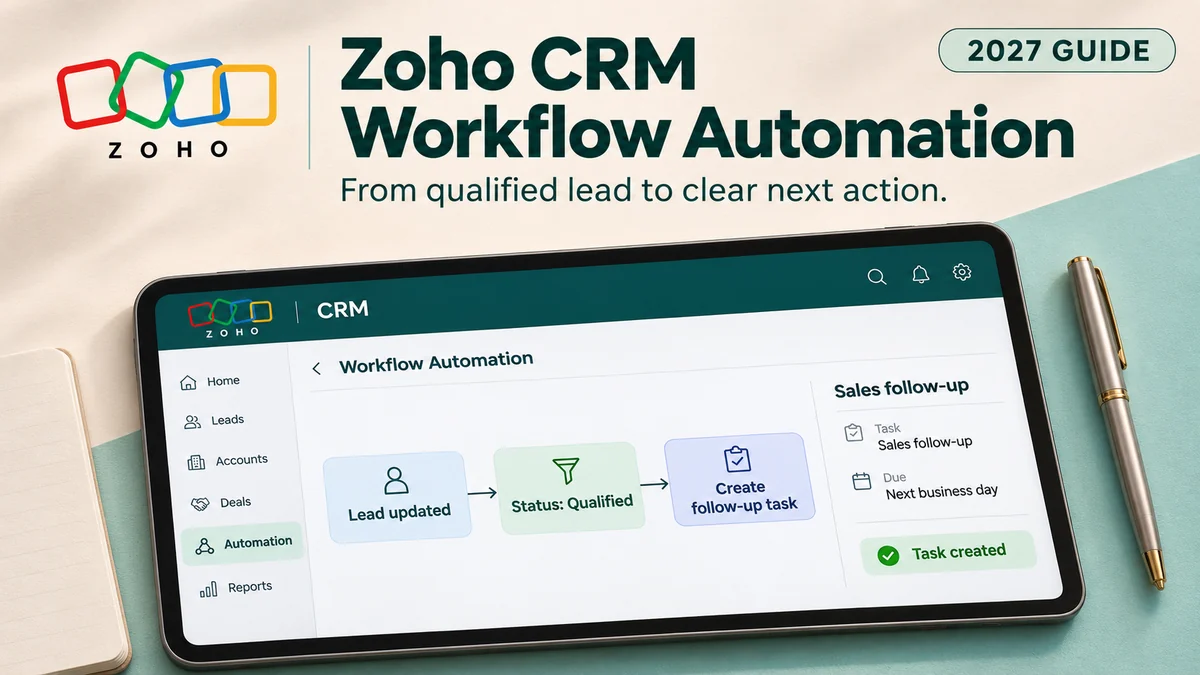
Example: A Qualified Enquiry Needs a Sales Follow-Up
Consider an illustrative B2B distributor. A rep qualifies an enquiry, and the business wants a follow-up task for the enquiry’s record owner. Before configuring anything, agree what “qualified” means, when the task is due and whether an existing open task should prevent another one.
Test four records or events: an eligible enquiry, an ineligible enquiry, an unrelated edit after qualification and a later owner change. Check the task owner and due date rather than stopping at “the rule saved”. Decide whether existing tasks should change after reassignment; do not assume that relationship.
Keep a record of the expected and actual outcome. A useful handover includes the rule name, the fields it depends on and the person who approves changes. Measure missed follow-ups and duplicate tasks against a starting baseline instead of promising an unverified percentage improvement.
Connecting Workflows to Accounting and Other Apps
Check the native integration first. Actions by Zoho Flow also provides supported app actions within CRM workflows. Confirm that the required app and action are available, then review the connection, field mapping and credit allowance. An external handoff does not always require custom code.
For an invoice or order, define a stable reference that connects the CRM record with the destination record. Test a repeated event, a failed connection and a retry. A CRM update should not be treated as proof that accounting received the transaction. Our Zoho CRM–QuickBooks integration guide explains a specific example.
Use Zoho CRM integration services for the connected-system scope. When supported actions do not cover the required rules, exception handling or custom application, assess custom Zoho development separately.
Troubleshooting: Why Did the Rule Not Work?
Start with Zoho’s automation troubleshooting guide and one affected record. Change one thing at a time so you can identify the cause.
The rule never ran
Check that it is active and not archived, and compare the event and record values with the trigger and criteria. Review the timeline. Imports need the appropriate workflow-trigger setting; successful data entry alone is not evidence of execution.
Tasks or emails repeat unexpectedly
Review repeat-on-edit settings and overlapping rules. Test an unrelated edit after the first successful action. Inspect the actual email action and template if the wrong message is sent; do not keep resending customer emails while diagnosing it.
A scheduled action is missing or moved
Check whether the record stopped meeting the criteria or its referenced date changed. Conversion or deletion can also affect pending work. Test the record’s history before treating a changed schedule as a system failure.
An external action failed
Review the connection, permissions, mapped values and destination response. For webhooks or functions, inspect execution errors. Check whether a destination record already exists before retrying, and keep enough information for the responsible team to investigate.
For an existing setup with recurring failures, Zoho customer support can help investigate the rules and connected systems. Share an example record and expected outcome, without exposing customer credentials.
Planning Your Zoho CRM Automation for 2027?
Share your CRM edition, module, trigger, desired action and connected apps. Tell us how records enter CRM and what currently goes wrong. Elsner’s Zoho team can help define the configuration, integration or development work and the checks needed before launch.
Frequently Asked Questions
What is workflow automation in Zoho CRM?
A workflow rule runs defined actions when a record meets a chosen trigger and criteria. It can handle work such as creating a follow-up task or updating a field. The available triggers, actions and limits depend on your CRM account and subscription.
Can I automate Zoho CRM without coding?
Many task, notification and field-update rules can be configured without code. For work involving another application, check the supported native integration and available Actions by Zoho Flow. Custom logic is useful when those options do not cover the required behaviour or failure handling.
Why is my Zoho CRM workflow not triggering?
Check that the rule is active, the record went through the specified trigger and its values match the criteria. Review the record timeline and action configuration. Imported records also need the appropriate workflow-trigger setting. A record appearing in CRM does not prove the rule ran.
What is the difference between a workflow rule and Blueprint?
Use a workflow rule for background actions when conditions match. Assess Blueprint when users must follow defined stages and supply required information before moving a process forward. A formal decision needing an authorised approver should be designed as an approval process.
Can a workflow create an invoice or order in another app?
Only if a supported integration or configured action performs that handoff. A Closed Won deal in CRM does not, by itself, prove an external invoice was created. Check the destination, field mapping, connection and permissions, then test failures and repeated events before launch.