





- What are the Features of FlutterFlow?
- How to get Started with FlutterFlow?
- How to Integrate Firebase?
- Navigations
- How to Navigate Screens with FlutterFlow?
- Run your Project
- How to View Errors
- How to Wrap Widgets?
- View code
- Advantages and Disadvantages of FlutterFlow
- Advantages:
- Disadvantages:
- Conclusion
- FAQs
- What is FlutterFlow?
- Is FlutterFlow free?
- Can you export code from FlutterFlow?
- Is FlutterFlow good for beginners?
- FlutterFlow vs coding Flutter by hand, which is better?
Quick Answer
FlutterFlow is a visual, low code builder for Flutter apps. You drag and drop widgets to design screens, connect a backend like Firebase, add actions for navigation and logic, then preview and export a real Flutter app for iOS and Android. It suits founders and teams who want to build and ship faster, with the option to export code for developers to extend. The full walkthrough is below.
Building a Mobile Application is Just a Bit Easier. Here we introduce the FlutterFlow to work with Flutter seamlessly to build Dynamic Apps. FlutterFlow is an online tool used to create Flutter applications. It allows users to build applications without writing any code, utilizing drag-and-drop features to build UI.
FlutterFlow speeds up app development by letting you build the UI visually instead of hand coding every screen. Pairing it with Flutter app performance optimisation keeps the resulting app fast and smooth. So let’s deeply understand the use case of FlutterFlow.
What are the Features of FlutterFlow?
- FlutterFlow is the best option for users who don’t have any technical knowledge.
- It is a platform where you can drag and drop widgets.
- FlutterFlow makes use of Flutter and builds an app that runs on both iOS and Android platforms.
- FlutterFlow offers a free plan that allows you to create and publish your apps.
- For design purposes, it is the best option and also saves you time.
- You can easily integrate Firebase with your project automatically from FlutterFlow.
- Developers can consider FlutterFlow for creating advanced features applications using push notifications, cloud storage, social media integration, etc.
How to get Started with FlutterFlow?
- Visit the website https://app.flutterflow.io to get started with FlutterFlow. It will ask you to log in before allowing you to create a project. After logging in, you can easily create your project.
- In Case Your App idea is similar to the market’s common apps then, in that case, FlutterFlow will help you with its default App templates. For example Chat App or Authentication app.
Your screen will look something like this post logging in.
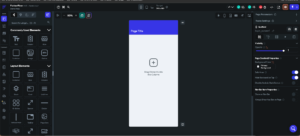
- The widgets are listed on the left side, as you can see. You can then drag and drop any widget from there.
- You can add widgets like text, buttons, text form fields, rows, columns, stacks, and more to one column which is automatically generated for you.
- You can modify the properties, such as height, width, and padding, from the right side.
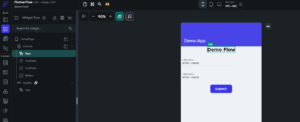
Here you can see the widget Structure, which operates similarly to the Flutter Inspector, making it ideal for our Flutter app development service. By clicking on any widgets from the left side listing it will redirect to that UI part or vice versa.
You can also view a list of existing screens of your current project.
How to Integrate Firebase?
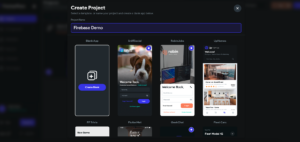
1. Click on Create New to create a new project.
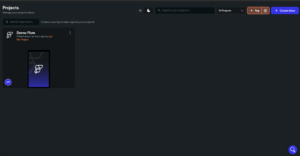
2. Give a name to your project choose a page and click on the next step.
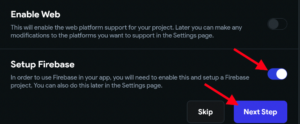
Make sure that you have the Setup Firebase button enabled.
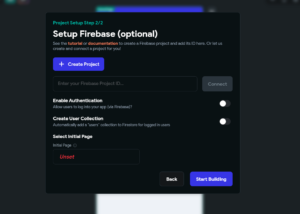
3. Now we have to set up Firebase configurations. By clicking on the create project button it will directly create a project to your Firebase console. you don’t need to create a project for your Firebase console.
4. Give a name to your Firebase project and set the region after that click on the sign in with Google button and it will ask for your access.
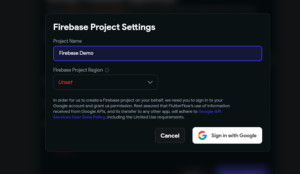
After completing this process it will take some time to create your project in Firebase. It will show something like this: it means that your project is created. You can see a project created at your Firebase console.
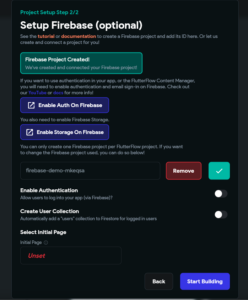
Select the initial page and start building your project.
Navigations
How to Navigate Screens with FlutterFlow?
For navigating users from one screen to another we use a method called Navigator. push() but with FlutterFlow you don’t need to write any methods like this. For this, you need to give actions to your buttons.
First of all, you need to take a button widget from your left-side menu. When you take a button it will give you an option at the right side panel to add actions.
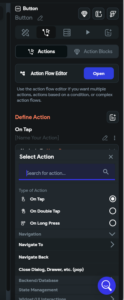
The image above shows the actions tab that you need to add to your button.
It also provides all the methods OnTap On Double Tap and On Long Press. You can choose the one you want to add.
After that, it shows Navigate to. It will navigate you to the next screen and also give you a list of the screens you have already created. If there is no screen listed there then you need to create one.
That is how navigation works with FlutterFlow.
Run your Project
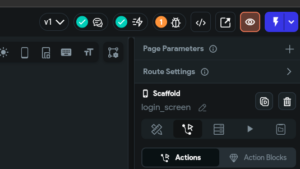
As we discussed earlier, you can drag and drop your widget to create a screen. You can preview the things by running your code. To run your code, click on the button at the top right corner. Exploring Flutter Growth Stories can provide valuable insights into how businesses have successfully scaled their apps using Flutter, showcasing the impact of its easy-to-use features and performance.
How to View Errors
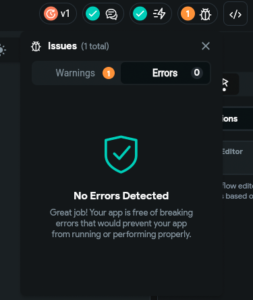
While you are running your Android studio code it will show error messages in the terminal same as you can find your error messages on your screen.
How to Wrap Widgets?
When the screen is blank, you can right-click on it to bring up a menu with options like insert or wrap widget, which is similar to what happens in Android Studio and allows you to wrap widgets from there.
View code
To view your code go to the developer menu and click on view code. You can only view your code in the free plan, download code or app or if you want to commit code to git then you need to upgrade your plan.
Advantages and Disadvantages of FlutterFlow
Advantages:
- FlutterFlow is used for people who don’t have much technical knowledge and want to create small applications. The Advantages of Flutter App Development are evident, as FlutterFlow provides an easy-to-use platform for building apps without needing extensive coding skills.
- It’s an ideal option for those looking to save both time and money while creating functional, high-quality apps.
- FlutterFlow also provides sharing features so that the people who work on the same projects can work together.
- To learn FlutterFlow deeply there are so many options available like search and video tutorials. Users can practice by seeing these things.
- Basic features like design and Firebase integrations are completely free for the users so we can make tiny applications or e-commerce applications without spending any money.
Disadvantages:
- There is lots of unnecessary code.
- You can’t change your code in FlutterFlow.
- FlutterFlow uses so many unnecessary widgets which are not commonly used by developers.
- everything is not free with FlutterFlow like Android Studio.
Conclusion
FlutterFlow is designed specifically for Flutter app development. With its drag-and-drop feature and user-friendly interface, it makes the app development process smoother. But users need to learn to be experts with this tool as well and they should be aware of the limitations of FlutterFlow.
FAQs
What is FlutterFlow?
A visual, low code builder for creating Flutter apps for iOS and Android by dragging and dropping widgets, with an option to export the code.
Is FlutterFlow free?
It has a free plan for building and basic use. Exporting code, downloading the app, and advanced features require a paid plan.
Can you export code from FlutterFlow?
Yes, on a paid plan you can view and export the full Flutter source code, so developers can extend the app outside FlutterFlow.
Is FlutterFlow good for beginners?
Yes. It is designed for people without deep coding experience, though understanding Flutter basics helps you get more out of it.
FlutterFlow vs coding Flutter by hand, which is better?
FlutterFlow is faster for building UI and prototypes. Hand coding gives full control. Many teams start in FlutterFlow, then export and extend the code.”