




- What Is a Drop Down Info Plugin in WordPress
- Understanding Drop Down Information Sections
- How These Plugins Work
- Common Website Areas Using Drop Down Info Plugins
- Why Websites Use a Drop Down Info Plugin for WordPress
- Cleaner Reading Experience
- Better Mobile Experience
- Stronger Engagement Signals
- SEO and Accessibility Wins
- Key Features to Look for in a Drop Down Info Plugin for WordPress
- Page Builder Compatibility
- Responsive Design
- Custom Styling Options
- FAQ Schema Support
- Lightweight Performance
- Accessibility Features
- Types of Drop Down Info Plugins for WordPress
- Accordion Plugins
- Toggle Plugins
- Mega Menu Dropdown Plugins
- Interactive Content Plugins
- Best Use Cases for a Drop Down Info Plugin for WordPress
- How to Set Up a Drop Down Info Plugin in WordPress
- Step 1: Pick the Right Plugin
- Step 2: Install the Plugin
- Step 3: Configure Basic Settings
- Step 4: Add Content Sections
- Step 5: Customize the Design
- Step 6: Test Across Devices
- Recommended Drop Down Info Plugins for WordPress
- Easy Accordion
- Ultimate FAQ
- Heroic FAQs
- Unlimited Elements for Elementor
- JetTabs by Crocoblock
- Common Mistakes to Avoid
- Hiding Important Content by Default
- Too Many Dropdowns on One Page
- Picking a Heavy Plugin
- Ignoring Accessibility
- Forgetting to Test on Mobile
- Best Practices for Better Results
- How a Drop Down Info Plugin for WordPress Improves SEO
- FAQ Schema and Rich Snippets
- Improved Dwell Time
- Better Core Web Vitals on Long Pages
- AI Overview Visibility
- When to Use Custom Development Instead of a Plugin
- Future Trends in Interactive WordPress Content
- Frequently Asked Questions
- Ready to Build Smarter WordPress Pages
Most WordPress pages carry too much information on too little space. Service pages stretch forever. FAQ sections pile up at the bottom. Documentation turns into a wall of text that nobody scrolls through.
A drop down info plugin for WordPress fixes that problem in about ten minutes.
Call them accordions, toggles, or expandable sections. They all do the same job. Visitors expand only the parts of a page they actually care about. Less clutter. Cleaner layouts. Better engagement metrics. And honestly, a much more pleasant reading experience on mobile.
This guide walks through what a drop down info plugin for WordPress really does, why it matters for SEO and UX, the features worth paying attention to, and how to set one up properly on any WordPress site. We’ll also cover the mistakes that make these plugins backfire, plus the trade off between using a ready made plugin and building something custom. Whether you’re running a personal blog or working with a team for full WordPress development services, the framework here applies.
Skip ahead if you already know the basics. The setup walkthrough and plugin picks sit in the middle.
What Is a Drop Down Info Plugin in WordPress
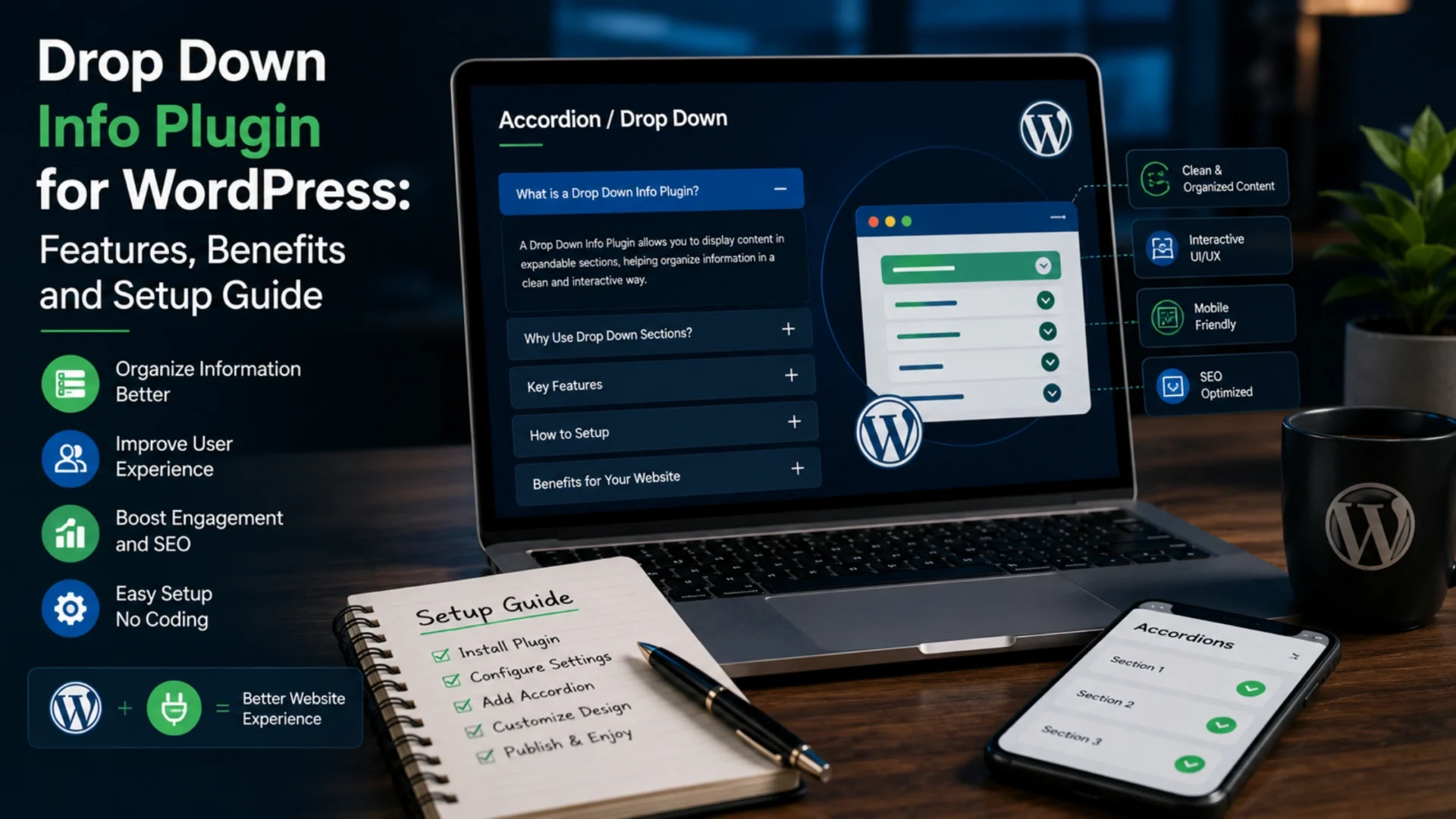
A drop down info plugin for WordPress is a small piece of software that adds expandable content sections to your pages and posts. Click a heading, the content underneath slides open. Click again, it tucks back away.
Understanding Drop Down Information Sections
Most people use the words accordion, toggle, and dropdown interchangeably. They’re slightly different in practice. An accordion shows several sections stacked together, where opening one usually closes the others. A toggle is a single section that opens and closes on its own. Tabs are similar but lay out horizontally instead of vertically.
The format you pick depends on the content. FAQs work well as accordions. Single product disclaimers work as toggles. Multi step processes often suit tabs.
How These Plugins Work
Behind the scenes it’s mostly JavaScript and CSS. A drop down info plugin for WordPress hides each section’s body content by default, then reveals it when the user clicks the heading. Some plugins load section content lazily, which helps page speed on long FAQ pages.
Common Website Areas Using Drop Down Info Plugins
You’ve seen these everywhere recently. Probably here:
- FAQ pages on SaaS sites
- Product detail tabs on ecommerce stores
- Pricing breakdowns on service pages
- Knowledge base articles and help docs
- Long form blog posts with multiple sub topics
- Comparison tables that need extra context
The pattern is always the same. Lots of information. No reason to dump it all at once.
Why Websites Use a Drop Down Info Plugin for WordPress
Three big reasons. User experience. Content organization. Engagement.
Cleaner Reading Experience
A clean page reads faster. When visitors land on a service page and see seven collapsed sections instead of seven scrolling blocks of text, the page feels manageable. That perception alone usually reduces bounce rate.
Honestly, that’s the most underrated benefit. Perception matters more than people admit.
Better Mobile Experience
This one matters most. On a phone, long pages are exhausting. A well built drop down info plugin for WordPress shrinks the page to a list of headings, and the user picks what to read. Same content. Fraction of the cognitive load.
Stronger Engagement Signals
There’s a small but consistent lift in time on page when content is presented as expandable sections. People click around. They explore. They engage with more of the page than they would on a static layout. Google notices that behavior over time.
SEO and Accessibility Wins
Most accordion plugins now support FAQ schema, which means your dropdown questions can show up directly in Google as rich snippets. That’s free SERP real estate. Good plugins also handle keyboard navigation and screen reader support, which keeps your site closer to WCAG standards.
Key Features to Look for in a Drop Down Info Plugin for WordPress
Not every plugin is built the same. A few features genuinely matter when picking a drop down info plugin for WordPress. The rest is marketing.
Page Builder Compatibility
Check Gutenberg, Elementor, WPBakery, and Divi support before buying. If your site runs Elementor and the plugin only ships with shortcodes, you’ll spend more time fighting the editor than building pages.
Responsive Design
Sounds obvious. Plenty of older plugins still don’t handle phones cleanly. Test the demo on a real mobile screen before you commit, not just the desktop preview.
Custom Styling Options
At minimum you want control over:
- colors for active and inactive states
- typography that matches your theme
- icon choice and position
- open and close animation timing
A plugin without styling control forces you to write custom CSS for every site. Skip it.
FAQ Schema Support
Critical for FAQ pages. The plugin should output valid FAQPage schema in the page source so Google can read it. Validate the output through Google’s Rich Results Test before assuming it works. Pair this with proper WordPress SEO services to make sure the rest of your on page setup matches.
Lightweight Performance
Some plugins load 200KB of jQuery and CSS just to show one accordion. That’s wasteful. Look for plugins under 30KB total page weight and ones that load scripts only on pages where the accordion is actually used.
Accessibility Features
Keyboard navigation. ARIA attributes. Screen reader announcements when a section expands. These aren’t optional anymore. ADA compliance lawsuits hit small ecommerce stores regularly, and a non accessible accordion is one of the easier issues to flag.
Types of Drop Down Info Plugins for WordPress
Four broad categories cover most of what you’ll find in the WordPress repository.
Accordion Plugins
Stacked expandable sections, usually with one section open at a time. Best for FAQ pages and detailed feature breakdowns. Examples include Easy Accordion, Accordion FAQ by Quantum Cloud, and Heroic FAQ.
Toggle Plugins
Single section reveal. Works well for legal disclaimers, terms of service snippets, or any one off block where you want to hide text by default. Shortcodes Ultimate includes a clean toggle component.
Mega Menu Dropdown Plugins
Different use case, same family. These handle navigation menus rather than page content. Max Mega Menu and UberMenu sit at the top of this category.
Interactive Content Plugins
Premium tools that go beyond simple expand and collapse. Think animated reveals, multi level accordions, image driven dropdowns, and conditional logic. Unlimited Elements and JetTabs by Crocoblock fall here.
Best Use Cases for a Drop Down Info Plugin for WordPress
If you’re trying to figure out whether your page actually needs a drop down info plugin for WordPress, here’s where these tools really earn their keep.
- FAQ pages. Hands down the most common use case. Twenty questions in collapsed format reads better than twenty in a single scroll.
- Ecommerce product pages. Shipping policy, returns, sizing chart, product specs. Each one a separate dropdown keeps the page tidy.
- Service pages. Process steps, deliverables, pricing tiers. Group them into expandable blocks so buyers can pick what to read.
- Knowledge base and documentation. Long articles work much better when subsections collapse by default.
- Landing pages. Feature sections that would otherwise overwhelm the visitor sit cleanly in a dropdown grid.
- Course pages. Module breakdowns, syllabus details, instructor bios. Common pattern for LMS sites.
If your page is short and focused, you probably don’t need one. Adding a dropdown to a 400 word blog post creates friction where none existed.
How to Set Up a Drop Down Info Plugin in WordPress
The setup process is mostly the same across plugins. Six practical steps cover installing and configuring almost any drop down info plugin for WordPress.
Step 1: Pick the Right Plugin
Don’t grab the first one with five stars. Check the last updated date, active install count, support response history, and whether it works with your page builder. A plugin with 50,000 installs and a recent update beats one with 500,000 installs that hasn’t been touched in two years.
Step 2: Install the Plugin
Plugins menu, Add New, search, install, activate. For premium plugins, upload the zip file through the same menu. Standard WordPress flow, nothing unusual here.
Step 3: Configure Basic Settings
Most plugins ship a settings page. Set defaults for animation speed, icon style, whether sections should open on click or hover, and whether you want one section open at a time or multiple. Save the defaults globally so you don’t have to repeat them on every page.
Step 4: Add Content Sections
Inside the Gutenberg editor or page builder, drop in the accordion block. Add each section’s title and body content. Most modern plugins let you drag sections to reorder them inside the editor.
Step 5: Customize the Design
Match the accordion styling to your brand. Colors, fonts, border radius, icon position. Keep things subtle. Big bold accordion bars distract from the content sitting inside them.
Step 6: Test Across Devices
Open the page on Chrome, Safari, Firefox. Test on an iPhone and an Android. Check that the click target is large enough on mobile. Run the Google Rich Results Test if the page uses FAQ schema. Then publish.
Recommended Drop Down Info Plugins for WordPress
A short list of options worth shortlisting when you’re picking a drop down info plugin for WordPress, based on what currently ranks well in the WordPress repository and what we’ve seen perform reliably on client sites.
Easy Accordion
Free version covers most basic needs. Pro version adds nested accordions, custom post types, and shortcode generators. Reliable choice for FAQ pages.
Ultimate FAQ
Built specifically for FAQ pages. Strong schema support out of the box. Solid free version, useful premium upgrade if you need categories and filtering.
Heroic FAQs
Premium only. Worth it if FAQ schema and analytics matter. Tracks which questions get clicked most, which is genuinely useful data for content planning.
Unlimited Elements for Elementor
Best pick if you already run Elementor. Adds dropdown buttons, expandable cards, and dozens of related widgets inside the existing editor.
JetTabs by Crocoblock
Tabs and accordions in one bundle. Pairs well with the rest of the Crocoblock ecosystem if you’re already using their tools.
What to compare before buying: load speed, last update date, support quality, page builder compatibility, and schema output.
Common Mistakes to Avoid
Easy to get this wrong. A few patterns show up repeatedly when teams roll out a drop down info plugin for WordPress without thinking it through.
Hiding Important Content by Default
Don’t collapse the section that explains your product. Use dropdowns for secondary information only. Primary value propositions should sit visible above the fold.
Too Many Dropdowns on One Page
Twelve accordions stacked together is just a different kind of clutter. Group related questions into categories or split content across pages.
Picking a Heavy Plugin
Some accordion plugins add 200KB to your page load. That’s a measurable hit to Core Web Vitals. Pick lightweight tools and check page speed before and after installing. If you’re already battling speed issues, a guide on how to fix a slow WordPress website is worth reading before adding another plugin.
Ignoring Accessibility
A dropdown that can’t be opened with the keyboard is broken. Test with Tab and Enter keys. If it doesn’t respond, find another plugin.
Forgetting to Test on Mobile
Desktop preview looks great. Then the section titles wrap to three lines on mobile and the icons sit in the wrong place. Always test on a real phone before going live.
Best Practices for Better Results
A few small habits separate a working dropdown from a great one.
- Write section titles as questions where possible. Easier to scan, friendlier for FAQ schema.
- Keep titles under 70 characters. Anything longer wraps awkwardly on mobile.
- Use icons consistently. Plus and minus signs read more clearly than chevrons for most audiences.
- Open the first section by default on important pages. Helps visitors understand the format immediately.
- Group related sections under a clear heading. Don’t dump twenty random questions in a single accordion.
- Update plugin versions monthly. Outdated plugins are a common security gap.
How a Drop Down Info Plugin for WordPress Improves SEO
The SEO impact of a drop down info plugin for WordPress is more meaningful than most people realize. Three concrete wins.
FAQ Schema and Rich Snippets
When implemented correctly, your FAQ accordions can show up as expandable rich snippets directly on Google’s results page. That’s higher click through rate and more SERP space.
Improved Dwell Time
Users explore dropdown content because it invites interaction. Longer engagement signals tell Google the page satisfied the query. Helpful for ranking competitive terms over time.
Better Core Web Vitals on Long Pages
Lighter initial render. Less content to paint above the fold. Smaller layout shifts. Combined, these contribute to LCP and CLS scores, which Google’s 2026 Core Updates continue to weigh heavily. A few extra Core Web Vitals optimization tips can compound the gains.
AI Overview Visibility
Google’s AI Overviews and AEO results pull from well structured content. FAQ schema and clean question and answer formatting make your dropdown content far easier for these systems to extract and cite.
If SEO matters to you, look into our SEO services for a deeper audit of how your site stacks up.
When to Use Custom Development Instead of a Plugin
Plugins are great until they aren’t. A few situations where building custom makes more sense than installing another drop down info plugin for WordPress.
- You need conditional logic that no plugin supports out of the box.
- Plugin performance is dragging down Core Web Vitals and you can’t switch.
- You want a dropdown system tied to dynamic content pulled from a custom post type or API.
- Your design system has very specific interaction patterns that off the shelf plugins can’t match.
- You’re scaling to enterprise traffic and want full control over what JavaScript loads on each page.
For teams hitting these limits, exploring custom WordPress development often delivers cleaner, scalable interactive components that match your design system without the bloat. Worth a conversation if your current setup feels like a compromise.
Future Trends in Interactive WordPress Content
A quick look at where this space is heading over the next 18 to 24 months.
AI driven personalization. Dropdown sections that reorder themselves based on user intent or past behavior. Some premium AI plugins for WordPress are already testing this.
Voice activated expansion. Especially relevant for accessibility and smart device browsing. Early days, but moving fast.
Schema first plugins. Built from the ground up for AI Overviews and structured data extraction rather than retrofitting old plugins.
Mobile first interaction models. Swipe to expand, tap to preview, hold to summarize. Mobile patterns are getting smarter beyond simple tap to open.
If you’re running an older WordPress site with outdated plugins, a planned WordPress maintenance plan keeps everything secure and aligned with these shifts.
Frequently Asked Questions
What is a drop down info plugin in WordPress?
A drop down info plugin for WordPress is a tool that adds expandable content sections to your pages. Visitors click a heading to reveal more information. Common formats include accordions, toggles, and tabbed dropdowns. They’re widely used for FAQs, product details, and service breakdowns.
Are accordion plugins good for SEO?
Yes, when used correctly. Google indexes content inside accordion sections normally, and FAQ schema can earn you rich snippets. The catch is to make sure your important content isn’t fully dependent on JavaScript to render.
Which is the best drop down info plugin for WordPress?
Depends on the use case. Easy Accordion and Ultimate FAQ work great for FAQ heavy sites. Unlimited Elements is the strongest pick if you already use Elementor. Heroic FAQs is worth the premium price for analytics and schema control.
Do dropdown plugins slow down WordPress websites?
Some do, some don’t. Heavy plugins with bundled libraries can add noticeable weight. A lightweight drop down info plugin for WordPress under 30KB loads fast and rarely affects Core Web Vitals. Always run a speed test before and after activation.
Can I create FAQ sections using dropdown plugins?
That’s actually the most common use case. Most modern accordion plugins ship with FAQ schema built in, so your questions can earn rich snippet placements in Google search results.
Are WordPress dropdown plugins mobile responsive?
Most are, but not all. Older plugins can break on smaller screens. Always check the demo on a real mobile device or browser dev tools before installing on a live site.
Do I need coding knowledge to use accordion plugins?
No. Most modern plugins offer visual editors, drag and drop builders, or simple shortcodes. You can build a working FAQ section in 15 minutes without touching code.
What is the difference between accordion and toggle plugins?
Accordions group multiple expandable sections together, often allowing only one to be open at a time. Toggles are standalone single sections that open and close independently. Pick accordion for FAQ pages, toggle for one off content blocks.
Ready to Build Smarter WordPress Pages
The right drop down info plugin for WordPress is a small change with surprisingly large returns. Cleaner pages. Happier visitors. Better SEO. Stronger conversion rates on long form content.
The trick is picking a plugin that fits your stack, configuring it for real users, and not overusing it.
If you’d like help auditing your WordPress site, building custom interactive components, or planning a smarter content layout that performs in Google’s 2026 ranking landscape, our WordPress developer team can put together a focused plan. Reach out anytime for a quick chat.