



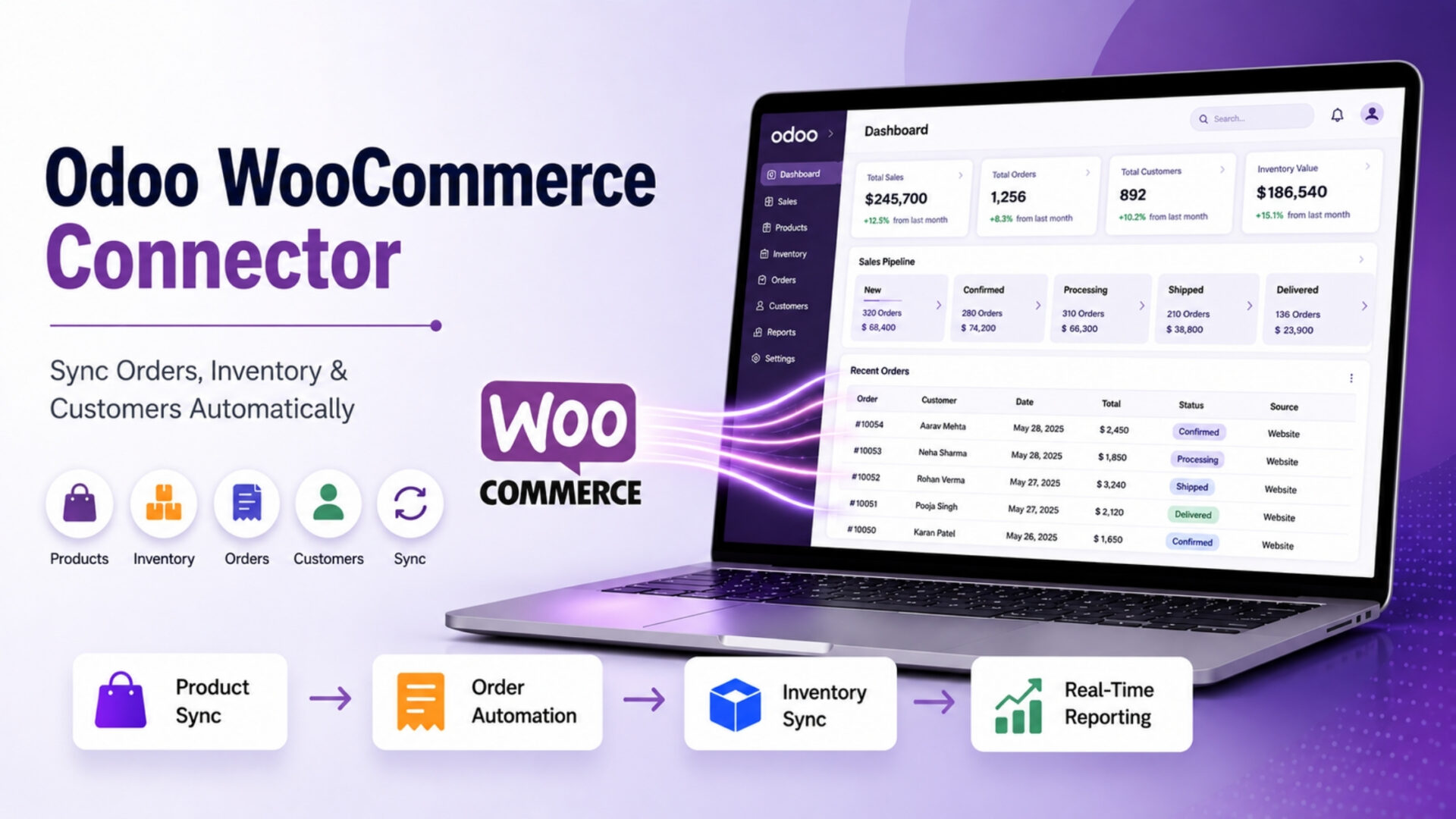
- What Is Odoo WooCommerce Integration?
- Why Businesses Actually Need an Odoo WooCommerce Connector
- How Does Odoo WooCommerce Sync Actually Work?
- Odoo WooCommerce Integration Methods: Manual, Custom API, or a Connector App
- Step-by-Step: How to Connect Odoo and WooCommerce
- Skip the Custom Build
- Common Odoo WooCommerce Sync Problems (and How to Actually Avoid Them)
- Odoo WooCommerce Connector vs Other Integration Options
- A Realistic Example: How This Plays Out for a Growing Store
- Choosing the Right Integration Method for Your Business Size
- What Elsner’s WooCommerce Odoo Connector Actually Does
- WooCommerce Odoo Connector by Elsner Technologies
- Actionable Tips for a Smooth Odoo WooCommerce Sync
- Conclusion
- Ready to Connect Odoo and WooCommerce Properly?
- Frequently Asked Questions
- What is the best way to connect Odoo and WooCommerce?
- Is there a free Odoo WooCommerce connector?
- How often does Odoo WooCommerce sync update?
- Can I sync multiple WooCommerce stores with one Odoo instance?
- Does Odoo WooCommerce integration support multi-currency?
- How much does an Odoo WooCommerce connector cost?
- Do I need a developer to set up an Odoo WooCommerce connector?
Two systems, one order. Somebody’s still exporting a CSV.
That’s usually how it plays out for a WooCommerce store running Odoo in the back office. A customer checks out at 11 PM. WooCommerce logs it instantly. Odoo picks it up whenever someone remembers to import it, sometimes hours later, sometimes the next morning after a customer has already emailed asking where their order is. Stock counts drift apart in the meantime. A product goes out of stock in the warehouse but WooCommerce keeps selling it anyway, because nobody told it to stop.
This isn’t an edge case. Odoo runs the operational side, inventory, accounting, purchasing, for a large share of growing ecommerce businesses. WooCommerce runs the storefront for a similarly large share, mostly because it’s flexible and cheap to start with. Neither platform was built with the other in mind. Getting them to talk properly is its own small project, and most content on the topic either oversimplifies it into a five-minute plugin install or buries the real detail behind a product pitch.
This guide skips both. It covers how Odoo WooCommerce integration actually works under the hood, the three realistic ways to set it up, where syncs tend to break, and how to choose an approach that fits your store rather than a demo video.
Quick context: An Odoo WooCommerce connector automates the transfer of products, orders, inventory, and customers between your WooCommerce store and Odoo ERP. Done right, it removes manual data entry almost entirely. Done wrong, it creates duplicate orders and stock mismatches that are harder to untangle than the manual process it replaced.
What Is Odoo WooCommerce Integration?
Odoo WooCommerce integration is the process of connecting a WooCommerce store to Odoo ERP so that data, products, orders, customers, stock levels, and sometimes invoices, moves between the two systems automatically instead of being typed in twice by a human.
Definition at a Glance
Odoo WooCommerce integration links your WordPress-based storefront to Odoo’s back-office modules (inventory, sales, accounting) through WooCommerce’s REST API and Odoo’s external API, so store activity updates your ERP without manual exports or imports.
Stated like that, it sounds tidy. In practice, “integration” covers a wide range of setups, and that range is exactly where most of the confusion comes from. A store owner searching for this term might mean anything from a one-time product import to a fully automated, real-time sync running every five minutes. Those are very different projects with very different price tags, and conflating them is usually how expectations end up mismatched with what gets delivered.
Why Businesses Actually Need an Odoo WooCommerce Connector
Nobody sets out to build an ERP-ecommerce connection for fun. It’s usually a response to a specific pain point that’s already costing time or money. Here’s what a properly working connector changes in practice.
None of this happens by installing something and walking away, though. That’s honestly the part most listings gloss over. A connector removes manual work once it’s configured correctly. Getting it configured correctly is where the actual value gets earned.
How Does Odoo WooCommerce Sync Actually Work?
WooCommerce exposes a REST API that lets external applications read and write store data using a consumer key and secret. Odoo exposes a comparable external API, historically over XML-RPC, and on current versions through a bearer-token JSON endpoint at /json/2/<model>/<method>. A connector sits between the two, translating WooCommerce’s data structure into Odoo’s models and back again.
Most connectors move data in one of two ways. Scheduled jobs, often called cron jobs, run at fixed intervals, typically every five to fifteen minutes, and pull whatever has changed since the last run. Real-time triggers, usually WooCommerce webhooks, fire the moment something happens, an order gets placed, a product gets updated, and push that event to Odoo instantly. A well-built connector usually combines both. Orders sync in real time because delays there cost money. Bulk product or inventory changes often run on a schedule because constant real-time polling puts unnecessary load on the server.
Here’s what actually needs to move between the two systems, and why each piece matters on its own.
|
1
|
Product SyncProducts, variants, images, categories, and pricing get pushed between systems so you’re not managing a catalog in two places. Whichever system you designate as the source of truth (usually Odoo for stores with complex bill-of-materials or variant structures) should drive product creation, with WooCommerce receiving updates rather than fighting for control of the same fields. |
|
2
|
Inventory SyncThis is usually the reason people go looking for a connector in the first place. Stock adjustments in Odoo, whether from a warehouse receipt, a return, or a manual correction, need to reach WooCommerce fast enough that the store never sells something that isn’t actually there. A five-minute sync window is usually tight enough for most retailers. High-velocity stores sometimes push for real-time stock pushes instead. |
|
3
|
Order AutomationEvery WooCommerce order should land in Odoo as a sales order, with the right customer, line items, taxes, and shipping already attached. From there Odoo’s own workflow, invoicing, delivery, payment reconciliation, takes over. This is where the time savings are usually most visible, because it removes the step where someone manually re-keys an order that already exists somewhere else. |
|
4
|
Customer SyncNew WooCommerce customers get created as contacts in Odoo automatically, with billing and shipping details attached. This matters more than it sounds like it should, because it’s the piece that lets Odoo’s CRM and invoicing modules actually function without someone manually copying an email address and an address block for every new signup. |
|
5
|
Invoicing and Reporting SyncOnce an order lands in Odoo, invoicing can follow your existing accounting rules automatically. Reporting benefits the same way. Instead of pulling WooCommerce sales data separately and merging it with Odoo’s financials by hand, everything already lives in one place with one set of numbers. |
Odoo WooCommerce Integration Methods: Manual, Custom API, or a Connector App
There are really three ways to get here, and each one trades cost for control differently. None of them is universally right. It depends on order volume, technical resources, and honestly, how much patience your team has for babysitting a sync that isn’t fully automated yet.
Most businesses reading this fall into the third category, and that’s not a coincidence. Custom development makes sense when your operation genuinely has requirements a general-purpose connector can’t meet. For everyone else, it’s an expensive way to rebuild something that already exists. If you’re not sure which camp you’re in, our Odoo development team can usually tell within a short conversation.
Step-by-Step: How to Connect Odoo and WooCommerce
Regardless of which method you pick, the setup sequence looks roughly the same. Here’s what it involves, using a connector app as the reference path since that’s what most stores end up using.
|
1
|
Prepare Your Odoo InstanceMake sure the relevant modules, Sales, Inventory, and Accounting at minimum, are installed and configured with your product categories, tax rules, and warehouses already set up. A connector can only sync what your Odoo instance is ready to receive. |
|
2
|
Enable the WooCommerce REST APIIn WooCommerce, generate a Consumer Key and Consumer Secret under Settings, Advanced, REST API, with Read/Write access. Pretty permalinks need to be enabled too, or the custom endpoints simply won’t respond. |
|
3
|
Install and Configure the ConnectorInstall the connector module in Odoo, then enter your WooCommerce store URL along with the Consumer Key and Secret generated in the step above. This establishes the actual link between the two systems. |
|
4
|
Map Products, Categories, and AttributesDecide which system owns product creation, then map categories, variants, and custom attributes between the two. This step gets skipped more often than it should, and it’s usually the reason a sync “looks broken” a week later when categories start mismatching. |
|
5
|
Run a Test Sync Before Going LivePlace a handful of test orders, adjust stock on a few test products, and confirm everything lands correctly in Odoo before switching the connector on for real traffic. This is the step people are most tempted to skip. Don’t. |
|
6
|
Set Your Sync ScheduleChoose sync intervals based on what each data type actually needs. Orders usually justify near-real-time sync. Bulk product updates can run every five to fifteen minutes without any noticeable business impact. |
|
7
|
Monitor and Adjust After LaunchCheck sync logs for the first week or two, especially around order volume spikes. Most connectors surface errors somewhere in a log panel. Actually reading it is what catches a mapping issue before it turns into a customer complaint. |
Skip the Custom Build
The Elsner WooCommerce Odoo Connector already does everything covered above, product sync, inventory sync, order automation, and customer sync, out of the box. Install it, connect your keys, and you’re running in under an hour.
Common Odoo WooCommerce Sync Problems (and How to Actually Avoid Them)
Search around long enough and you’ll find store owners asking, sometimes on forums, sometimes on Reddit, whether anyone has actually had a good experience with an Odoo-WooCommerce connector. That skepticism usually comes from real, specific failures, not vague distrust. Here’s what typically goes wrong, and what actually fixes it.
Duplicate Orders During Sync
Usually happens when a webhook fires twice or a scheduled job overlaps with a real-time trigger for the same order. A connector needs a unique order reference check before creating anything in Odoo, not just a “sync everything new” rule.
Inventory Mismatch After Manual Edits
If someone adjusts stock directly in WooCommerce instead of Odoo, the next sync can overwrite that change or conflict with it. The fix isn’t clever code. It’s a team rule: one system owns stock adjustments, and everyone sticks to it.
Currency and Tax Mapping Errors
Odoo and WooCommerce can define tax rules differently, especially across regions. Skip mapping this properly at setup, and invoices in Odoo won’t match what the customer actually paid. Worth double-checking before launch, not after the first complaint.
API Rate Limits and Timeouts
Large catalogs syncing too frequently, or too many products in a single batch, can hit rate limits or time out mid-request. A well-built connector batches requests sensibly instead of pushing everything at once.
Sync Breaking After a Platform Update
Both WooCommerce and Odoo release regular updates, and occasionally those updates change API behavior. A connector that isn’t actively maintained can quietly stop working. This is the strongest argument for a supported app over an old custom script nobody’s touched in two years.
Worth remembering: Almost none of these failures come from the concept of syncing Odoo and WooCommerce being flawed. They come from setup shortcuts, missing test runs, or connectors that stopped getting updated. That’s a maintenance problem, not a reason to go back to CSV exports.
Odoo WooCommerce Connector vs Other Integration Options
Here’s how the main options actually stack up once you look past the marketing copy on each one.
A Realistic Example: How This Plays Out for a Growing Store
Not a single client story, just a pattern we see often across fashion and furniture retailers moving from manual processes to a connected setup. A store selling around 150 orders a day starts with someone manually importing WooCommerce orders into Odoo twice daily. Inventory gets adjusted by hand whenever stock arrives. It works, technically, but two people spend roughly an hour a day just keeping the two systems roughly aligned, and roughly aligned is never quite good enough.
Once a connector goes live, orders start hitting Odoo within minutes instead of hours. Inventory syncs on a five-minute schedule instead of a manual end-of-day check. The two people who used to spend an hour a day on data entry get that hour back, and overselling incidents, which used to happen a few times a month, mostly stop. That’s the actual return on this kind of integration. It’s rarely dramatic. It’s just an hour a day, every day, for as long as the store stays in business.
Choosing the Right Integration Method for Your Business Size
What Elsner’s WooCommerce Odoo Connector Actually Does
Our team built this connector directly on the REST APIs covered earlier in this guide, not around them. It’s a genuine, automated bridge between the two platforms rather than a batch import tool with a nicer interface. Here’s what it covers:
- Product Sync. One-click export of Odoo products into WooCommerce, with images, categories, and pricing intact.
- Inventory Sync. Stock updates flow both ways on a fully configurable schedule, typically checked every five minutes.
- Order Automation. WooCommerce orders import into Odoo as sales orders, ready for fulfillment without manual entry.
- Customer Sync. New WooCommerce customers become Odoo contacts automatically, with billing and shipping details attached.
- Auto Workflow. Delivery, invoicing, and payment status update automatically as orders move through your process.
- Reporting and Logs. Real-time sync logs make it possible to actually catch and fix issues, instead of discovering them from a customer complaint.
On requirements, expect Odoo’s Base, Web, Sale, Stock, and Account modules on the Odoo side, and REST API access with a valid Consumer Key and Secret on the WooCommerce side. Supported environments typically include recent Odoo Community and Enterprise releases, both on-premise and Odoo.sh. Exact version support shifts with each release, so it’s worth checking the live listing for the current requirements before installing.
Odoo App Store
WooCommerce Odoo Connector by Elsner Technologies
Automated product, inventory, order, and customer sync between Odoo and WooCommerce, backed by an active support team.
|
$50
one-time purchase |
Get the Connector on Odoo Apps |
If your setup is more involved than a standard store, multiple warehouses, custom pricing rules, a second sales channel, our Odoo developers can extend the connector or build around it rather than starting from zero.
Actionable Tips for a Smooth Odoo WooCommerce Sync
- Pick one system as the source of truth for stock. Two systems both trying to own inventory is where most mismatches start.
- Test with real order scenarios, not just clean ones. Try a partial refund, a canceled order, a product with variants. That’s where connectors usually reveal their gaps.
- Check sync logs weekly, at minimum. A silent failure that runs for a month is far more expensive than one that gets caught on day two.
- Don’t sync everything in real time by default. Orders matter instantly. Bulk catalog updates usually don’t, and syncing them constantly just adds unnecessary server load.
- Keep both platforms updated. API behavior shifts with version updates on both sides, and an unmaintained connector is usually the first thing to break.
Conclusion
Odoo and WooCommerce were never designed to talk to each other. That’s not a flaw in either platform, it’s just two systems built for different jobs. A connector doesn’t change what either platform does. It removes the manual work of moving information between them, which is usually the actual bottleneck, not the software itself.
If your store is still exporting CSVs at the end of the day, or reconciling stock counts every Friday afternoon, that’s a solvable problem, and it’s usually solvable faster than most teams expect.
The real measure isn’t what a connector costs. It’s the hour someone gets back every day, and the orders that stop getting sold twice.
Ready to Connect Odoo and WooCommerce Properly?
Install the connector for a standard setup, or talk to our team if your store needs something more tailored, like multiple warehouses, custom pricing, or a second sales channel.
| Install the Connector | Talk to Our Odoo Experts |
Frequently Asked Questions
What is the best way to connect Odoo and WooCommerce?
For most stores, a dedicated connector app is the best balance of cost and reliability. It automates product, order, inventory, and customer sync without the setup time or ongoing maintenance a custom API build requires.
Is there a free Odoo WooCommerce connector?
Some free and native plugins exist, but they typically cover basic product syncing only, without real-time inventory or order automation, and support is often inconsistent. For anything beyond a very small catalog, a supported paid connector tends to save more time than it costs.
How often does Odoo WooCommerce sync update?
It depends on the data type and the connector’s configuration. Orders typically sync in near real time. Product and inventory updates commonly run on a schedule, often every five to fifteen minutes, which is configurable in most connector apps.
Can I sync multiple WooCommerce stores with one Odoo instance?
Yes, though it usually requires additional configuration to route orders and stock correctly by store or warehouse. This is a common request from multi-brand retailers, and it’s worth discussing with a developer before setup rather than after.
Does Odoo WooCommerce integration support multi-currency?
Odoo supports multi-currency natively, and a properly configured connector can map WooCommerce’s store currency settings to it. Tax and currency mapping is one area worth testing thoroughly before going live, since mismatches here directly affect invoicing accuracy.
How much does an Odoo WooCommerce connector cost?
Ready-made connector apps are typically a one-time or low ongoing cost, often well under what a few hours of custom development would run. Custom-built integrations cost significantly more upfront and add ongoing maintenance responsibility on your side.
Do I need a developer to set up an Odoo WooCommerce connector?
Not necessarily for a standard setup. Most connector apps are designed for store owners to configure directly. A developer becomes worthwhile once your requirements go beyond standard product, order, and inventory sync, such as multi-warehouse routing or custom pricing logic.