- What Is WordPress?
- Is WordPress Free?
- Do I Need Coding Skills to Use WordPress?
- How Do I Install WordPress?
- How Do I Keep My WordPress Site Updated?
- How Do I Add Features and Change the Appearance?
- What Should I Do If I Encounter an Error When Installing a Theme?
- How can I upload a custom logo to my WordPress site?
- How can I update my WordPress menu settings?
- How to create a new post in WordPress?
- Why should I choose your WordPress Development Services?
- How do I change my WordPress logo?
- How can I edit my sidebar?
- How do I change my footer?
- How do I change my password?
- How do I create a new post?
- What is a post format?
- How do I add a featured image?
- Where do I select a category and add tags to my post?
- How do I insert videos (or audio) into my posts?
- How do I add an image gallery to my post?
- How do I create a new page on WordPress?
- What is a page template (and what is it for)?
- How do I set up my WordPress homepage?
- How do I create a contact page?
- Can I use Google Fonts on my WordPress website?
- Can I customize my theme colors?
- How can I customize my page layouts?
- What is SEO?
- Is WordPress SEO friendly?
- How can I improve my WordPress SEO?
- What is WordPress caching?
- Do I need to use a caching plugin?
- What is a CDN?
- What is the difference between a caching plugin and a CDN? And do I need both?
- Will it slow down my website if I install too many plugins?
- How can I make sure my website is secure?
- Is there an easy way to manage my WordPress security?
- What is spam?
- What can I do about spam?
- Can I make money with WordPress?
- How Can You Actually Make Money With WordPress?
- What are the WordPress Trends That Actually Matter in 2026?
- Final Thoughts
- Frequently Asked Questions
- WordPress.com vs WordPress.org: What Are the Key Distinctions?
- How Often Should You Update?
- How Should You Handle Backups?
- What If Your Site Gets Hacked?
Let us be honest with you about something right away. WordPress questions do not care what stage you are at. A complete beginner sits there wondering how to publish their first page. Someone who has been building sites for three years suddenly hits a configuration issue they have never seen before. The frustration feels exactly the same at both ends. The answer exists somewhere. Finding it fast is just harder than it ever should be.
Before anything else, consider this. WordPress powers roughly 42.7 percent of all websites on the internet as of 2026, according to W3Techs. That did not happen by luck or clever marketing. It happened because the platform kept showing up for real users, year after year, without turning into something only developers could figure out.
This guide covers the questions that come up most often. Work through what applies to where you are right now. Bookmark the rest. Come back when it becomes relevant. Now, let’s get started:
What Is WordPress?
Ask most people what WordPress is and they will tell you it is a blogging tool. That answer made perfect sense back in 2003 when it launched. Today, it tells maybe five percent of the full story.
Right now, WordPress runs news platforms that millions of people read every morning. It runs Ecommerce stores moving in a serious volume. It powers university portals, government pages, and content operations with teams behind them. The blogging roots are still there. They are just one small corner of something much larger now.
Two versions of the platform exist and they really do serve different purposes. WordPress.com is a hosted service. You sign up, pick a plan, and the company handles everything running in the background. WordPress.org is the open-source, self-hosted version. You download the software, install it on hosting you control, and own every decision about how the site runs.
For anyone building something serious, WordPress.org is the right starting point, especially if you have plans of engaging a WordPress Development Company as that offers more control and personalization of the site.
The extra setup step feels bigger than it actually is. The freedom you get in return makes it worth it almost immediately.
Is WordPress Free?
The software itself has always been free. No licensing fee. No subscription to the core product. That has been true since day one and it has not changed.
What costs money is everything needed to put a site on the actual internet. A domain name and web hosting are the two unavoidable expenses. Everything beyond that depends entirely on what your site needs to do.
Hosting ranges from basic shared plans that work fine for low-traffic sites all the way to managed WordPress hosting where the provider handles updates, security, and performance for you. Premium themes and plugins exist too. That said, plenty of excellent tools cost nothing at all. The WordPress software itself never will.
Do I Need Coding Skills to Use WordPress?
No. The platform was deliberately built so that someone with zero technical background could go from nothing to a live site using themes for design and plugins for functionality. Plenty of well-running, genuinely professional sites have never had a developer touch them.
Now, some people eventually want to push further than what off-the-shelf tools can offer. Custom layouts, unique integrations, performance work that goes deep — that is where bringing in a developer starts to make real sense. The two approaches live alongside each other comfortably. You are not locked into one path or the other.
So, to keep your website running smoothly, it’s essential to follow WordPress Maintenance Tips. Additionally, our Custom WordPress Development services can help you implement unique features tailored to your specific needs if desired.
How Do I Install WordPress?
Three paths exist depending on your setup.
- Manual installation basically involves following the official 5-minute WordPress installation guide. It means downloading from wordpress.org, uploading files via FTP, creating a database, and walking through the setup wizard. It sounds involved. It really is not once you have done it once.
- One-click installation is what most hosting dashboards offer. File upload, database setup, and configuration happen automatically. For most beginners, this is where to start. It removes nearly all of the friction.
- Managed hosting from providers like WP Engine or Kinsta means WordPress is already installed when you log in. You are configuring, not setting up from scratch.
One more option worth knowing about. If you want to build and test before anything goes public, you can install WordPress locally on your computer using tools like MAMP, WAMP, or Local by Flywheel. Everything stays private until you are ready.
How Do I Keep My WordPress Site Updated?
This one matters more than most people realize until something goes wrong.
Security patches exist because vulnerabilities get discovered. A site sitting on outdated software is not protected by those patches. Automated scanners crawl the web constantly looking for exactly that situation. Staying updated is the single most effective thing you can do to stay out of trouble.
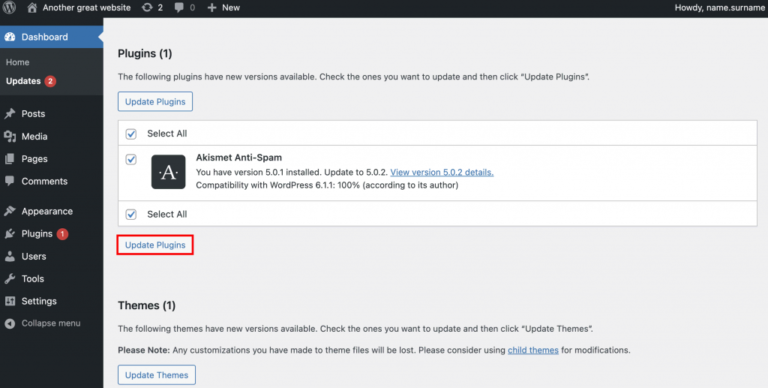
- From your dashboard, go to Dashboard > Updates. Core, themes, and plugins all show up there together.
- Click Install Now and you are done.
For production sites — anything live and active — testing updates on a staging copy before pushing to live is a habit worth building early. It adds a small step. It prevents the kind of surprises that are genuinely painful to fix.
How Do I Add Features and Change the Appearance?
This is honestly where WordPress starts to feel powerful in a way that surprises people.
The official plugin repository holds over 60,000 free plugins. Contact forms, SEO tools, Ecommerce engines, booking systems, security layers — the list goes on longer than most people expect. Installing one takes about thirty seconds. Go to Plugins > Add New, search for what you need, click Install, then Activate.
One thing to check before activating anything: look at the last update date. A plugin that has not been touched in eighteen months or more carries real security and compatibility risk. That ten-second check has saved many people from headaches they never saw coming.
Themes handle how everything looks. Switching themes does not wipe your content. Posts and pages carry through intact and simply take on the new styling. Browse options at Appearance > Themes > Add New. After installing, Appearance > Customize gives you a live preview so you can see changes before anything goes public.
What Should I Do If I Encounter an Error When Installing a Theme?
Common errors include “Missing Stylesheet” and white screens during installation. To resolve these issues:
Ensure you’re uploading the correct theme file (the installable zip).
Contact your hosting provider to address server memory limits.
How can I upload a custom logo to my WordPress site?
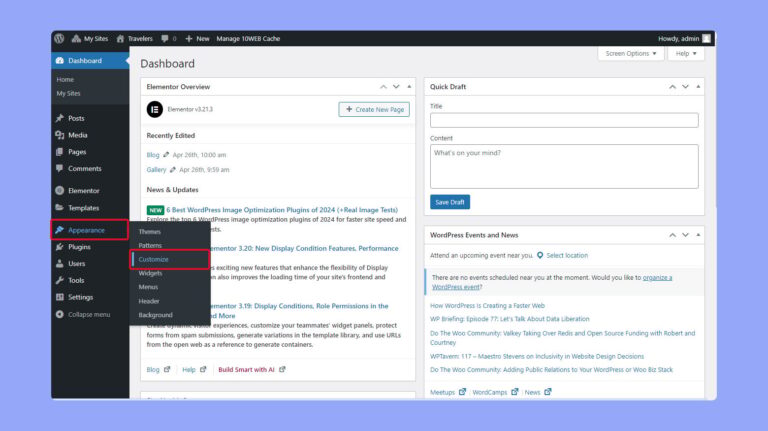
To upload a logo:
Go to Appearance > Customize.
Look for a “branding” or “header” section and upload your custom logo.
-
How can I update my WordPress menu settings?
Links to important pages or posts on your website should be included in your WordPress menu. From the WordPress Dashboard, select Appearance > Menus to make changes to your menu. You can design, modify, and allocate your menus here.
Create a menu: Click the blue link to “create a new menu” and give it a name.
Add/remove menu items: Use the options on the left to add pages, posts, categories, and tags that you’ve already published, or use the custom links option for links to other websites. To delete an item from your menu, simply click the “remove” link next to it.
Assign a menu location: After adding links, use the Menu Settings section at the bottom of the page to select your menu location. These locations will depend on your WordPress theme and its defined locations (header, top bar, footer, etc.).
-
How to create a new post in WordPress?
Creating a post is simple:
Go to Posts > Add New.
Enter your post title, content, and relevant tags, then hit “Publish.”
-
Why should I choose your WordPress Development Services?
Our WordPress Development Company offers:
Expertise in Custom WordPress Development tailored to your business needs.
Ongoing support & WordPress maintenance to ensure your site runs smoothly.
A dedicated team committed to enhancing your website’s performance and user experience.
-
How do I change my WordPress logo?
To upload a new logo in WordPress, log into your account and navigate to Appearance > Customize. Depending on your theme, you may find a “branding” or “header” section where you can upload a custom logo.
Alternatively, if your theme has a custom theme panel instead of the WordPress customizer, select your theme panel from the main dashboard, locate the branding/header section, and you should see an option to upload your logo. If you need expert assistance to make customizations or optimize your theme, it’s a good idea to Hire WordPress Developers who can ensure your site’s branding is implemented perfectly.
-
How can I edit my sidebar?
WordPress uses widgets to display content in the sidebar. To change your widgets, go to Appearance > Widgets in your dashboard. Here, you can drag and drop to add, remove, or reorder your widgets. You can also customize each widget’s appearance using its options.
Depending on your theme, you may also find more sidebar customization options under Appearance > Customize > Sidebar for colors, widths, and other settings.
-
How do I change my footer?
Similar to sidebars, WordPress footers utilize widgets (unless your theme has a custom footer). To make changes, go to Appearance > Widgets.
If your theme includes custom options for footer columns, styling, copyright, and more, you’ll likely find these under Appearance > Customize > Footer or within a custom theme panel.
-
How do I change my password?
Assuming you’re on the WordPress dashboard, simply navigate to the upper right-hand corner of the screen and select your username from the admin toolbar. If the admin bar is disabled please go to the Dashboard and select Users
> Your Username. At the bottom of the screen, there is an option reset your password – clicking this will help you create a new password. Do remember to note the new password down or use a password storage application to save it securely.
Forget Password: Suppose you are unable to access your account. In this case, visit your login page, which is mostly at yourwebsite.url/wp-admin and click the “Lost your password” link on this page to follow the procedure of email password resetting.
If neither of these methods works, you can recover your password manually via phpMyAdmin or MySQL, but this is only recommended if you’re comfortable with coding.
-
How do I create a new post?
To create a new WordPress post, log into your WordPress installation and navigate to Posts > Add New. Here, you can add your post title, content, excerpt, and more.
-
What is a post format?
A post format is a predefined style that indicates the type of content in your blog post, such as an image, gallery, video, or quote. You can select the desired post format when creating a blog post in the “Format” meta box on the right side of the editor. For more details, check out our post formats guide.
-
How do I add a featured image?
To add a featured image, click on “Set featured image” in the “Featured Image” meta box while editing your post. This will open the media library, where you can either select an existing image or upload a new one. Your image will typically display at its default size, but depending on your theme, there may be options for cropping or display styles (like stretch or cover). Consult your theme’s documentation for specific settings.
-
Where do I select a category and add tags to my post?
You can choose a category and add tags using the meta boxes located on the right side of the post editor. Here, you can select from existing categories and commonly used tags, or you can create new ones as needed.
-
How do I insert videos (or audio) into my posts?
To insert videos or audio files into your posts, you can either paste the media link directly into your post content if it’s a supported oEmbed option (like YouTube, Vimeo, or SoundCloud) or utilize built-in “Post Options” if your theme supports adding video or audio as featured media. Simply paste the link or upload your audio/video file directly.
-
How do I add an image gallery to my post?
To add an image gallery, click the “Add Media” button at the top of the post editor, then select the “Create Gallery” option. Choose the images you want to include and click “Create new gallery.” Before inserting the gallery, check the number of columns and the link settings (media file, attachment page, or custom URL). Some themes also offer a specific gallery post format for easier management.
-
How do I create a new page on WordPress?
To create a new page, log into your WordPress dashboard and navigate to Pages > Add New. From there, you can enter a title, add content and media, insert shortcodes, or use a page builder for custom web designs.
-
What is a page template (and what is it for)?
A page template applies custom styling to a page. Themes may offer various templates, such as for a homepage or full-width page. To select a template, choose from the dropdown in the “Page Attributes” meta box while editing the page.
-
How do I set up my WordPress homepage?
To set your homepage, go to Settings > Reading. You can either keep the default option (“Your latest posts”) or select “Static page” to choose a specific page you’ve created as your homepage. If desired, you can also set a separate posts page.
-
How do I create a contact page?
While WordPress does not have a built-in contact form, you can easily add one using plugins like Contact Form 7 (free) or Gravity Forms (premium). These plugins allow you to create a customizable form and insert it into your posts or pages using a shortcode.
-
Can I use Google Fonts on my WordPress website?
Yes! Many premium themes offer built-in Google Fonts integration. To find font options, navigate to Appearance > Customize > Fonts/Typography or check within your Theme Panel. If your theme lacks this feature, you can always install a third-party plugin to add Google Fonts.
-
Can I customize my theme colors?
Yes! You can customize your theme colors in three ways:
Check for built-in options under Appearance > Customize for your theme.
If no options are available, use a live CSS editor plugin like Yellow Pencil to modify styles easily.
For more advanced users, create a child theme and edit the stylesheet directly (recommended only if you’re comfortable with coding).
-
How can I customize my page layouts?
To change your page or post layouts, consider using a WordPress page builder plugin. These plugins offer drag-and-drop functionality for creating custom layouts. Alternatively, you can create a child theme for manual modifications, but ensure you use a child theme to preserve your edits during updates.
-
What is SEO?
SEO, or Search Engine Optimization, refers to strategies and techniques that enhance your website’s visibility in search engine results like Google, Bing, and Yahoo. Factors affecting SEO include content quality, Link Building Strategy, structured data, sitemaps, and more.
-
Is WordPress SEO friendly?
WordPress is designed to be SEO-friendly, facilitating the management and improvement of SEO practices. However, simply switching to WordPress won’t guarantee higher search engine rankings without additional effort. To truly enhance your rankings, consider exploring Affordable SEO Packages that provide ongoing optimization tailored to your website’s needs.
-
How can I improve my WordPress SEO?
There are numerous ways to optimize and speed up your WordPress site, including:
- Enabling caching
- Upgrading PHP
- Choosing better hosting
- Using a quality theme
- Cleaning up plugins
- Optimizing images
- Maintaining a clean database
- Utilizing a CDN (Content Delivery Network)
-
What is WordPress caching?
WordPress caching saves a static HTML version of your website, reducing the strain on server resources and speeding up page loading times by limiting database queries.
-
Do I need to use a caching plugin?
While not mandatory, a caching plugin can significantly enhance your website’s speed. If your hosting service includes caching, you might skip this step; otherwise, consider using popular plugins like WP Super Cache or W3 Total Cache.
-
What is a CDN?
A CDN, or Content Delivery Network, stores copies of your website’s content (images, JavaScript, CSS files) across various global servers. This ensures that content is delivered from the closest server to the user, resulting in faster loading times and minimal downtime.
-
What is the difference between a caching plugin and a CDN? And do I need both?
A caching plugin saves a static HTML version of your site to reduce database requests, while a CDN serves your site’s assets from various locations to increase speed and decrease bandwidth usage. For optimal performance, using both is recommended.
-
Will it slow down my website if I install too many plugins?
It depends. The issue often lies not in the number of plugins but in their quality and size. Large, multifunctional plugins may consume more resources, while poorly coded plugins can slow down your site. Stick to reputable plugins to minimize these risks.
-
How can I make sure my website is secure?
To enhance your website’s security, follow these steps:
- Use strong passwords for all accounts.
- Regularly back up your WordPress site.
- Keep your WordPress version, themes, and plugins updated.
- Avoid illegal downloads of premium themes/plugins.
- Only use plugins and themes from trusted sources.
-
Is there an easy way to manage my WordPress security?
For a hassle-free approach to security, consider a managed hosting plan that includes daily backups, firewalls, and malware scanning. Additionally, using a security plugin like Solid Security or Wordfence adds extra protection.
-
What is spam?
Spam refers to irrelevant, inappropriate, or unwanted comments, pings, and social media tags typically generated by bots, not real users.
-
What can I do about spam?
A reliable way to combat spam on your WordPress site is to use the Akismet plugin, which filters out spam comments. If you prefer managing without a plugin, you can enable stricter commenting rules under Settings > Discussion to require approval for comments and allow only registered users to comment.
-
Can I make money with WordPress?
Yes, you can! There are numerous ways to generate income with WordPress—it’s our entire business model, and we’re living proof of its potential.
How Can You Actually Make Money With WordPress?
Here is something worth saying plainly before anything else. Most people overcomplicate this part. They convince themselves they need funding, a full team, or advanced technical skills before anything becomes possible. None of that is true.
WordPress is flexible from the very beginning. You can launch something simple. You can test ideas with very little at stake. You improve as you learn what works. The financial barrier to entry is low enough that starting without a complete plan is actually fine.
So how does it turn into real income?
Display Advertising
Display ads are usually where people start. Sign up for Google AdSense, connect your site, and ads appear automatically. No chasing advertisers. No sales team needed.
The honest reality is that early revenue is small. That is not a failure — it is just how the model works. Ads are tied to traffic. No traffic means very little money. Stay consistent with publishing and promotion and traffic builds gradually. When traffic builds, ad revenue follows it. It is rarely dramatic. It is steady. Over time, those amounts add up into something that actually matters.
Affiliate Marketing
Affiliate marketing rewards trust more than anything else. You recommend products you genuinely believe in. When someone buys through your link, you earn a commission. Broad, unfocused sites tend to struggle here. Focused sites with a clear audience do much better.
When someone arrives on your page already looking for a specific solution, they are halfway to a decision before they even read a word. That intent changes everything about how affiliate content performs.
One thing you cannot ignore here. The Federal Trade Commission requires clear disclosure whenever a financial relationship exists connected to your content. That covers affiliate links, sponsored posts, gifted products, and paid reviews. The disclosure needs to appear before the link, be written in plain language, and be genuinely obvious. This is not just legal compliance. It is about credibility. Readers notice when something feels hidden from them.
Selling Digital Products
This model has a quality to it that most others do not. You create something once. You refine it. You sell it as many times as the market will allow. That could be an eBook, a template, a practical guide, or an online course. No inventory. No shipping. Plugins like Easy Digital Downloads handle payments and file delivery quietly in the background.
What makes it particularly attractive is the margin. Your costs do not scale dramatically with each sale the way they do with physical goods. That makes growth cleaner and more sustainable.
Launching an Online Store
If physical products are more your direction, WooCommerce integrates directly into WordPress. It adds product listings, checkout, tax configuration, and order management without you building any of that infrastructure yourself. The structure is already there. Your energy goes toward sourcing, branding, and customer experience instead of technical setup.
Memberships and Subscriptions
Recurring revenue changes how you think about the whole operation. Instead of chasing individual sales constantly, you focus on delivering ongoing value to people who choose to stay. MemberPress handles locking premium content behind a subscription. As members join and stay, revenue becomes more predictable. That predictability reduces a specific kind of stress that monthly uncertainty creates. Retention starts to matter as much as acquisition. When people stay, stability grows.
Freelance or Consulting Services
Sometimes the simplest answer is right in front of you. Offer what you already know how to do. Your website becomes your portfolio. A clear services page builds authority with people who are already looking for someone like you. Helpful content answers their questions before they even think to ask. As visibility improves, inquiries can start arriving without paid advertising behind them. That shift — from chasing clients to filtering opportunities — is one of the better feelings this work produces.
What are the WordPress Trends That Actually Matter in 2026?
WordPress keeps moving. Some updates are minor. A few are worth understanding properly.
Full Site Editing
Full Site Editing is not experimental anymore. Block themes now let you adjust headers, footers, and layouts visually without touching code. For many teams, this means smaller changes no longer require a developer. Turnaround gets shorter. Maintenance costs come down over time in a way that compounds.
Headless WordPress
In a headless setup, WordPress manages content in the backend while a framework like Next.js handles what visitors actually see on the frontend. Performance often improves noticeably. Content can also be distributed across multiple platforms from a single source. Brands with serious speed and scalability requirements are taking this path more seriously than they were two years ago.
AI-Supported Tools
AI plugins help with drafting and SEO suggestions. They speed up repetitive work. They do not replace strategy or experience, and it is worth being clear-eyed about that. Used well, they act as capable assistants. The final call always stays with you.
Privacy and Compliance
The General Data Protection Regulation and the California Consumer Privacy Act are not abstract concerns anymore. They show up in daily operations in ways that are hard to ignore. Compliance is part of running a website now, full stop. Many plugins manage cookie consent and data requests directly from the dashboard. That simplifies the process considerably — though it still requires genuine attention rather than a one-time setup and then forgetting about it entirely.
Final Thoughts
WordPress works best for people who stay engaged with it rather than install it and then hope everything works out on its own. Most of what this guide covers takes only a few minutes to act on. Over time, those small actions compound into something that stays secure, performs consistently, and does what it was built to do without you having to constantly intervene.
The platform will keep evolving. New questions will come up that nothing here covers. The answers are almost always out there somewhere in the WordPress community — one of the most active and genuinely helpful communities in the software world.
Update consistently. Back up regularly. Build something worth maintaining.
Frequently Asked Questions
WordPress.com vs WordPress.org: What Are the Key Distinctions?
WordPress.com is hosted. You pay for a plan. The platform manages servers and updates. WordPress.org is self-hosted. You pick your own hosting, and you control monetisation, plugins, and customisation. For business use, WordPress.org usually wins. You take on more responsibility for hosting, but you get the flexibility that serious projects need.
How Often Should You Update?
Security updates go in immediately. There is no good reason to wait and every reason not to. Feature updates can follow testing on a staging environment first. Consistent updates prevent the kind of slow accumulation of problems that becomes genuinely difficult to untangle later.
How Should You Handle Backups?
UpdraftPlus is widely used and connects with Google Drive, Dropbox, and Amazon S3 without much trouble. Many managed hosting providers include daily backups as part of their plans. Either way, test your restore process occasionally. A backup that cannot be restored is not actually a backup.
What If Your Site Gets Hacked?
Enable maintenance mode first to limit further exposure while you figure out what happened. Then contact your hosting provider — many have incident response procedures already in place. If a clean backup exists, restoring from it is usually the fastest path back to normal. If not, Wordfence or MalCare can scan and remove malicious files effectively.
After you recover, change every password without exception. Review all user accounts carefully. Update plugins and themes immediately. Then figure out how the breach happened in the first place. Fixing the root cause is the only thing that actually prevents the same situation from repeating.