






- Why Merchants Move from Shopify to Shopline?
- Lower Costs
- Built for Asian Markets
- Omnichannel Tools
- Fewer Third-Party Apps
- What Data Can Be Migrated?
- Products
- Customers
- Orders
- Blogs and Pages
- 301 Redirects
- Store Files
- Logistics Settings
- Google Merchant Center Feed
- Step-by-Step Migration Process
- Pre-Migration Checklist
- Step 1: Generate API Credentials in Shopify
- Step 2: Install the Migration App on Shopline
- Step 3: Connect Your Shopify Store
- Step 4: Choose What to Migrate
- Step 5: Monitor Progress
- Step 6: Post-Migration Tasks
- Common Migration Challenges
- 1. Product Variants Over the Limit
- 2. Refunds Don’t Come With the Orders
- 3. Customers Can’t Just Log Back In
- 4. Custom Logistics Plans Need to Be Rebuilt
- 5. URL Changes Can Dent Your SEO
- 6. Google Shopping Ads Can Get Disrupted
- 7. Running It Twice Causes Overwrite Issues
- Conclusion
- FAQ
- How long does migration take?
- Does my Shopify store go offline during migration?
- What about multiple languages?
- What happens to product categories?
- Can customers use their existing login?
- What if some products or orders fail to migrate?
- Is customer data transferred securely?
- Can the migration be undone?
Platforms don’t stay the right fit forever. As your business grows, the priorities shift. So, you need better tools to run your business.
A lot of Shopify merchants are looking at Shopline right now, and the reasons vary. Some are dealing with transaction fees that eat into margins. Others need payment gateways or logistics partners that Shopify simply doesn’t support in their region. And some are selling across WeChat or LINE, where Shopify’s coverage is limited.
Whatever the reason, the decision to migrate deserves a clear, practical guide. This guide covers:
- what actually transfers during migration,
- how the process works,
- what challenges you can face during migration
- what to watch out for before, during, and after the move.
Why Merchants Move from Shopify to Shopline?
Lower Costs
Shopify charges transaction fees on every sale unless you use Shopify Payments. That gateway isn’t available in many regions. Shopline’s fee structure is often more practical for merchants operating outside the US, UK, or Australia.
Built for Asian Markets
Shopline was built with Asia-Pacific commerce in mind. Local payment gateways, logistics providers, and language support come standard — not as add-ons.
Omnichannel Tools
Shopline handles online, offline, and social selling from one dashboard. POS is included. So is live-stream selling and social commerce through WeChat and LINE. These are core to the platform.
Fewer Third-Party Apps
On Shopify, loyalty programs, marketing automation, and advanced analytics often require paid apps. Shopline includes several of these natively, which reduces the monthly overhead.
What Data Can Be Migrated?
This is usually the first question. Here’s a realistic breakdown of what moves over through Shopline’s Multi-platform Store Migration app:
Products
- Name
- SKU
- Product description
- Price
- Status
- Images (main and additional)
- Variants with attributes
- Stock settings
- Custom fields
Customers
- First name and last name,
- Email addresses,
- Phone numbers,
- Both billing and shipping addresses.
Customers will need to reactivate their accounts on Shopline after migration.
Orders
- Order status,
- Product details (name, SKU, options),
- Pricing details,
- Quantity,
- Discounts, tax, and totals.
Migrated orders typically appear in Shopline within 24–48 hours of completing the migration.
Blogs and Pages
Blog posts and static pages transfer to help preserve your content SEO.
301 Redirects
Automatic URL redirect mapping is included. This matters more than most people realize. Without it, you’ll take a search ranking hit.
Store Files
General uploaded assets and stored files.
Logistics Settings
General freight plans migrate. Custom hybrid logistics plans don’t. Those need to be rebuilt manually in the Shopline.
Google Merchant Center Feed
One-click GMC Feed migration keeps your product data consistent for Google Shopping campaigns across the switch.What doesn’t migrate:
- Order return statuses (Shopify’s API doesn’t expose them), and
- refund data.
Any pending refunds need to be processed in Shopify before you migrate. Or you can handle them offline afterward.
Step-by-Step Migration Process
Pre-Migration Checklist
Get these sorted before starting:
- A Shopline store with basic settings configured (currency, timezone, language, shipping zones)
- Admin access to your Shopify store
- A CSV export of your Shopify products, customers, and orders as a backup
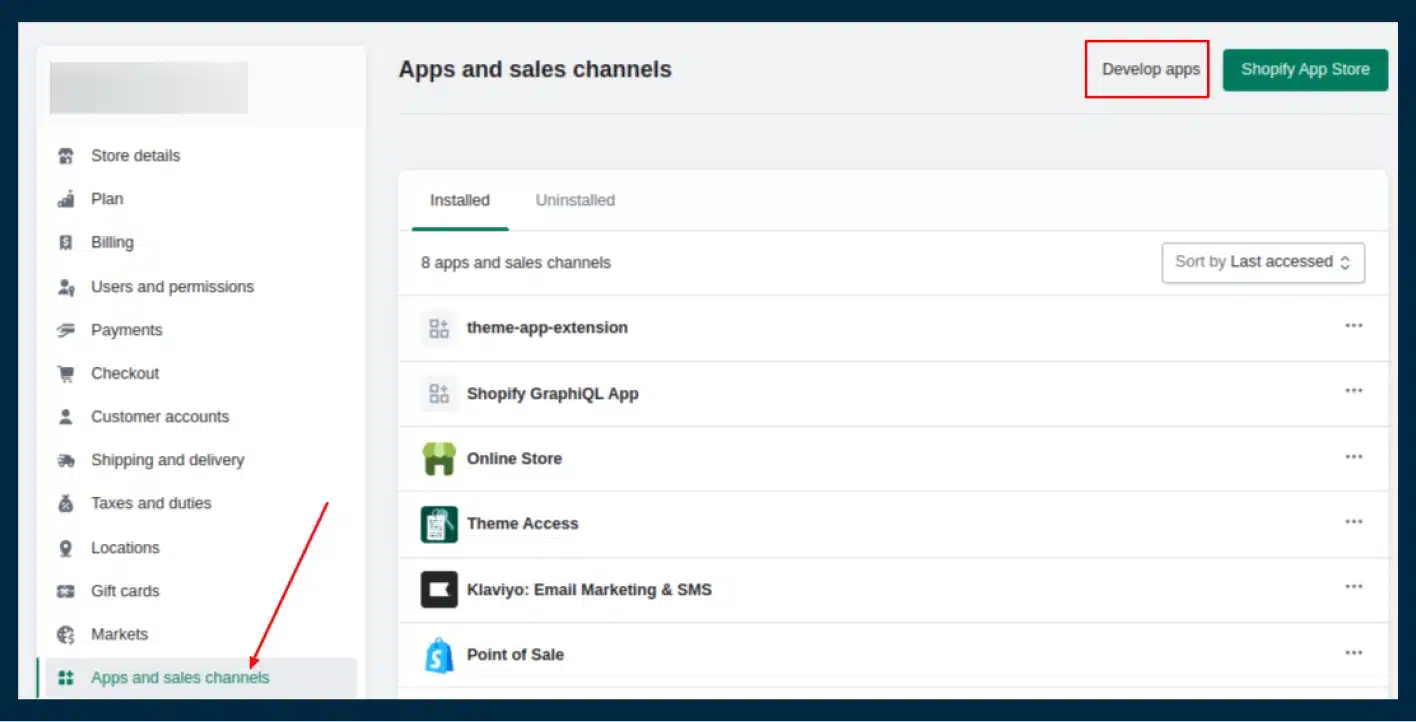
Step 1: Generate API Credentials in Shopify
The migration tool connects to Shopify via a custom app. Here’s how to set that up:
- In Shopify admin, go to Settings → Apps and Sales Channels → Develop Apps
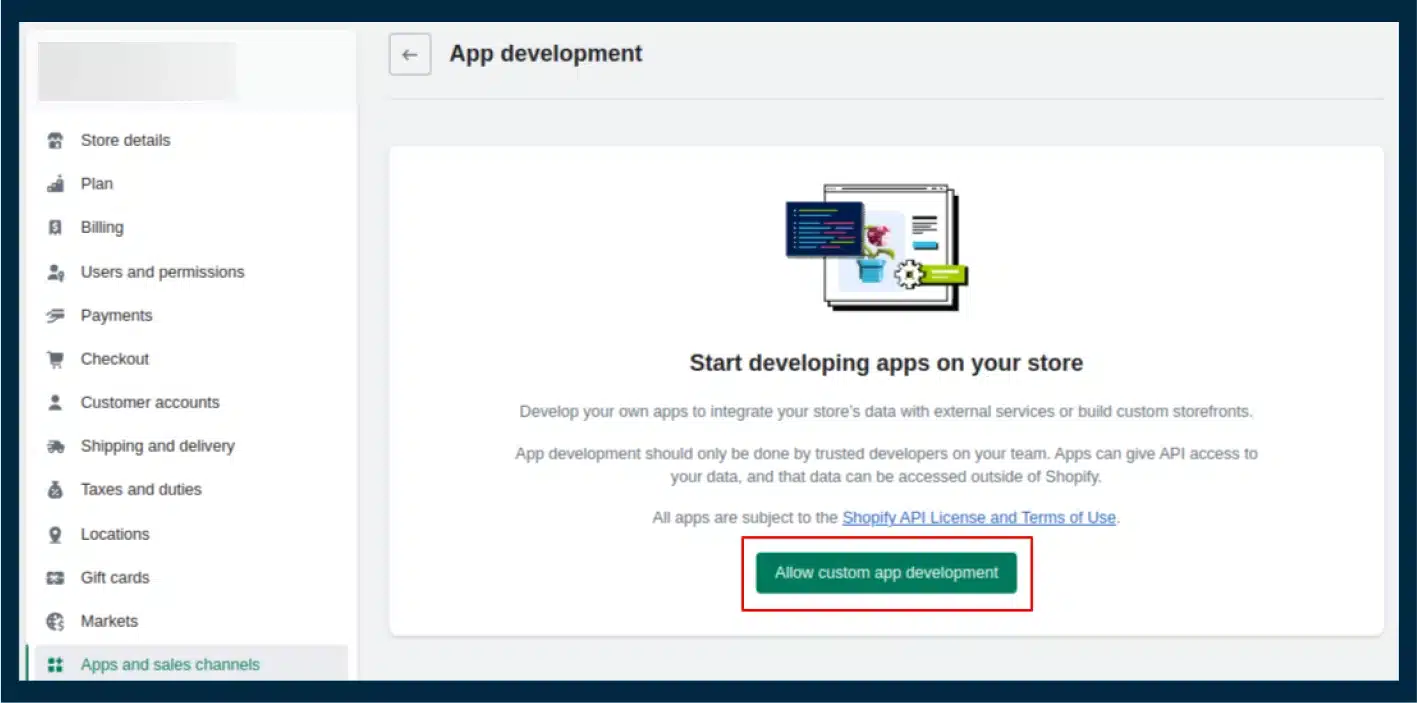 2. Enable custom app development if prompted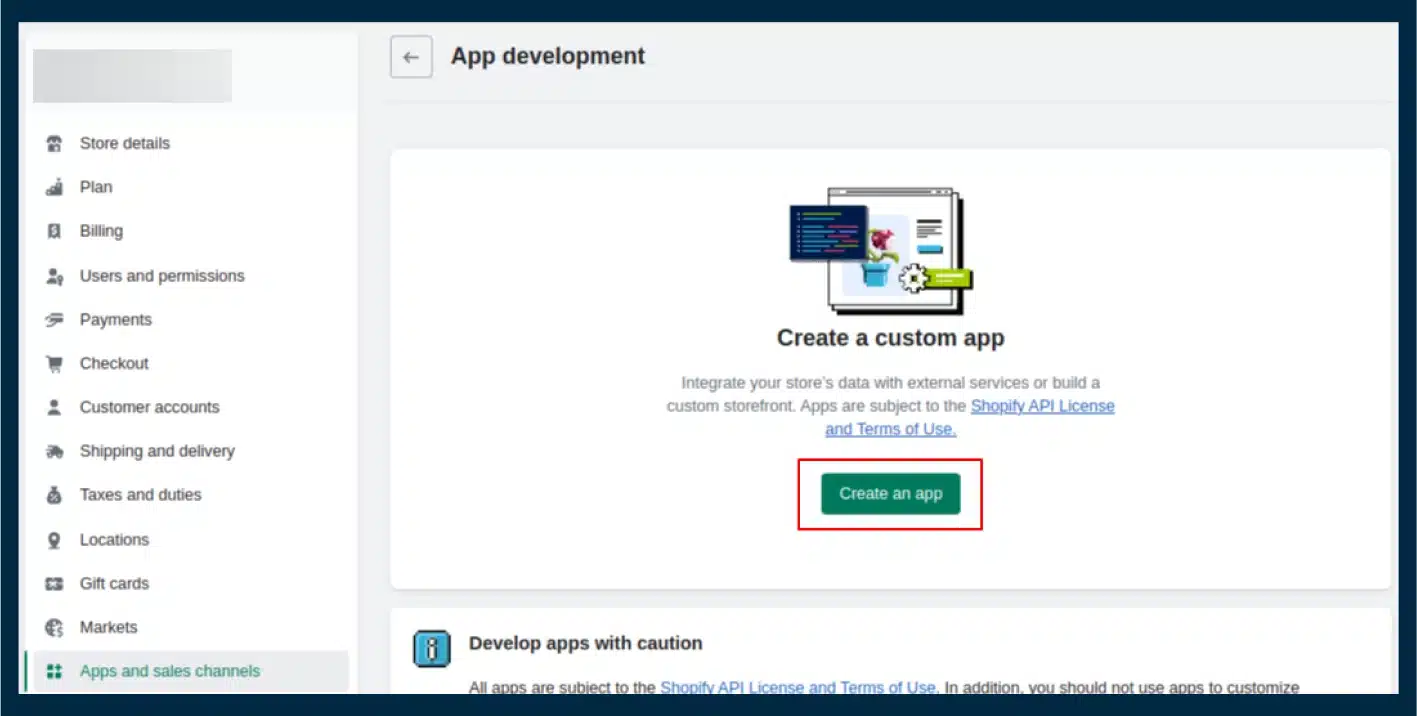
3. Click Create an App, name it, and assign a developer
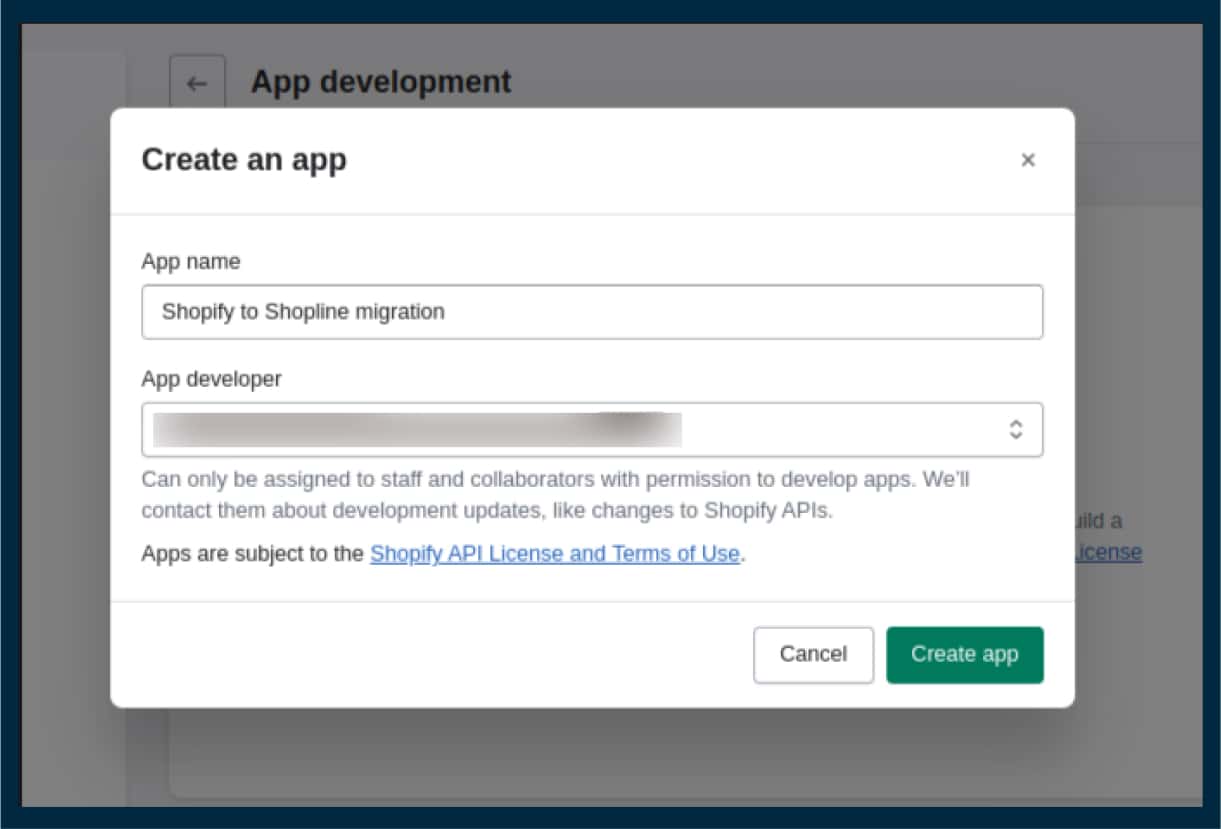
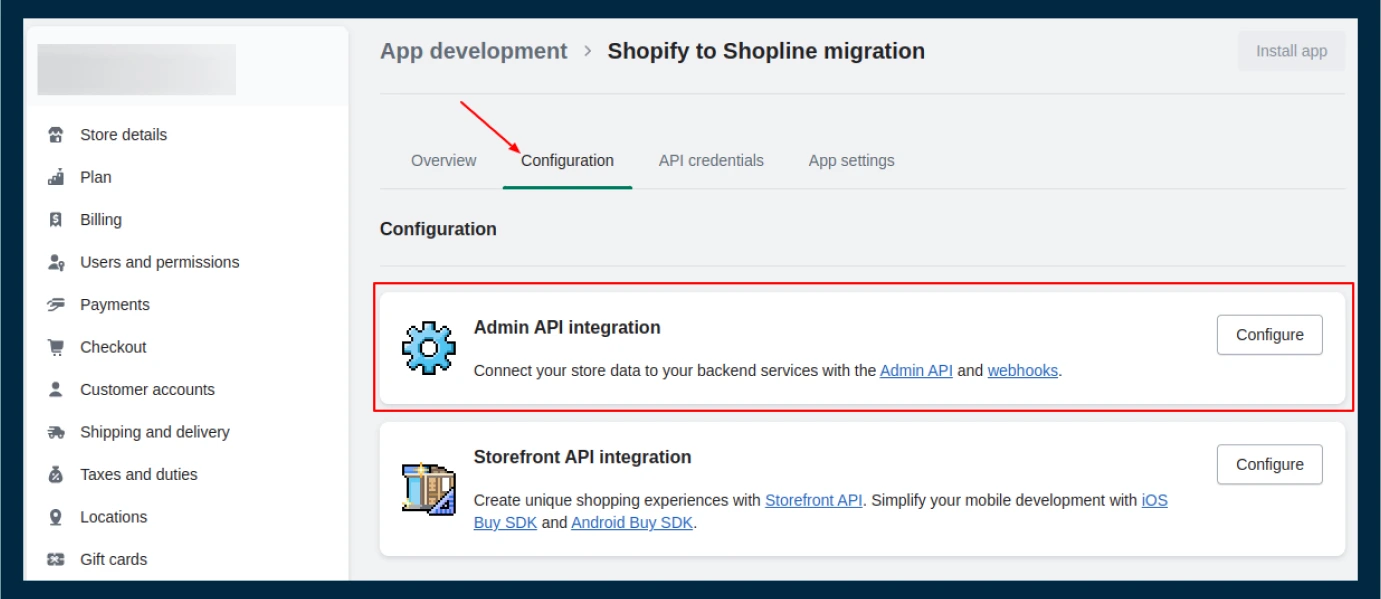
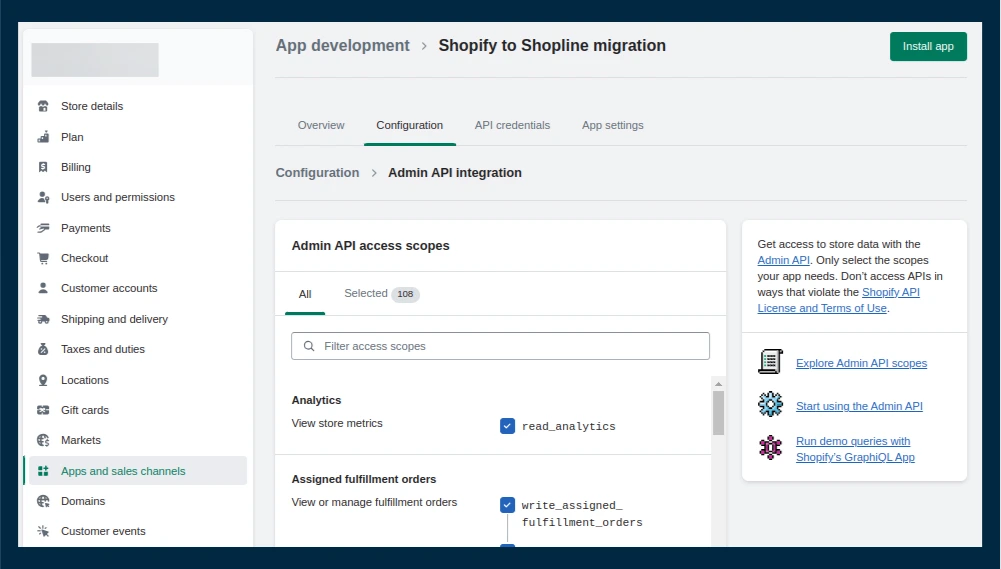
4. Under the Configuration tab, set the required Admin API access scopes
-> Configure Admin API integration, then grant all access and Save.
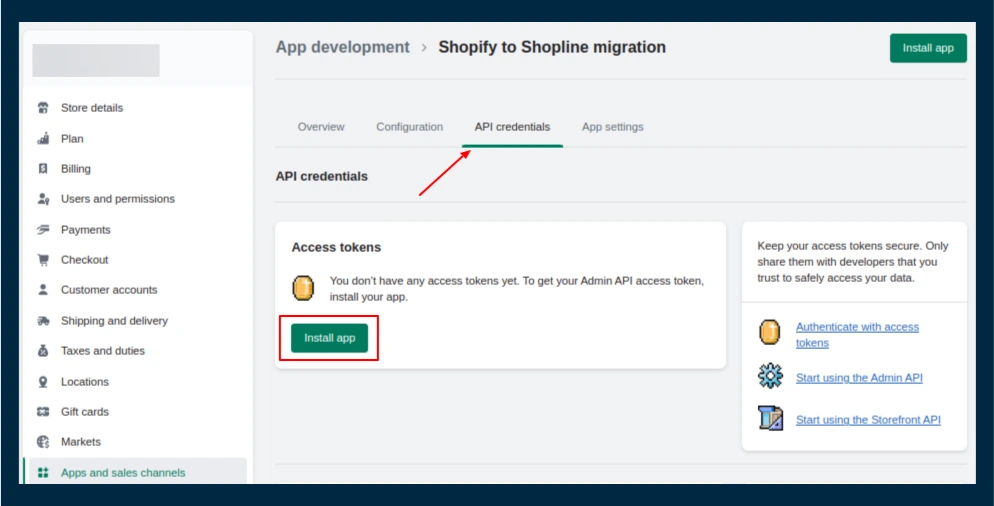
5. Save and install the app
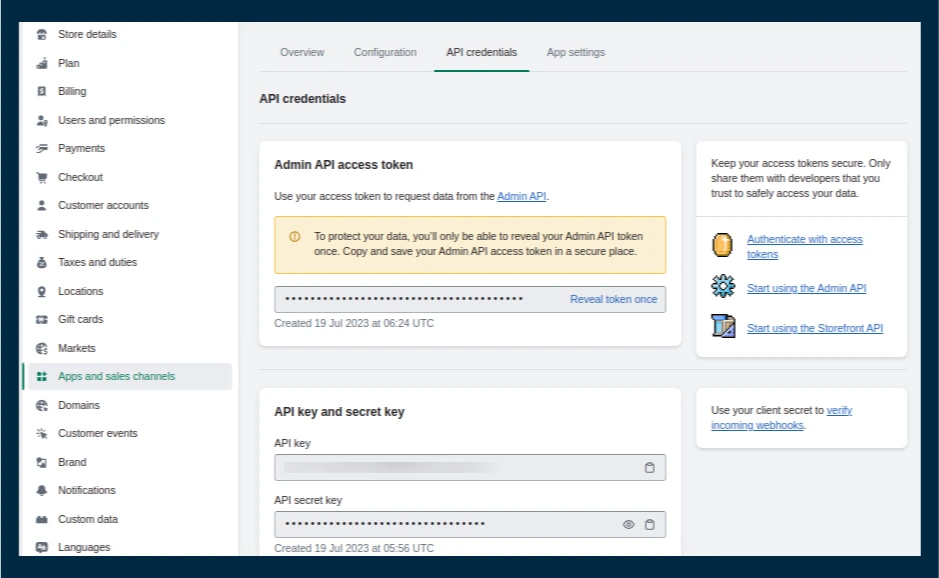
6) Go to API Credentials and copy your:
API Key
Admin API Access Token (this acts as your Key Password)
7) Also note your Store Handle — the part before .myshopify.com in your store URL
Step 2: Install the Migration App on Shopline
- Log into Shopline admin
- Open the Shopline App Store and search for “Shopify Store One Click Relocation”
- Install the app
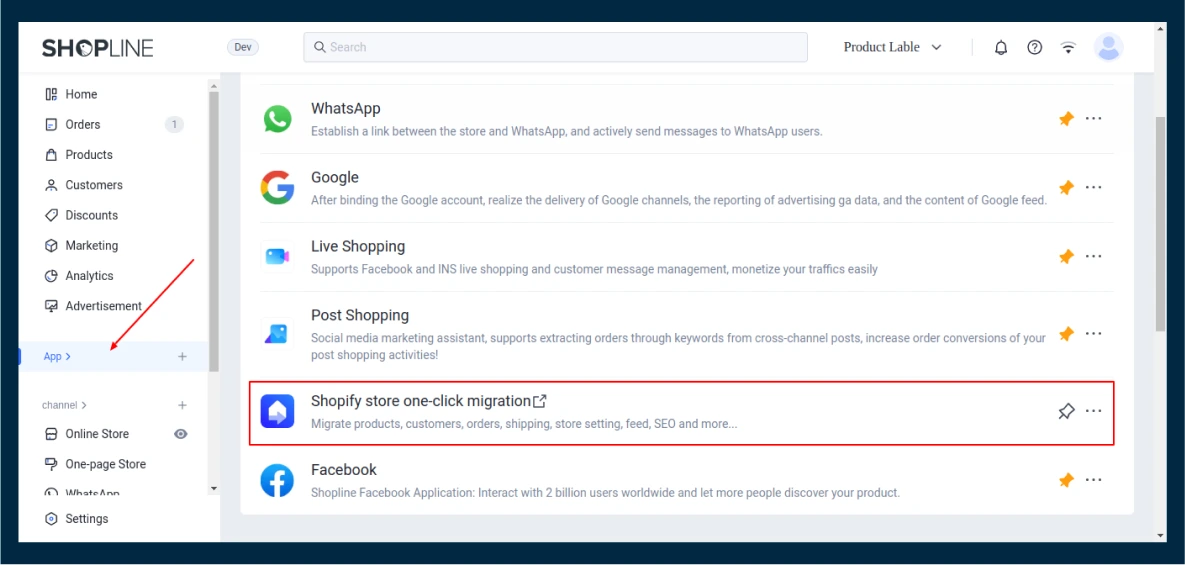
4) Navigate to Apps → Shopify Store One-Click Migration
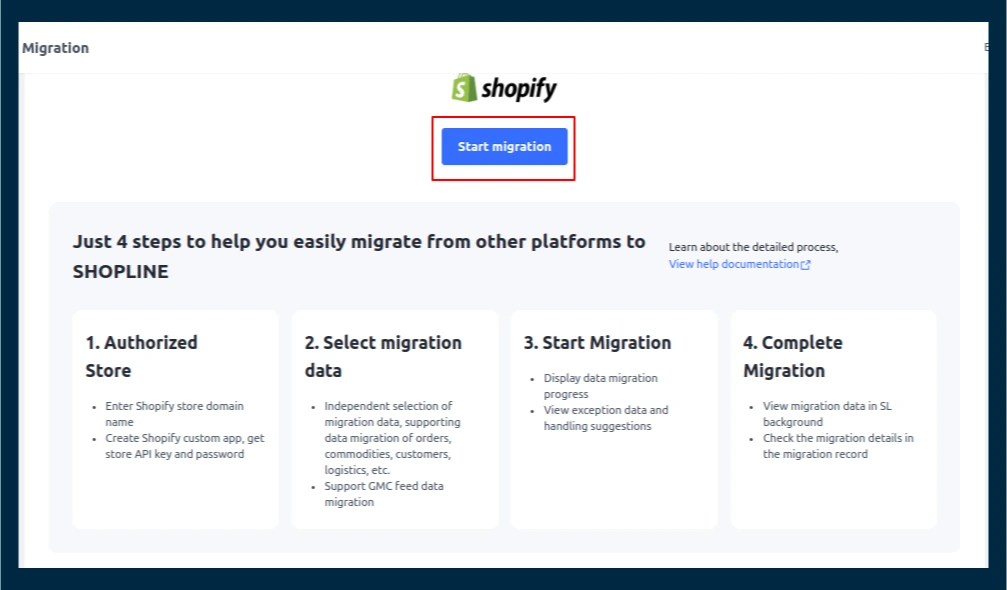
Step 3: Connect Your Shopify Store
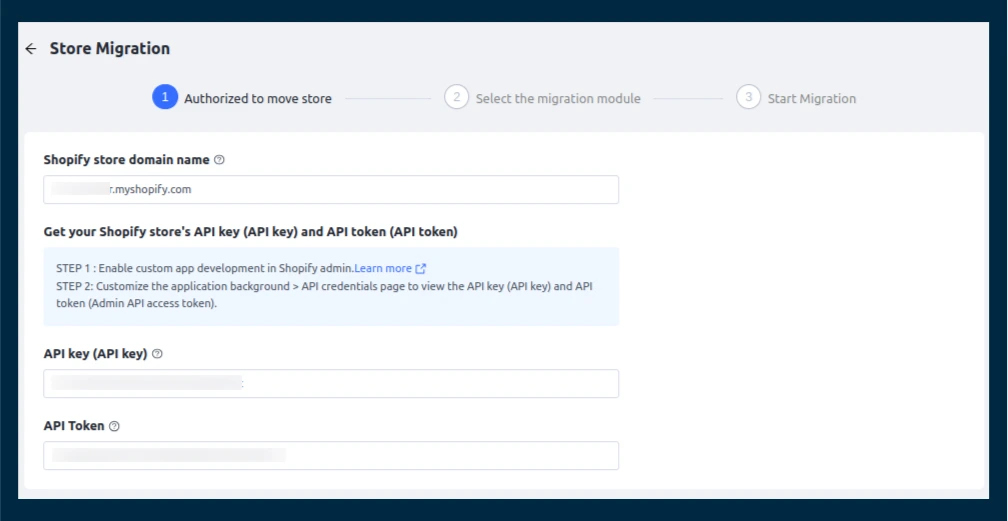
- Enter your Store Handle
- Input your API Key
- Enter the Admin API Access Token as the Key Password
- Click Connect
Step 4: Choose What to Migrate
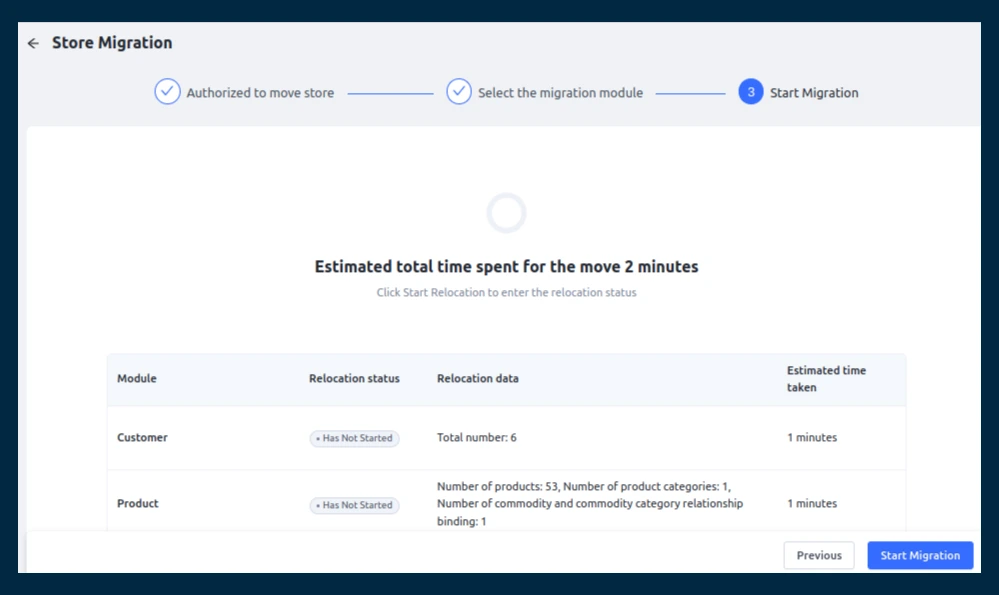
- Select the data modules you want — Products, Customers, Orders, Blogs, Pages, Redirects, etc.
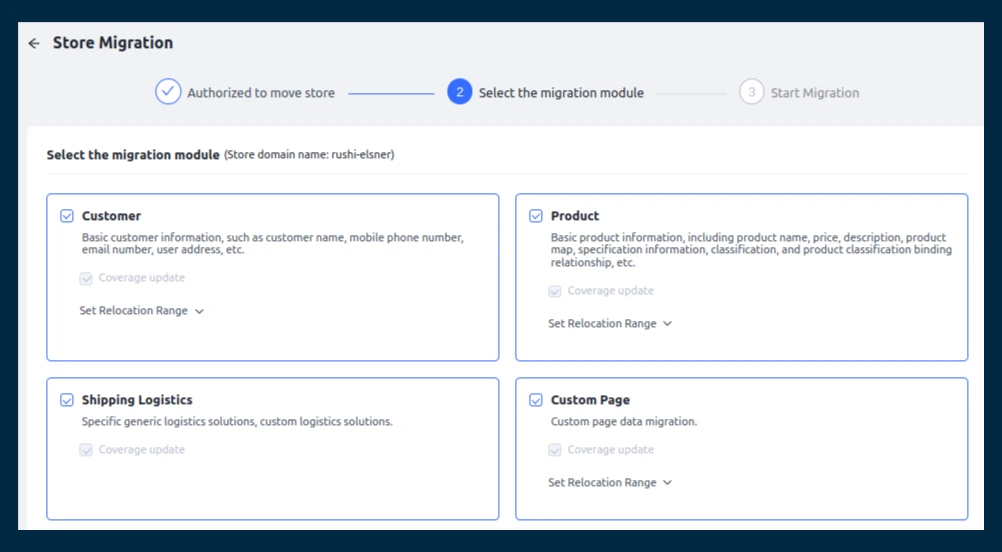
2. The app estimates migration time based on your data volume
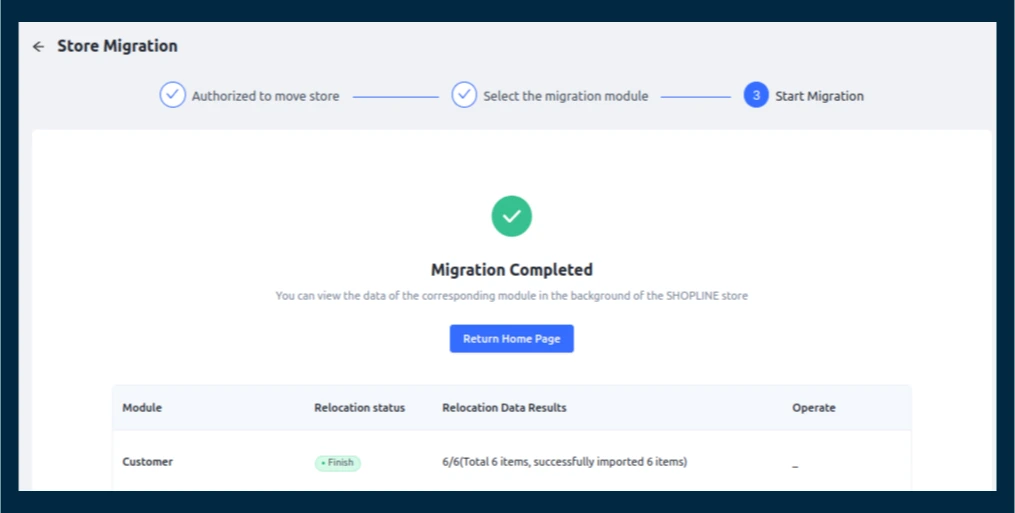
Step 5: Monitor Progress
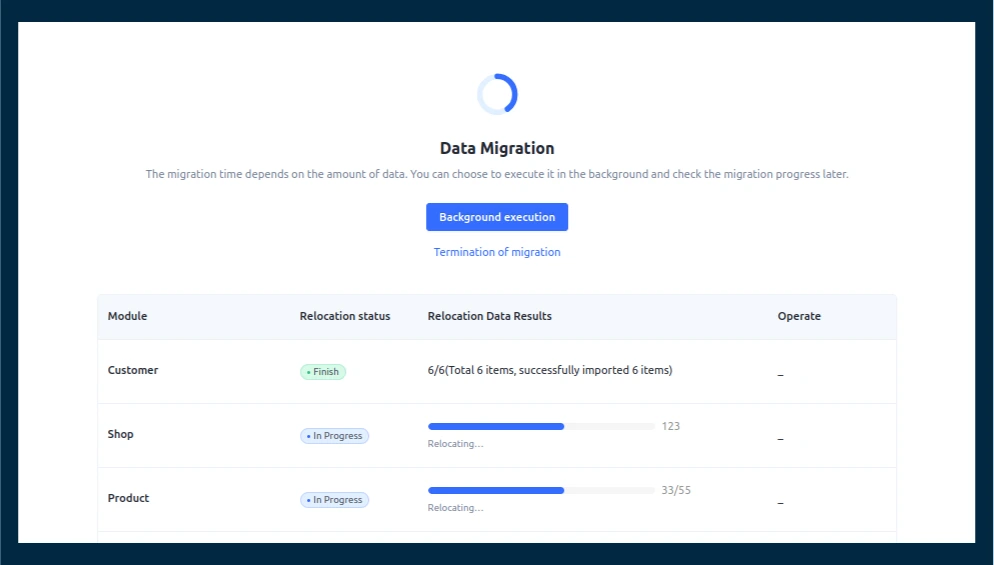
- The dashboard shows real-time progress per module
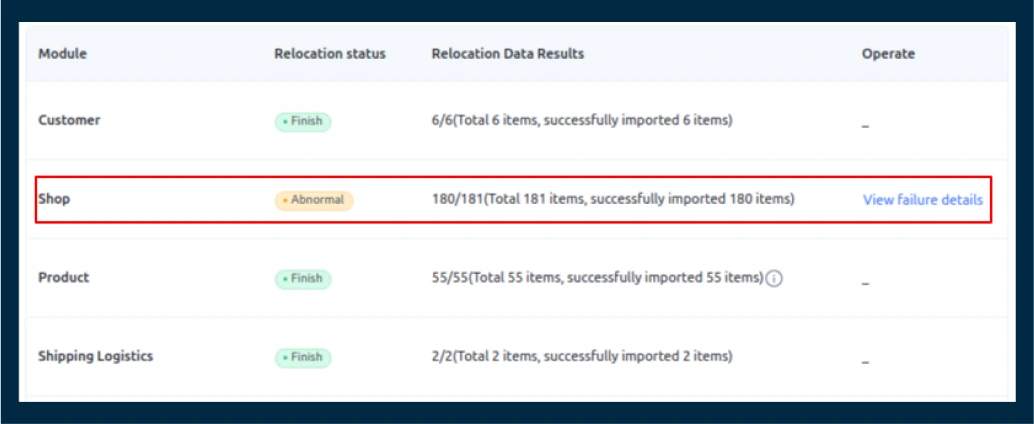
- A migration report is generated on completion with success and failure counts
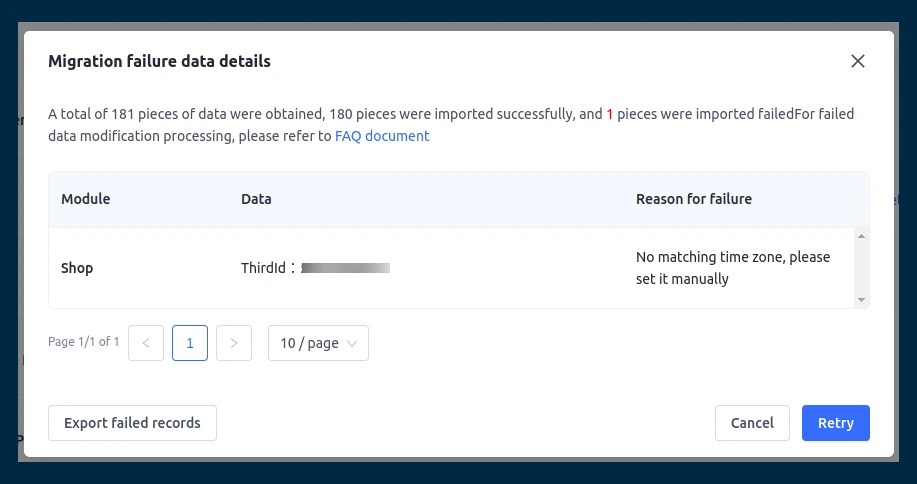
3. Failed items include specific details so you can address them
4. Do spot checks after: a handful of products, a few customer records, and a few orders
Step 6: Post-Migration Tasks
- Domain: Point your custom domain to Shopline
- Customer reactivation: Send invitation emails via Shopline Admin → Settings → Notification → Customer Invitation
- SEO: Test 301 redirects for key pages, especially top-traffic URLs
- Payments: Reconnect your payment gateways in Shopline
- Apps: Reinstall any third-party integrations
- GMC Feed: Confirm your Google Merchant Center sync is active and the data looks consistent
Common Migration Challenges
Most migrations don’t go perfectly on the first run. That’s not a criticism of the tool — it’s just how platform switches work. Here are the issues that come up most often and what to do about them.
1. Product Variants Over the Limit
Shopline allows up to 5 product attributes per product. If any of your Shopify products use more than that, those variants won’t transfer correctly. Go through your catalog before migrating. Consolidate where you can, or plan to use Shopline’s metafields for anything that doesn’t fit.
2. Refunds Don’t Come With the Orders
Order history migrates. Refund records don’t. Shopify’s API doesn’t make return data available for export. Here’s what you can do:
- Before migration: Clear pending refunds in Shopify.
- Keep a manual record of anything that you need to track later.
3. Customers Can’t Just Log Back In
Every migrated customer has to reactivate their account on Shopline. This trips people up because it feels like something that should be automatic. It isn’t. Send the reactivation email early — before you fully switch over — so customers aren’t locked out when they try to purchase.
4. Custom Logistics Plans Need to Be Rebuilt
General freight settings carry over fine. But if you built custom logistics plans in Shopify — anything combining multiple rule types — those won’t migrate. Set aside time to recreate them in Shopline before going live.
5. URL Changes Can Dent Your SEO
Shopify and Shopline structure URLs differently. The migration tool handles redirect mapping, but it’s not foolproof. After migrating:
- Pull up your top-traffic pages in Google Search Console.
- Confirm the redirects are working.
Catching a broken redirect early is a lot cheaper than recovering lost rankings later.
6. Google Shopping Ads Can Get Disrupted
If your GMC product ID sync isn’t configured correctly after migration, it can affect active campaigns. Before starting, export a backup feed from Google Merchant Center. Once migration is done, compare it against the new feed to spot any gaps.
7. Running It Twice Causes Overwrite Issues
Re-running the migration tool overwrites everything done in Shopline. Run it once, check the results, and leave it. Any fixes after that do them directly in Shopline.
Conclusion
We have shared a detailed process to migrate Shopify to Shopline, still in case of any issues you can connect with our experts. Also, understand the importance of having a smooth process for migration as a single issue can affect your overall brand reputation in the search engine.
Our team of experienced developers have dealth with Shopify and shopline development services to make them ideal in handling all your requirements effortlessly.
FAQ
How long does migration take?
The tool estimates this before you start based on data volume. A small store might finish in under an hour. Larger stores with thousands of products and orders can take several hours. The migration runs in the background, so you don’t need to keep the browser open.
Does my Shopify store go offline during migration?
No. Shopify stays live throughout. You can keep operating there until you’re ready to fully switch over.
What about multiple languages?
Multi-language migration isn’t currently supported. After migration, use a translation app from the Shopline App Store to add language support.
What happens to product categories?
Shopify categories become collections in Shopline. Subcategories are handled the same way.
Can customers use their existing login?
No. Customer data transfers, but each customer needs to reactivate their account on Shopline. Use the invitation email feature in Shopline admin.
What if some products or orders fail to migrate?
The migration report flags failures with details. For failed products, you can retry migration for those items or upload via CSV. For failed orders, Shopline may still create a placeholder order. Check these carefully, as they can affect shipping or refund workflows.
Is customer data transferred securely?
Yes. The migration app uses Shopify’s official API, so data transfer follows Shopify’s security standards. Payment card data is never included. Gateways must be reconnected separately in Shopline.
Can the migration be undone?
Your Shopify store isn’t touched during migration, so reverting is simple.