



- How Does Goal Tracking Work in Zoho CRM?
- Target Meters vs. Motivator: Which Should You Use?
- What to Check Before Setting Up Sales Targets
- How to Configure a Target Meter in Zoho CRM
- How to Set Targets in Motivator for Zoho CRM
- How to Check Your Target Is Tracking Correctly
- Two Practical Sales-Goal Examples
- Why Is My Target Showing the Wrong Progress?
- When Should You Get Help With Configuration?
- Frequently Asked Questions
- Does Zoho CRM have a goals feature?
- What is the difference between Target Meters and Motivator?
- Can I set different targets for individual sales representatives?
- Can I track revenue and sales activities separately?
- Why does target progress differ from another CRM report?
- Which edition and permissions do I need?
- Official References
Quick Answer
Zoho CRM does not have a single feature named Goals. You set and track sales targets with Target Meter in the Dashboards area, or with Motivator for Zoho CRM, a separate add-on built around KPIs.
Target Meter: best for a snapshot of one number
- Lives in the Dashboards / Analytics area
- Needs a paid edition that includes dashboards
- Tracks one metric from one module, such as the sum of Amount on won deals
Motivator: best for ongoing motivation
- Set up by an administrator at Setup > General > Motivator
- Available on Professional edition and above
- Point-based KPI targets with leaderboards and on-track status
Short version: use Target Meter for a clean dashboard view of one key number, and Motivator for ongoing, multi-KPI tracking across a sales team. This guide shows how to set up each one and how to check that the reported progress is accurate.
A sales target usually starts life in a spreadsheet. The number is clear enough, say, close $150,000 this quarter. The problem shows up halfway through the period, when a manager opens Zoho CRM and cannot answer one simple question: are we on track right now?
Before setting a target, it helps to understand the available tools. Zoho CRM does not offer a single feature named “Goals.” You track targets through two tools: Target Meter, which lives in the Dashboards area (renamed Analytics for some accounts), and Motivator for Zoho CRM, a separate add-on built around KPIs. This guide explains which one fits your needs, how to set up a target, and how to verify the accuracy of reported progress.
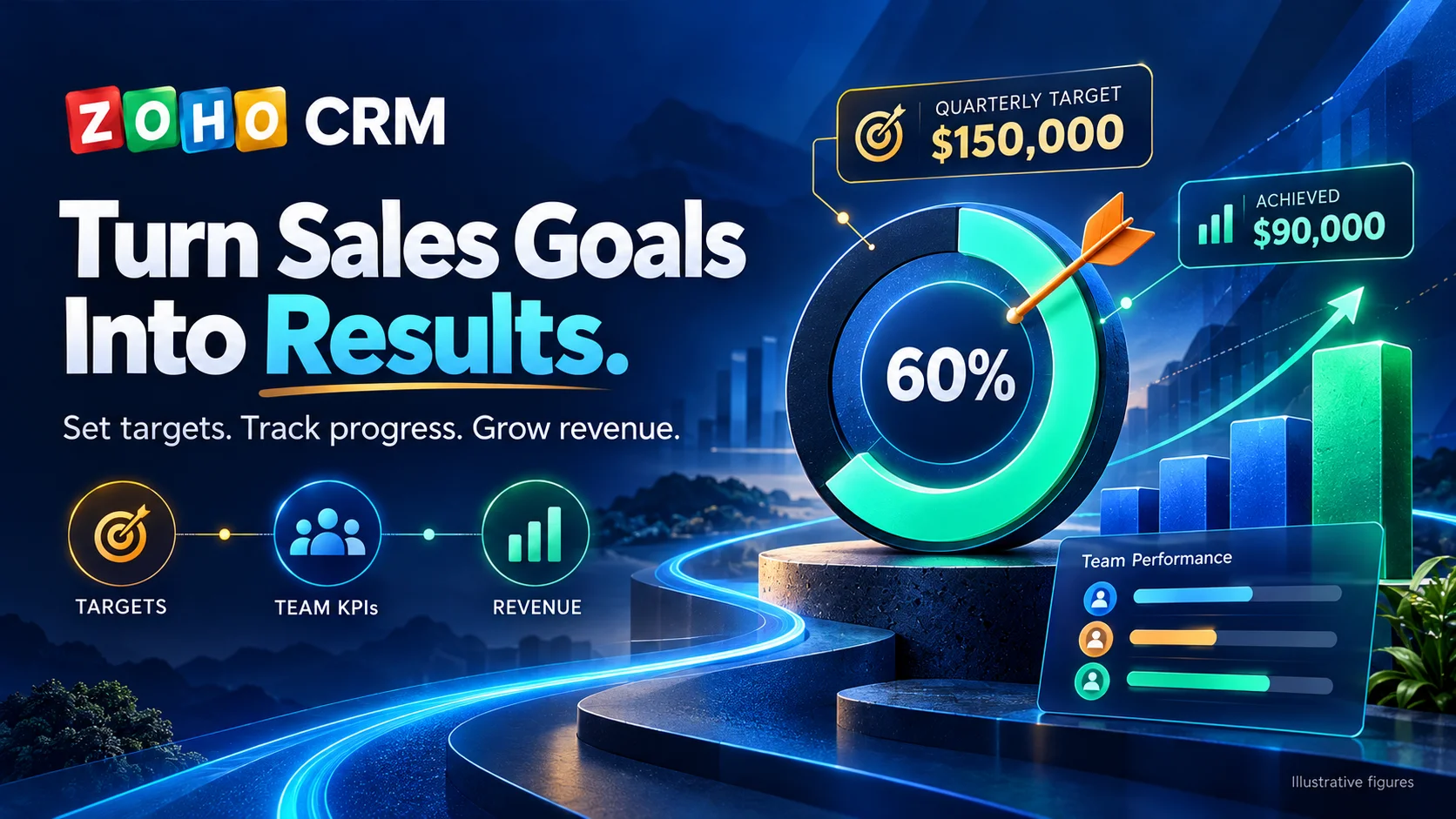
Throughout this guide, we’ll use an illustrative quarterly target of $150,000 in closed-won revenue.
How Does Goal Tracking Work in Zoho CRM?
Goal tracking in Zoho CRM measures your real records against a number you define, so progress updates as your team works rather than when someone edits a spreadsheet. The two tools do this differently.
- Target Meter measures one Target metric from a chosen module over a set Duration, and counts only the records that meet your Criteria Filter.
- Motivator works through KPIs and points. A KPI applies to records that meet defined criteria, and a Target is then set on that KPI for an individual, a team, or the company. Zoho notes that Motivator KPIs are separate from the KPIs in the CRM Analytics tab.
For this example, a Target Meter would be set up like this:
- Module: Deals
- Target metric: Sum of the Amount field
- Duration: This quarter
- Criteria Filter: Stage is Closed Won, and a date condition on Closing Date within the quarter
- Target: $150,000
It also helps to separate two kinds of targets. Activity targets measure effort, such as leads created or calls logged. Outcome targets measure results, such as closed-won revenue. This example is an outcome target.
Target Meters vs. Motivator: Which Should You Use?
Both track targets, but they are built for different jobs. A Target Meter gives a clean visual snapshot of one KPI on a dashboard. Motivator is a performance and gamification tool for ongoing, multi-KPI tracking across a sales floor.
| Aspect | Target Meter | Motivator for Zoho CRM |
| Where it lives | Dashboards / Analytics area | Setup > General > Motivator |
| Edition | Paid editions with dashboards | Professional edition and above |
| What you measure | A Target metric from one module (for example, sum of Amount) | A KPI measured in points, built on a module |
| Target setup | Set target for, Target metric, Duration, Criteria Filter, Target | Create a KPI, then set a Target on it |
| Individual and team targets | Separate target values per person with the Multiple Bar style | Separate targets for individuals, teams, or the company |
| Progress display | Dial gauge, bar, multiple bar, or traffic lights | Status bar with on-track or off-track, plus leaderboards and TV |
| Best for | A shared snapshot of one key number | Ongoing motivation and competition |
Sources: Zoho’s Target Meter and Motivator for Zoho CRM documentation. Check feature availability and menu labels in your Zoho CRM account, since some options roll out in phases.
What to Check Before Setting Up Sales Targets
A few minutes of preparation prevents most “the number looks wrong” problems later. Run through this checklist first.
- Edition and feature availability. Per Zoho’s documentation, Motivator is available on Professional edition and above, and Target Meters need an edition that includes dashboards. Check what your plan includes.
- Access and permissions. Zoho’s documentation shows Motivator KPIs and targets are created by an administrator. Target Meters are built in dashboards, so you need dashboard access in your profile. Confirm both in your account.
- Data completeness. For this example, deals need an owner, an Amount, and the correct stage, because empty or wrong fields quietly distort the result.
- Date field and period. The Duration dropdown sets the reporting period, and the Criteria Filter decides which records qualify. Decide which date field your target depends on before you build; the setup steps below show how.
- Owner, team, and currency. Confirm records are assigned correctly if you group by owner or team, and confirm how Zoho converts currency for revenue in a multi-currency account.
For a broader setup walkthrough, see our Zoho CRM implementation guide.
How to Configure a Target Meter in Zoho CRM
The steps below follow Zoho’s documented flow, applied to this example. Check the exact labels in your Zoho CRM account, since some options roll out in phases.
Click the Dashboards tab, then select the dashboard where the target should appear.
Click Add Component, then click Target Meter.
Choose a style: Dial Gauge, Bar, Multiple Bar, or Traffic Lights. Multiple Bar suits per-region or per-person targets, and Traffic Lights can flag safe and danger zones.
Enter a component name, for example Quarterly Closed-Won Revenue.
Set the Set target for, Target metric, and Duration options. For the example, measure the sum of Amount on the Deals module for this quarter.
Click Criteria Filter and add your conditions: Stage is Closed Won, and a date condition on Closing Date within the quarter. Closing Date counts deals that closed in the quarter; a Created Time condition would count deals created in the quarter instead. You can add up to 10 criteria.
Specify the Target. For the example, enter 150000.
Optionally enable Display as shortened numbers, then click Save.
How to Set Targets in Motivator for Zoho CRM
Motivator keeps its own setup, and its targets are point-based and built on a KPI. For a revenue target like this example, you first create a KPI that uses the Amount field value as points, then set a Target on it.
As an administrator, go to Setup > General > Motivator, then click Access Motivator (see Zoho’s guide).
Create the KPI: select Create KPI, name it, choose the module, choose the record selection time, define the criteria, and set point computation. For revenue, use the value of the Amount field as points. Save.
Click Targets, then Create Target, and enter a target name.
Select the KPI and the Target period, such as quarterly.
In Set Target for, choose Company, Individual, or Team, and enter the target value in points. Add a badge if you want, then Save.
How to Check Your Target Is Tracking Correctly
After setting a target, check that its progress matches the underlying CRM records. Use this quick process.
- For a Target Meter: note the meter’s current value, then open the same module in a list view and apply the same filters and period. In the example, filter Deals for Stage is Closed Won with a Closing Date in the quarter, then sum the Amount column. If the meter and the manual total match, the target is reading the data correctly.
- If they differ: the Criteria Filter, the date condition, or the Duration is the usual cause. The troubleshooting table below covers each.
- For Motivator: open the Target board. Each target shows a completion status bar and an on-track or off-track label, which compares progress against where you should be by this point in the period. Hover and refresh to pull the latest status before you rely on it.
Two Practical Sales-Goal Examples
Example 1: Quarterly closed-won revenue. Suppose the qualifying closed-won deals total $90,000 against the $150,000 quarterly target. That means 60% of the target is achieved, with $60,000 remaining. Compare the displayed progress with the total from the same filtered records.
Example 2: Weekly lead-generation target. For 40 qualified leads a week, build a Target Meter on the Leads module that counts records, with a weekly Duration and a Criteria Filter for your qualifying Lead Status and a Created Time condition inside the week. On the Leads module you can also use the Is Converted field in the filter to separate converted and unconverted leads. Tightening or loosening the status criteria changes the count, so your definition of “qualified” has to match how the team works. These figures are illustrative.
Why Is My Target Showing the Wrong Progress?
When progress looks wrong, start by checking the criteria, date fields, and underlying records. Work through the common causes below.
| Symptom | Checks to perform | Likely correction |
| Revenue is lower than expected | Whether the date condition uses Closing Date (deals closed in the period) rather than Created Time (deals created in the period), and whether the stage criteria match your won stage | Use a Closing Date condition and confirm the won stage |
| Count is higher or lower than expected | Whether the record criteria are too narrow or too broad | Adjust the status, source, or date criteria to match intent |
| Nothing is showing at all | Data completeness and your view permissions | Fill missing fields and confirm access to the records |
| A team total looks wrong | Owner and team assignment, and the Set target for grouping | Reassign records or fix the grouping |
| It disagrees with another report | Date field, criteria, period, and metric calculation in both | Align all four, then check both include the same records |
| Motivator revenue looks off | Whether the KPI uses the field value as points, not one point per record | Set point computation to use the Amount field value |
When Should You Get Help With Configuration?
Simple targets are straightforward to build yourself. A few situations are worth a specialist’s time because the logic gets harder to get right and easier to get quietly wrong.
- Custom modules or custom fields that standard components do not read the way you expect.
- Complex criteria, such as blended activity and outcome targets, or point-based KPIs that need careful configuration.
- Multiple teams or territories that each need their own accurate view.
- Connected systems, where data flows in from another tool and has to stay consistent for the target to be trustworthy.
If your targets depend on custom modules or multi-team logic, Elsner’s Zoho development services and Zoho CRM customization team can configure your targets and validate the results against the underlying CRM records.
Frequently Asked Questions
Does Zoho CRM have a goals feature?
Not as a single feature named Goals. You set and track targets with Target Meter in the Dashboards area or with Motivator for Zoho CRM.
What is the difference between Target Meters and Motivator?
A Target Meter is a dashboard component that shows progress toward one metric. Motivator is a separate add-on, available on Professional edition and above, for point-based KPI targets with leaderboards and on-track status.
Can I set different targets for individual sales representatives?
Yes. Grouping only splits progress by person, so to give each rep their own target value, use the Multiple Bar style in a Target Meter or add Individual targets in Motivator. Per Zoho’s Motivator documentation, each target supports up to 10 configurations.
Can I track revenue and sales activities separately?
Yes. Build one target on an outcome metric, such as the sum of Amount on won deals, and a separate target on an activity metric, such as leads created.
Why does target progress differ from another CRM report?
The two are usually measuring slightly different things. Compare the date field, criteria, period, and metric calculation, such as a sum of Amount versus a count of deals. If they still differ after you align all four, check whether both views include the same records.
Which edition and permissions do I need?
Per Zoho’s documentation, Motivator is available on Professional edition and above and is set up by an administrator. Target Meters need an edition with dashboards and dashboard access in your profile.
Official References
Zoho CRM Experts
Get Your Zoho CRM Sales Targets Set Up Correctly
Need help configuring sales targets or custom KPIs in Zoho CRM? Talk to Elsner’s Zoho team about your reporting requirements. We will review your setup, configure your Target Meters or Motivator KPIs, and validate the results against your CRM records.