- What Is WordPress Maintenance?
- Why Must Business Owners Follow a WordPress Maintenance Checklist?
- Security Protection
- Website Performance and Speed
- Impact on SEO Rankings
- Improved User Experience
- Complete WordPress Maintenance Checklist (Core Section)
- Daily WordPress Maintenance Tasks
- Weekly WordPress Maintenance Tasks
- Monthly WordPress Maintenance Tasks
- Quarterly WordPress Maintenance Tasks
- Struggling to Keep Up With WordPress Maintenance?
- Common WordPress Maintenance Mistakes to Avoid
- DIY vs Professional WordPress Maintenance Services
- What DIY Actually Requires?
- Time vs. Expertise Breakdown
- Where Self-Management Gets Risky
- When Should You Hire WordPress Maintenance Experts?
- Not Sure What’s Breaking Your Website Behind the Scenes?
- Conclusion
- Frequently Asked Questions
- What is a WordPress maintenance checklist and why do I need one?
- How often should I perform WordPress maintenance tasks?
- What should be included in a WordPress maintenance checklist for business websites?
- Can I maintain my WordPress website myself, or do I need professional help?
- What are the risks of not maintaining a WordPress website?
- How much do WordPress maintenance services for small business websites cost?
- What’s the difference between WordPress maintenance and WordPress support?
You built the website. Launched it. Share it everywhere. And then your business operation continued as usual.
That’s exactly what happens with most business owners. The launch feels like crossing the finish line. But managing a WordPress site long enough teaches you one uncomfortable thing pretty quickly: launch day is just day one of something ongoing, not the end of anything, even with WordPress Development Services.
Plugins quietly go outdated. A theme breaks after an update you didn’t fully read. Spam bots start poking at your login page. The backup that was supposed to run last Tuesday somehow didn’t. And one afternoon you open your own site only to watch it load in seven seconds. Or not load at all.
So this is the WordPress maintenance checklist that helps you avoid all of that.
What Is WordPress Maintenance?
Put simply: it’s everything you do regularly to keep your website secure, fast, and actually working.
Not exciting. No single big task you knock out once and forget. Skip it long enough and things fail in ways that are expensive, stressful, and completely avoidable.
A neglected WordPress site bleeds quietly. Search rankings slip. A form stops working and nobody notices for weeks. A plugin vulnerability gets exploited while you’re focused on running your actual business.
Following a solid WordPress website maintenance checklist isn’t about being technical. It’s about not getting blindsided.
Why Must Business Owners Follow a WordPress Maintenance Checklist?
Security Protection
WordPress runs over 40% of the internet. That makes it a target. Automated bots constantly scan for sites running outdated plugins, old PHP versions and default login URLs. Anything that signals neglect. Outdated software is the #1 entry point for attackers, and the fix is often just running a pending update.
Regular WordPress maintenance tasks close those openings before they become incidents. These include:
- Updating plugins,
- Cleaning up unused themes,
- Reviewing login activity
Website Performance and Speed
Nobody waits. Google’s own data points to most users abandoning pages that take longer than 3 seconds to load. The degradation is gradual enough that site owners rarely notice the drift themselves.
A bloated database, unoptimized images or stale cache settings. They accumulate slowly and silently. Your visitors feel it before you do.
Impact on SEO Rankings
Site speed, broken links, HTTPS, crawl errors: search engines factor all of it in. A site that’s been left alone for six months tends to accumulate problems in exactly these areas.
Staying on top of WordPress website maintenance tasks, as outlined in any WordPress SEO Guide, is part of protecting search visibility over time, not just a technical box to check.
Improved User Experience
A contact form that stopped working. A checkout page throwing an error. A sitemap still listing a page you deleted in 2022. These things erode trust quietly, and customers rarely complain. They just leave and don’t come back. Maintenance catches them first.
Complete WordPress Maintenance Checklist (Core Section)
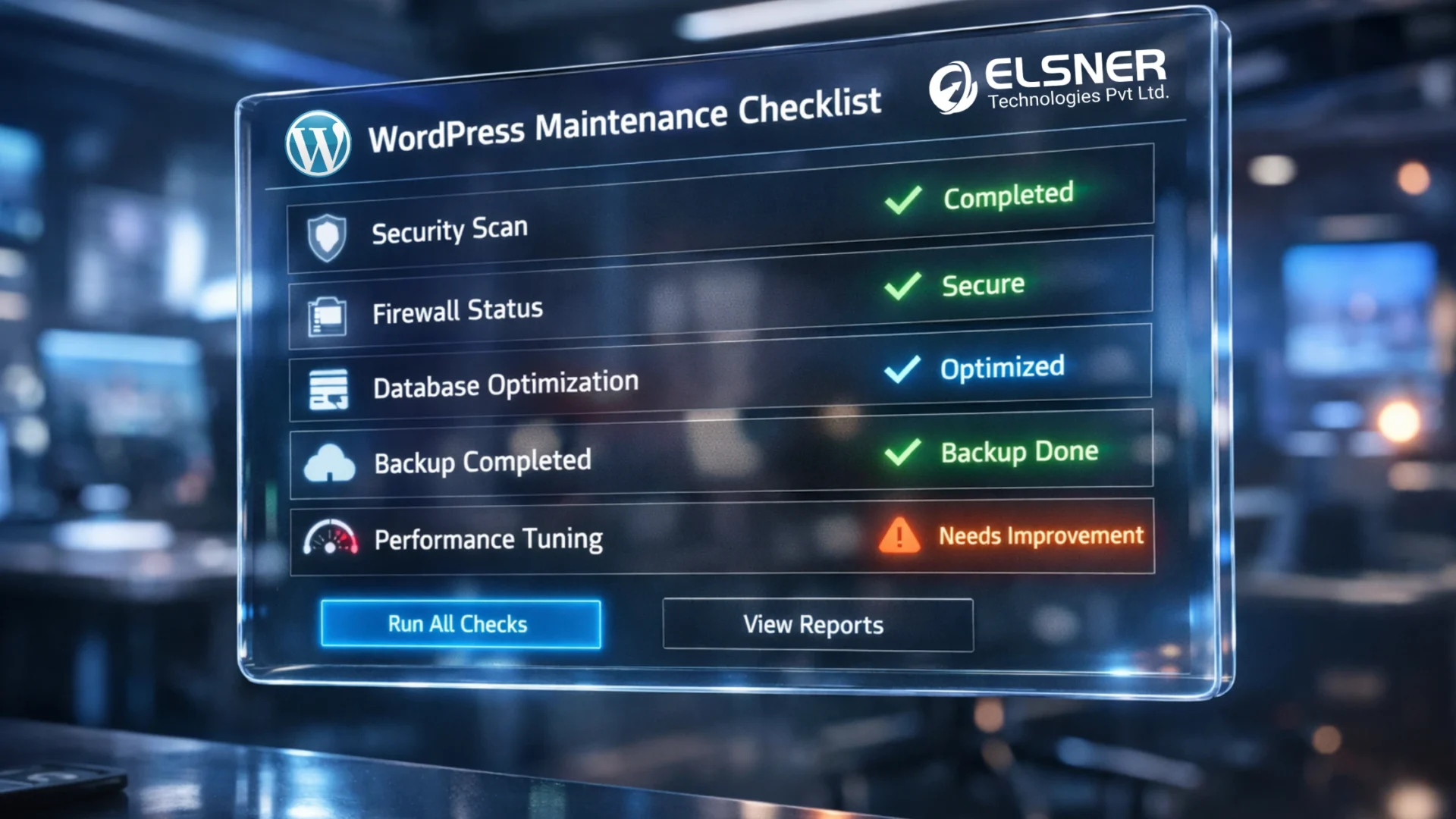
This is the core of any practical WordPress maintenance checklist for business websites. The tasks are split by frequency so none of it feels like a full-time job.
Daily WordPress Maintenance Tasks
Realistically, this is mostly automated monitoring. These are WordPress website maintenance tasks for beginners.
| Task | Why It Matters |
|---|---|
| Monitor website uptime | Know about downtime in minutes, not hours |
| Check for security alerts | Plugins like Wordfence or Sucuri flag suspicious activity as it happens |
Set up automated uptime monitoring (UptimeRobot has a free tier) and make sure your security plugin sends email alerts. Takes 15 minutes to configure once, runs on its own after that.
Weekly WordPress Maintenance Tasks
Pick a time (Monday morning, Friday before lunch) and keep it. Consistency matters more than which day.
Update plugins and themes.
This is non-negotiable. Outdated plugins are the single most common cause of hacked WordPress sites. Every week, run pending updates. Not every two weeks. Every week.
Back up your website.
Off-site backup. And not just on your host’s server. If the host has an issue, a backup stored on the same server doesn’t help you. UpdraftPlus with cloud storage is a straightforward setup.
Test forms and key functionality.
Submit your own contact form. If you run a store, run a test checkout. Five minutes. The kind of thing that prevents discovering a broken checkout page from a customer complaint rather than your own testing.
Monthly WordPress Maintenance Tasks
This is where most business websites fall short. Not from laziness, just from not having a structure for it.
| Task | What to Do |
|---|---|
| Optimize website speed | Run through Google PageSpeed Insights, address the top two or three issues. |
| Clean up the database | Remove post revisions, draft clutter, spam comments using WP-Optimize or similar. |
| Check and fix broken links | A broken link checker catches 404 errors before they start quietly costing SEO. |
If you’re putting together a monthly WordPress maintenance checklist 2026, anchor it around these three. They’re the ones that compound most visibly when skipped.
Quarterly WordPress Maintenance Tasks
Four times a year, carve out a few hours for a proper look under the hood.
Full security audit. Check user accounts. Remove anyone who no longer needs access. Review file permissions. Run a malware scan and read the results. If your admin password is older than a year, change it now.
UX review. Walk through your own site like a first-time visitor. Is navigation still logical? Does it work on mobile without annoyances? Are the calls to action obvious? Things drift.
Content update. Blog posts citing 2022 statistics. Product pages for discontinued items. Landing pages with old pricing. These quietly undermine credibility. A quarterly pass to refresh them takes a couple of hours and makes a real difference.
Also worth checking: whether any plugins have been abandoned by their developers (no updates in 12+ months is a red flag). Also check your hosting plan still fits your current traffic.
Struggling to Keep Up With WordPress Maintenance?
Updates, backups, security checks, performance fixes. It adds up fast, and missing even one can cause real problems. Let our team handle everything consistently so your site stays secure, fast, and running without issues.
Common WordPress Maintenance Mistakes to Avoid
Most of these aren’t careless decisions. They’re just the predictable places where Common WordPress Mistakes quietly break down maintenance.
Skipping updates because the site “seems fine.”
Don’t skip WordPress core updates, plugin updates and theme updates. They’re not mainly about new features. They patch known security vulnerabilities.
Relying on hosting-side backups only.
Hosting servers go down. Accounts get suspended. If the only copy of your site lives on the server that just had a problem, you don’t actually have a backup. Off-site, automated, and recent: those are the three things a backup needs to be.
Too many plugins, or low-quality ones.
Every plugin adds code running on your site. Plugins abandoned by their developers, poorly reviewed ones, or ones you installed two years ago and forgot about, they’re all liability. Audit the list periodically. Remove what you don’t use.
Ignoring PHP version.
Most business owners don’t know or think about what PHP version their site runs on. Running PHP 7.4 in 2026 means running software that stopped receiving security patches years ago. Your hosting provider can update it — it’s usually a one-click setting in the control panel.
DIY vs Professional WordPress Maintenance Services
Handling it yourself makes sense early on. The site is simple, budgets are limited, and the basics aren’t hard to learn. But there’s an honest conversation worth having about where DIY starts running into walls.
What DIY Actually Requires?
Managing your own WordPress maintenance tasks means
- Staying current on WordPress security vulnerabilities,
- Knowing which plugin updates are safe to apply immediately
- Understanding which need staging-site testing first,
- Diagnosing why performance degraded after a specific update, and
- Knowing how to actually restore from a backup when something goes wrong.
For someone technical, that’s manageable. For a business owner trying to run a company, it often means maintenance gets deferred during busy periods, which is exactly when things go wrong.
Time vs. Expertise Breakdown
| DIY Maintenance | Professional Maintenance | |
|---|---|---|
| Monthly time required | 3–5+ hours | Minimal — handled for you |
| Technical knowledge needed | Moderate to high | None required |
| Risk of update-related errors | Present | Low |
| Response when something breaks | When you have capacity | Usually within hours |
| Actual cost | Your time + risk exposure | Monthly retainer |
The “free” in DIY isn’t really free. It’s the value of your time plus the cost of things going wrong during a stretch when you don’t have capacity to deal with them.
Where Self-Management Gets Risky
The biggest risk isn’t doing something actively wrong. It’s maintenance slipping during a busy period. One skipped week becomes two, a backup stops running quietly and an update gets deferred until something breaks.
That pattern is predictable, common, and what WordPress maintenance services for small business websites exist to prevent.
When Should You Hire WordPress Maintenance Experts?
If you’re genuinely asking this question, you probably already sense the answer. But here are the clearer signals.
The site has gotten noticeably slower and you don’t know why.
Speed issues have a dozen possible causes: hosting, plugins, database bloat, image handling or caching. And actually diagnosing which one requires real WordPress knowledge.
Errors keep showing up.
White screens, 500 errors, plugin conflicts. Fixing the error without understanding what caused it means it’ll come back, usually at a worse time.
You’ve had a security incident.
A hacked site that’s been cleaned isn’t necessarily a safe site. The entry point that was exploited may still exist. Recovery done properly means finding and closing that gap, not just removing the visible damage.
You genuinely don’t have the time.
This is the most legitimate reason and also the most common one. If maintenance keeps falling off your list because the business is busy, that’s a reasonable signal to hand it off.
You’re about to run paid campaigns.
Spending on ads while sending traffic to a slow, broken, or insecure website is burning money. The site needs to be in good shape before you invest in driving people to it.
If any of those apply, it’s worth exploring professional WordPress maintenance & support services rather than continuing to manage it solo.
Not Sure What’s Breaking Your Website Behind the Scenes?
Small issues build up quietly. We’ll audit your WordPress site, fix what’s slowing it down, and keep everything running smoothly without you having to think about it.
Conclusion
Maintenance isn’t glamorous. There’s no version of this where you do one big thing and stop thinking about it. It’s recurring, sometimes boring, and easy to deprioritize when business is busy.
But the businesses whose sites stay fast, secure, and ranking well aren’t doing anything complicated. They just follow a website maintenance checklist WordPress system, choose to hire WordPress developer support, or simply hire WordPress expert help when they don’t want to manage it themselves. The ones who don’t are the ones dealing with hacks, recovery costs, and slow sites at the exact wrong moments.
Whether you work through how to maintain the WordPress website step by step, checklist yourself or bring in people to handle it, the important thing is that it gets done consistently. Treat it as part of running the business, not an afterthought to it. That shift in thinking is worth more than any individual task on the list.
Frequently Asked Questions
What is a WordPress maintenance checklist and why do I need one?
It’s a structured set of recurring tasks — daily, weekly, monthly, quarterly — that keep a WordPress site secure, fast, and functioning properly. Without it, maintenance tends to happen after something breaks rather than before. For a business website, that’s an expensive difference.
How often should I perform WordPress maintenance tasks?
Uptime monitoring and security alerts run daily, usually automated. Plugin and theme updates, along with backups, should happen weekly. Speed checks, database cleanup, and broken link audits are monthly. A full security review and content refresh should happen at least quarterly.
What should be included in a WordPress maintenance checklist for business websites?
Knowing exactly what should be included in WordPress maintenance checklist helps business owners better. Here’s what it includes:
- Security includes general updates, malware scans and access review
- Performance reviews speed, database cleanup and caching
- Reliability (backups, uptime monitoring), and
- Content health checks like broken links and outdated pages.
Those four areas cover the vast majority of what causes problems on neglected WordPress sites.
Can I maintain my WordPress website myself, or do I need professional help?
Basic tasks don’t require technical expertise. Where DIY runs into real limits is
- diagnosing performance issues,
- recovering from security incidents, or
- staying current on newly discovered vulnerabilities.
If the site is business-critical and you don’t have a technical background, professional services are worth the cost.
What are the risks of not maintaining a WordPress website?
Non maintaining your site can lead to
- Security breaches,
- Degraded performance,
- SEO penalties from broken links and speed issues
- Functionality failures that customers notice before you do.
These problems compound. An outdated, slow site is more vulnerable to attacks. It tends to accelerate once it starts.
How much do WordPress maintenance services for small business websites cost?
Most plans fall between $50 and $300 per month depending on scope — typically covering updates, backups, uptime monitoring, security scans, and some number of support hours. A single security incident or site recovery often costs several times that as a one-time fee.
What’s the difference between WordPress maintenance and WordPress support?
Maintenance is scheduled and recurring. It handles updates, backups and performance checks. Support is reactive. It’s the help you get when something breaks or you need a change made.
Most professional packages combine both, which is why WordPress support services typically refers to ongoing maintenance plus access to technical help when you need it.