- Resolving 404 Errors and Broken Links
- 1. Identify Broken Links and 404 Errors
- 2. Update Internal Links
- 3. Implement 301 Redirects
- 4. Update External Links and Sitemap
- 5. Monitor and Customize
- Troubleshooting the 500 Internal Server Error
- Addressing Inoperative URLs in Posts (Database Update)
- The SQL Query Method
- Diagnosing the Database Connection Error
- Surmounting Compatibility Obstacles (PHP Versioning)
- Conclusion
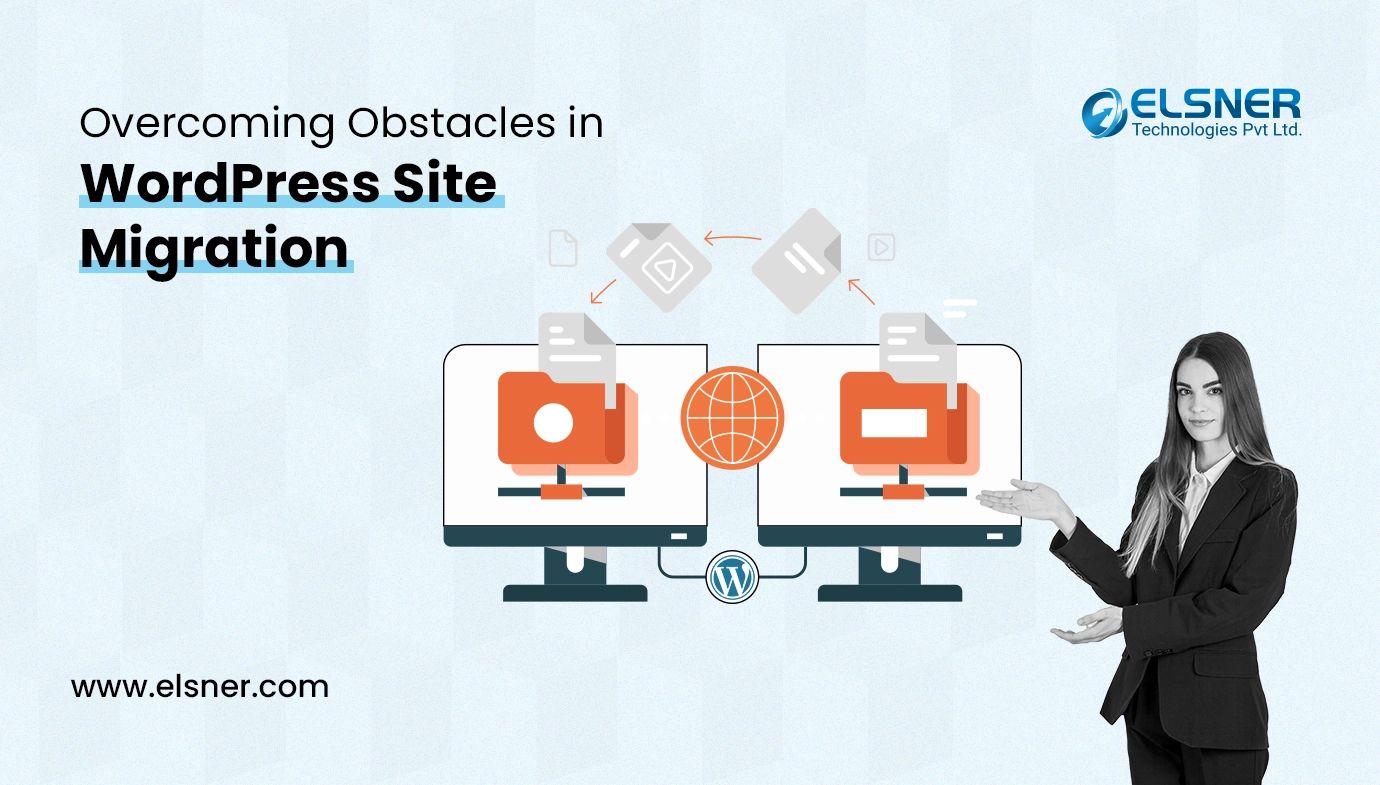
Website migration, while often viewed as a painstaking process, is a necessary procedure when transferring a WordPress site from one location to another—be it a new domain, a different hosting company, or an entirely new platform. This process, known as WordPress site migration, significantly impacts user experience, Search Engine Optimization (SEO), and general site performance, and therefore must be handled with extreme care. Expert WordPress migration solutions, such as those offered by professional development services, are often sought to ensure a smooth transition with minimal impact on performance.
As we navigate through 2026, WordPress website migration has become more sophisticated, with automated backup systems, real-time validation tools, and AI-powered conflict detection becoming industry standards. However, even with meticulous planning, problems can occur. Understanding the technical nuances of WordPress data migration ensures the transition preserves both functionality and search rankings while minimizing downtime. This guide examines the most frequent problems encountered during site relocation and offers thorough, actionable fixes.
Resolving 404 Errors and Broken Links
 When migrating a website to a new domain or server, it is common to encounter 404 errors and broken links due to changes in URLs or missing redirects. A comprehensive strategy is required to resolve these issues and ensure a seamless transition for both users and search engines.
1. Identify Broken Links and 404 Errors
The first step is to accurately identify all broken links. This can be achieved by:
- Using website crawling tools like Screaming Frog, SEMrush, or Google Search Console to identify broken links and URLs returning 404 errors.
- Analyzing server logs for any incoming requests that result in 404 errors.
2. Update Internal Links
All internal links within your website’s content—including pages, posts, menus, and widgets—must be updated to point to the new URLs. This is often done in bulk:
- Use search and replace tools directly in your database or specialized plugins like Better Search Replace to update URLs efficiently.
3. Implement 301 Redirects
Creating 301 redirects from old URLs to corresponding new URLs is critical to ensure seamless redirection for users and to preserve SEO value.
- Implement redirects using server configuration (e.g., the .htaccess file for Apache servers) or through dedicated WordPress plugins like Redirection or Yoast SEO.
- like Redirection or Yoast SEO.
4. Update External Links and Sitemap
- External Links: Identify and update any external links pointing to your website from other sources (e.g., backlinks, social media profiles) with the new URLs. Where possible, reach out to website owners linking to your old URLs and request them to update the links.
- Sitemap: Generate and submit an updated sitemap.xml file to search engines like Google and Bing to help them discover and index the new URLs. Use tools like Google Search Console to monitor indexing progress and identify any crawling issues.
5. Monitor and Customize
- Customize 404 Error Page: Customize your website’s 404 error page to provide users with helpful information, such as a search bar, navigation links, or a link to the homepage. The design should match the style and branding of your website for consistency.
- Monitor and Test: Regularly monitor your website for any new 404 errors or broken links using monitoring tools or manual checks. Conduct thorough testing across different devices, browsers, and scenarios to ensure all links are functioning correctly.
Troubleshooting the 500 Internal Server Error
 The 500 Internal Server Error is notoriously difficult to troubleshoot due to its lack of informative details. However, a systematic approach can help resolve it:
| Troubleshooting Step | Action | Rationale |
|---|---|---|
| Check Folder Permissions | Locate the folder permissions and ensure the hosting provider has access to all necessary files. | A new hosting provider may not have full access to all files, causing the server to fail. |
| Troubleshoot .htaccess | Rename the existing .htaccess file and reload the website. If the error persists, create a new, default .htaccess file. | A corrupted or incorrectly configured .htaccess file is a common cause of 500 errors. |
| Adjust PHP Settings | Navigate to your PHP settings and adjust the memory limit, which may be set to default values that are too low for the site. | Insufficient PHP memory can cause the server to crash when processing requests. |
| Deactivate Plugins | Deactivate all WordPress plugins and systematically troubleshoot them individually. | A newly migrated or incompatible plugin is a frequent source of 500 errors. |
If the website functions properly without a particular plugin, consider reinstalling it or finding an alternative.
Addressing Inoperative URLs in Posts (Database Update)
When migrating your WordPress website to a new domain, URLs embedded within posts, pages, and metadata often become non-functional because they still point to the old domain. To ensure all URLs correctly point to the new domain, direct database manipulation is required.
The SQL Query Method
The following SQL queries can be executed in your database (e.g., via phpMyAdmin) to update the old domain to the new one:
| Target | SQL Query |
|---|---|
| WordPress Options | UPDATE wp_options SET option_value = replace(option_value, ‘http://olddomain.com’, ‘http://newdomain.com’) WHERE option_name = ‘home’ OR option_name = ‘siteurl’; |
| Posts GUIDs | UPDATE wp_posts SET guid = replace(guid, ‘http://olddomain.com’, ‘http://newdomain.com’); |
| Post Content | UPDATE wp_posts SET post_content = replace(post_content, ‘http://olddomain.com’, ‘http://newdomain.com’); |
| Post Metadata | UPDATE wp_postmeta SET meta_value = replace(meta_value, ‘http://olddomain.com’, ‘http://newdomain.com’); |
Important Note on Serialization: If your website contains serialized arrays in the wp_options table (which is often the case for plugin settings), executing a simple SQL REPLACE command can corrupt the data. In such scenarios, it is highly advisable to use a specialized tool like Interconnectit Search and Replace. This free tool allows you to perform replacements in your database without disrupting serialization.
Diagnosing the Database Connection Error
 Encountering a “Database Connection Error” during WordPress database migration is a critical issue that must be addressed promptly.
| Troubleshooting Step | Action |
|---|---|
| Check wp-config.php | Open the wp-config.php file and verify that the database name, username, password, and host are correctly configured. Ensure there are no typos or syntax errors. |
| Verify Database Credentials | Log in to your hosting control panel (e.g., phpMyAdmin) and confirm that the database exists and the database user has the necessary permissions. Create a new user if needed. |
| Test Database Connection | Use a database management tool or command line interface to test the connection to the database server. Ascertain that the server is operational and reachable via the web server. |
| Repair Database | If you encounter a “Your database needs to be repaired” message, insert define('WP_ALLOW_REPAIR', true); into wp-config.php.Access www.yourdomain.com/wp-admin/maint/repair.php, select “Repair Database,” and then remove the line from wp-config.php. |
| Check Server Configuration | Ensure that the web server software (e.g., Apache, Nginx) is properly configured to handle PHP and MySQL connections, and that the necessary extensions are enabled. |
| Contact Support | If all troubleshooting steps are exhausted, contact your hosting provider’s support team, providing comprehensive details of the problem and the steps already implemented. |
Surmounting Compatibility Obstacles (PHP Versioning)
A significant hurdle during migration is ensuring compatibility, particularly when transitioning to newer PHP versions (e.g., from PHP 7.4 to PHP 8.1 or later). This transition can pose significant compatibility hurdles, especially for WordPress sites relying on themes and plugins that may not fully support the latest PHP iteration. This mismatch can result in dysfunctional features or system crashes.
The introduction of deprecated functions in newer PHP versions adds complexity, potentially causing errors if unaddressed during WordPress data migration. Moreover, migrating to a new PHP version may necessitate codebase updates, a potentially time-intensive endeavor, especially for intricate websites housing substantial custom code.
In 2026, PHP compatibility has become even more critical with PHP 8.2 and 8.3 introducing stricter type declarations and security enhancements. Proper planning during WordPress data migration helps identify potential conflicts before they impact your live environment, ensuring a seamless transition with zero disruption to user experience. To ensure a smooth transition, it is often best to hire WordPress developers who specialize in handling PHP version upgrades, as they can address compatibility issues, perform necessary updates, and ensure your site operates seamlessly.
Conclusion
By following these detailed steps and conducting thorough testing, you can effectively diagnose and resolve the most common errors encountered during WordPress migration. Regular monitoring and proactive maintenance are essential to address any new issues that may arise post-migration. For expert assistance in ensuring a seamless, error-free transition, professional WordPress development services can provide the specialized knowledge required to keep your website accessible and functional throughout the entire migration process.