



- What is Shopify?
- What is Zoho CRM?
- Why Integrate Shopify with Zoho?
- The Most Popular Zoho Products To Integrate with Shopify
- How to Integrate Shopify with Zoho CRM?
- Step 1: Prepare Accounts
- Step 2: Pick a Method Of Integration
- Step 3: Link Your Accounts
- Step 4: Set Up Data Mapping
- Step 5: Define the Sync Rules
- Step 6: Testing Integration
- How to Integrate Zoho Books and Shopify?
- How to Integrate Zoho Mail and Campaigns Integration
- Common Integration Challenges
- The Best Practices For Shopify-Zoho Integration
- When Do You Need Custom Integration Development?
- Parting Words
- FAQ
- 1. Does Zoho CRM integrate with Shopify?
- 2. Does Shopify have a native Zoho connector?
In the dynamic world of ecommerce, integrating your CRM with your ecommerce platform is a must to streamline processes and take your business to the next level. Shopify Zoho integration bridges the gap between sales, marketing and customer support by real-time syncing data, minimizing error rates and the cost of operations. It’s a connection that needs to be maintained, especially as companies expand and begin to rely on manual data entry, which tends to introduce errors in inventory, customer profiles, and order tracking.
Putting together your CRM and your ecommerce would be an understatement of how important it is. An effective Shopify CRM integration lets you monitor all customer activity in a single place, from browsing to buying. This enables customized follow-ups (e.g., follow-ups that are aligned with recent purchases), enhanced sales forecasting (because of integrated data analytics) and faster service request resolution. In the absence of this sync, there is an excessive prevalence of teams operating in silos, leading to squandered opportunities and operational bottlenecks.
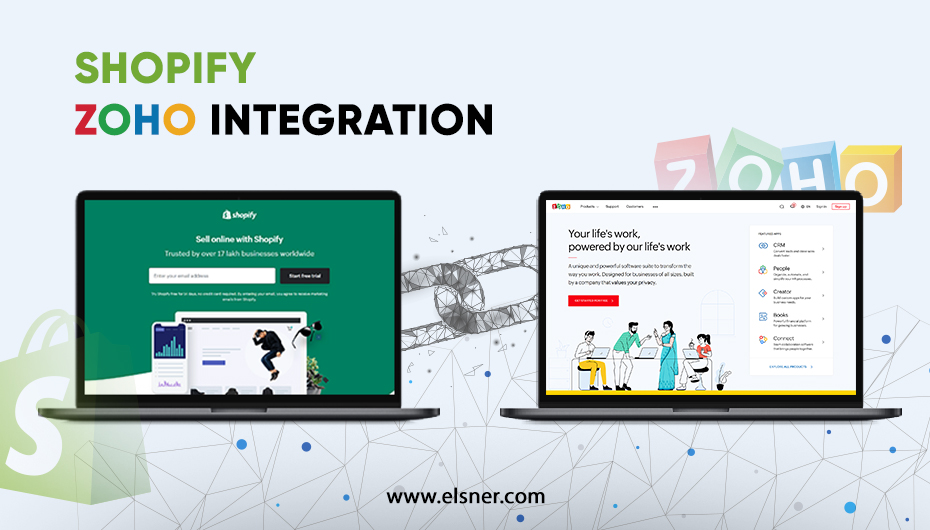
This manual is a complete and detailedwalkthrough of the Shopify Zoho CRM Integration and is up to date with the latest 2026 practices. Preparation, installation methods, configuration, troubleshooting, best practices, and when to consider custom development will be discussed. Whether you are the owner of a small business or an enterprise manager, you will have the technical know-how to get up and running with a seamless Shopify Zoho integration.
Let’s set the stage with a quick definition of the platforms.
What is Shopify?
Shopify is an ecommerce platform that allows users to create and run an online store. You can sync with the payment gateway of your choice, generate discount coupons and vouchers, and get insights into your shop’s performance with real-time statistics.
What is Zoho CRM?
Zoho CRM is the software for you if you want to grow your business by managing your customers efficiently and effectively.
It allows you to sell faster and more effectively by contacting your audience at the right moment. It offers the best overall advice and can reach them across many platforms. It helps you to increase sales, improve marketing and support users.
Zoho CRM is employed to handle Shopify customer information. If you need to enable two-way sync, you can select the sync direction. Every detail of the sync is available on a single dashboard.
Why Integrate Shopify with Zoho?
Integrating Shopify with Zoho is more than just connecting two apps—it’s building a single, cohesive system that affects your day-to-day operations in actionable ways. Rather than general information, this part of the content is specific to ecommerce businesses looking to overcome common pain points such as data silos and time-consuming processes.
Consolidated customer information: Using the Shopify Zoho integration, you can ensure that all your customers’ information from Shopify – their names, emails, addresses, purchase histories, etc. – is automatically synced with Zoho CRM. For example, when a customer forges out on Shopify, their profile in Zoho can trigger a recovery workflow, bringing together disparate data into actionable insights for the sales team.
- Automated lead management: New visitors or buyers on Shopify can be automatically captured as leads in Zoho CRM. Establish rules to score leads based on behaviors, such as frequent visits or high-value carts, and automatically route them to the sales rep. It reduces lead leakage and speeds up conversion for leads cultivated through automated sequences.
- Order-to-invoice processing: Eliminate duplicate data entry by generating invoices directly from Shopify orders in Zoho Books. For example, when an order is paid, Zoho can automatically generate the invoice, calculate taxes, reconcile payments, and more, ensuring compliance and helping you close your books faster.
- Inventory integration: Synchronize Shopify with Zoho Inventory and receive stock updates in real time, avoiding overselling. If the stock in Zoho falls below a threshold, it’s reflected in Shopify with reorder alerts or low-stock notifications, helping you keep your business running without a hiccup.
- Marketing Sync: Use the synchronized data for targeted marketing in Zoho Campaigns. Behavior-based triggers, such as post-purchase upsells or re-engagement of inactive users, can be automated, boosting retention with data-backed personalization.
In effect, this integration takes raw data and turns it into strategic insights, and companies report processing orders 30 percent more quickly and enhancing customer satisfaction through timely, relevant conversations.
The Most Popular Zoho Products To Integrate with Shopify
Zoho offers a range of products that integrate with Shopify to enhance the power of your ecommerce sales for various purposes. Here’s a plain explanation of the major ones:
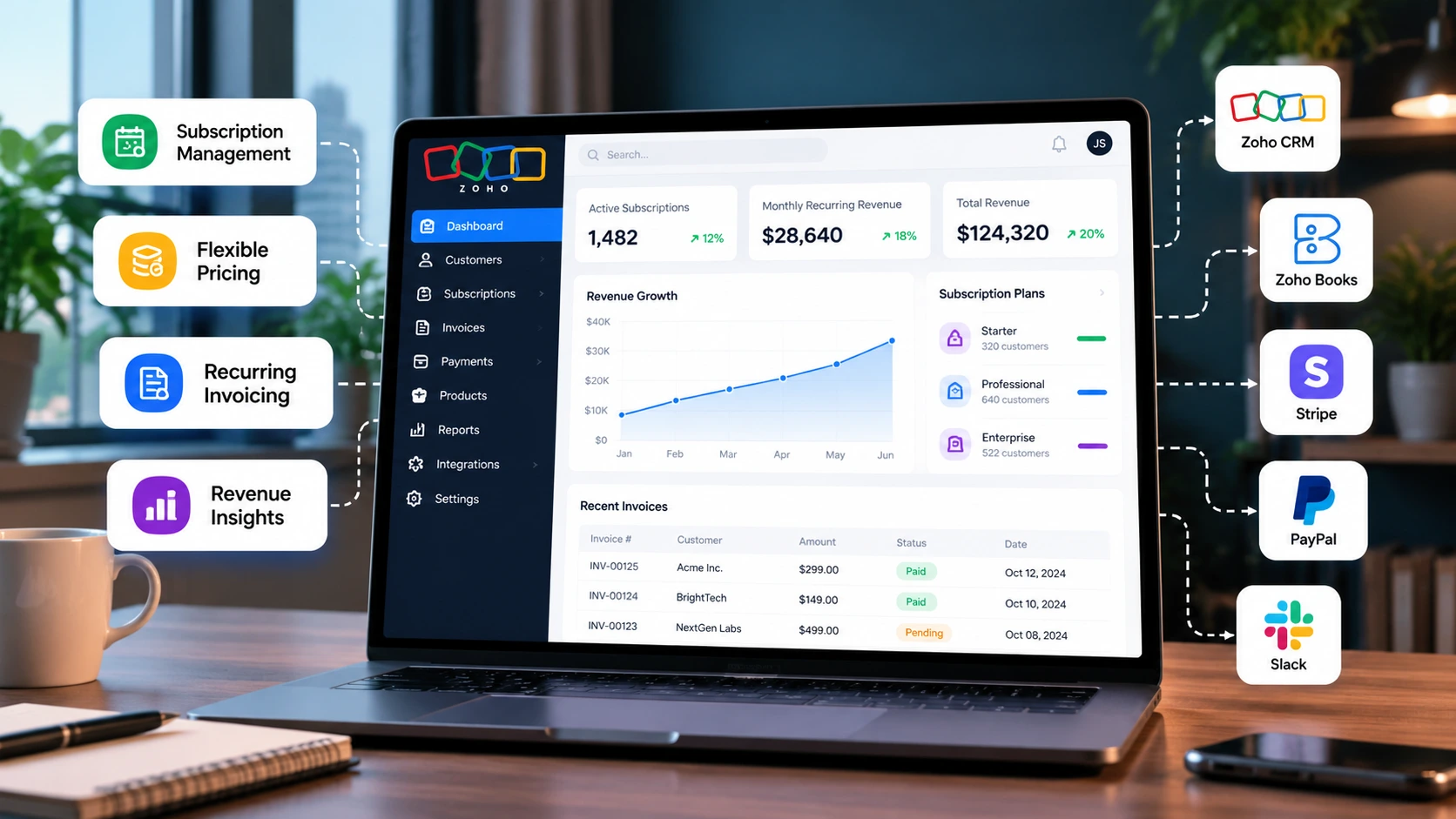
- Zoho CRM: Focuses on customer relationship management, integrating Shopify customer information, orders, and communications to nurture leads and track sales. It allows contacts, deals, and products to be synced in two ways, and you can monitor them all in a single dashboard.
- Zoho Books: Deals with the books and finances, by automating invoice creation based on Shopify orders, payment reconciliation, and tax calculation. Perfect for sales data synchronization to produce reliable financial reports.
- Zoho Inventory: Track inventory and reorder, manage orders and warehouses, synchronize with Shopify in real time to prevent overselling, and manage multi-channel inventory.
- Zoho Mail: Integrated for customer communication, order confirmations, support tickets, and custom emails directly related to Shopify events.
- Zoho Campaigns: Fuels email marketing, leveraging Shopify data for behavior-triggered campaigns, abandoned cart recovery efforts, and marketing emails with product embeds.
Each software can be connected natively or via third-party tools, enabling you to extend it modularly as per your requirements.
How to Integrate Shopify with Zoho CRM?
This step-by-step guide for connecting Shopify with Zoho CRM will give you a hassle-free setup experience. Use these instructions for a trusted Shopify-Zoho CRM integration.
Step 1: Prepare Accounts
Make sure your accounts are active on both ends. Log in to Shopify Admin and ensure your store is set up with products, customers, and payment gateways. In Zoho CRM, check your subscription (at least Professional for advanced features), and activate the API under Setup > Developer Space > API. Generate API keys if necessary for custom setups.
Step 2: Pick a Method Of Integration
Choose the best option according to your needs:
- Native connector: Use Zoho’s native Shopify extension for a hassle-free sync with no coding required.
- Marketplace extension: Add-on from Zoho Marketplace to activate more features, such as multi-store handling.
- Third-party tool: Choose from non-code services like Zapier or Zoho Flow, which provide automations that cover most custom workflow needs.
- Custom integration via API: For more advanced requirements, use the Shopify Zoho API integration, built on Shopify’s GraphQL API and Zoho’s REST API.
For most people, start with the native extension.
Step 3: Link Your Accounts
Download the extension:
- Sign in to Zoho CRM and navigate to Setup > Marketplace > All.
- Find “Shopify for Zoho CRM” and tap Install.
- Accept the terms and grant access.
Enter your store name and domain URL in your Shopify store, as well as the Client ID and Secret for your app (obtained by following the steps in the Shopify Admin > Apps > Develop Apps > Create App).
Click Save to establish the connection.
If you are using Zapier: Set up a new Zap with Shopify as the trigger (e.g., New Order) and Zoho CRM as the action (e.g., Create Contact), then connect both of your accounts.
Step 4: Set Up Data Mapping
Match fields to bring over the right data:
- Go to the extension settings and choose modules such as Contacts, Deals and Products.
- Map fields in Shopify, such as Customer Email to Zoho Email or Order ID to Deal Name.
- Create custom fields manually in Zoho, then map them.
- Establish rules for conflict resolution, for example, whether Shopify or Magento data takes priority for updates.
This step will avoid information mismatch, such as a wrong address.
Step 5: Define the Sync Rules
- Modify synchronization control options|
- Select Sync Direction: One-way (Shopify to Zoho) or Two-way.
- Frequency: Real-time, every hour, or daily.
- Define filters, e.g., sync only paid orders or customers from specific regions.
- Enable bulk sync for historical data, limiting batches to 1000 records each to avoid API limits.
Step 6: Testing Integration
Verify the configuration:
- Place a test order in Shopify.
- Check if it appears in Zoho CRM as a deal or contact.
- Check for errors in the sync logs in Zoho.
- Test changes, such as editing a customer in Zoho and then checking that change in Shopify.
- Monitor for 24 hours to ensure there is no lag.
If you run into trouble, see troubleshooting in Section 7.
How to Integrate Zoho Books and Shopify?
The Zoho Books Shopify integration streamlines your financial operations and enhances your CRM system.
Step-by-Step Setup
- Prepare: Ensure the Zoho Books and Shopify accounts are active.
- Connect: In Zoho Books, navigate to Settings > Integrations > Shopping Cart > Set Up Shopify. Provide the details of your Shopify store and grant the permission.
- Set up: Orders to invoices, tax rules, and auto-reconciliation from payments.
- Test: Turn on real-time order sync and run a test transaction.
Key Features:
- Invoice automation: Orders generate invoices with line items and applicable taxes.
- Payment Reconciliation: Reconcile Shopify payouts with Zoho bank feeds.
- Tax sync: Regional tax and compliance rules are applied automatically.
- Financial Reports: Report on sales, expenses, and profit directly from the synced data.
The integration provides you with accurate bookkeeping, and you can avoid manual exports and imports.
How to Integrate Zoho Mail and Campaigns Integration
Engage your customers more effectively with these integrations.
Zoho Mail Integration
- Connect: Connect your Shopify events to Zoho Mail using Zapier or Zoho Flow.
- Set up: Grant permissions to different accounts and configure workflows (for example, order confirmations).
- Automate: Automatic e-mails for shipping updates or support queries.
- Features: Order confirmation emails and customer communication via threaded replies.
Zoho Campaigns Integration
In Zoho Campaigns, Navigate to Settings > Apps > Connect Shopify.
- Sync: Import products and contacts; respond to GDPR prompts.
- Organize: Create automated abandoned cart sequences.
- Characteristics: Feature- and behaviour-based email triggers, such as post-purchase upsell; monitor purchases made from campaigns.
Common Integration Challenges
Even robust systems can hit snags—here’s how to troubleshoot.
a. API limits: both Shopify and Zoho have rate limits you can’t exceed (ex. 2 requests/second)
Solution: Use batch processing or schedule syncs during off-peak hours.
b. Duplicate records: When IDs mismatch
Solution: Enable De-Duplication in your Zoho settings and clean your data pre-sync.
c. Data mismatch: Items such as prices or addresses do not match.
Solution: Confirm your mappings and use Zoho Flow’s data transformation features.
d. Sync delay: Network issues or high volume.
Solution: Increase connection status and sync frequency.
e. Authentication errors: Expired tokens.
Solution: Reauthorize app(s) and watch your API credentials.
Review logs regularly and test small datasets to isolate issues.
The Best Practices For Shopify-Zoho Integration
Increase reliability with these tips.
- Frequent data backups: Both platforms automatically run daily exports to prevent data loss.
- Verify your field mappings: Review them quarterly to identify any changes resulting from updates.
- Monitor Sync Logs: You can subscribe to receive email alerts for errors in Zoho or Shopify .
- Automation audit: We recommend testing your workflows monthly to make sure they continue to work (e.g., as order status updates).
- Performance testing: To test scalability, simulate a traffic surge.
- Adopt a single source of truth, e.g., for products use Shopify, for customers use Zoho, to prevent conflicts.
When Do You Need Custom Integration Development?
In some cases, your enterprise might require a more customized Shopify Zoho API integration.
- Advanced workflows: If your needs are more complex than simple automations can handlemulti-step workflows , such as multi-step workflows for custom fulfillment.
- ERP integration: End-to-end supply chain management with integration to external systems.
- Multi-store management: Operate multiple Shopify stores that feed into Zoho.
- Custom reporting: Creating your own dashboards on top of native analytics.
Hire knowledgeable developers for your API-based solutions while keeping security and compliance top of mind.
Parting Words
Shopify Zoho integration creates a strong ecommerce undercarriage by combining integrated data, automated workflows, and real-time sync to break down silos and increase efficiency. It consolidates customer profiles and order-to-invoice processes, and provides real-time inventory monitoring, cutting costs and driving data-driven growth and consumer loyalty. This resource helps you turn roadblocks into momentum, liberating teams to innovate from configuration through remediation.
Sustain value with regular audits amid 2026 updates, including more GraphQL APIs for 25% faster leads and accurate forecasting. Review your workflows now; try a native connector or contact our certified experts to discuss a custom roadmap—we’re here to help grow your success.
FAQ
1. Does Zoho CRM integrate with Shopify?
Yes, it is possible to sync your data seamlessly using native extensions, third-party applications such as Zapier, or customized APIs.
2. Does Shopify have a native Zoho connector?
Yes, there is a built-in Shopify extension in the Zoho Marketplace for integration.
3. Is there a way to sync orders from Shopify to Zoho?
Your orders will be automatically synced after they are created, using rules to map them to deals or sales orders in Zoho, which you can customize.
4. How much does Shopify Zoho integration cost?
In-house tools are free with a subscription; third-party tools, like Zapier, cost a minimum of $20/month; custom development costs vary.
5. Can I automate invoices with Zoho Books?
Of course—orders create invoices, which are automatically taxed and matched to payments.
6. How to fix Shopify Zoho sync errors?
Inspect logs for API errors, reconnect, and check field mappings.
7. Does Zoho work with multiple Shopify stores?
Yes, the extension allows you to run multiple stores with separate configurations.
8. What information is synced in the Shopify Zoho CRM integration?
Customers, orders, products, and engagements, with the ability for two-way sync.
9. How secure is the integration?
Both services use OAuth and encryption; make sure you are compliant with GDPR via Zoho settings.
10. Can I use Zoho Campaigns for Shopify abandoned carts?
Yes, set up triggers to send recovery emails based on synced cart data.