




- Quick Answer
- What Is WooCommerce HPOS (High-Performance Order Storage)?
- HPOS vs Legacy Order Storage: What’s Actually Different
- The Real Benefits of WooCommerce HPOS
- Is HPOS Right for Your Store? (And When to Wait)
- Before You Migrate: The Pre-Migration Checklist
- How to Migrate to HPOS: Step-by-Step
- Handling Plugin and Theme Compatibility
- HPOS Best Practices for Developers
- Common HPOS Migration Mistakes to Avoid
- How Elsner Helps With WooCommerce HPOS Migration
- Conclusion
- Struggling With Your WooCommerce HPOS Migration?
- Frequently Asked Questions
- What is WooCommerce HPOS in simple terms?
- Is HPOS enabled by default in WooCommerce?
- Will migrating to HPOS break my plugins?
- Can I roll back from HPOS to legacy order storage?
- How long does HPOS migration take for a large store?
- Does HPOS improve checkout and site speed?
Quick Answer
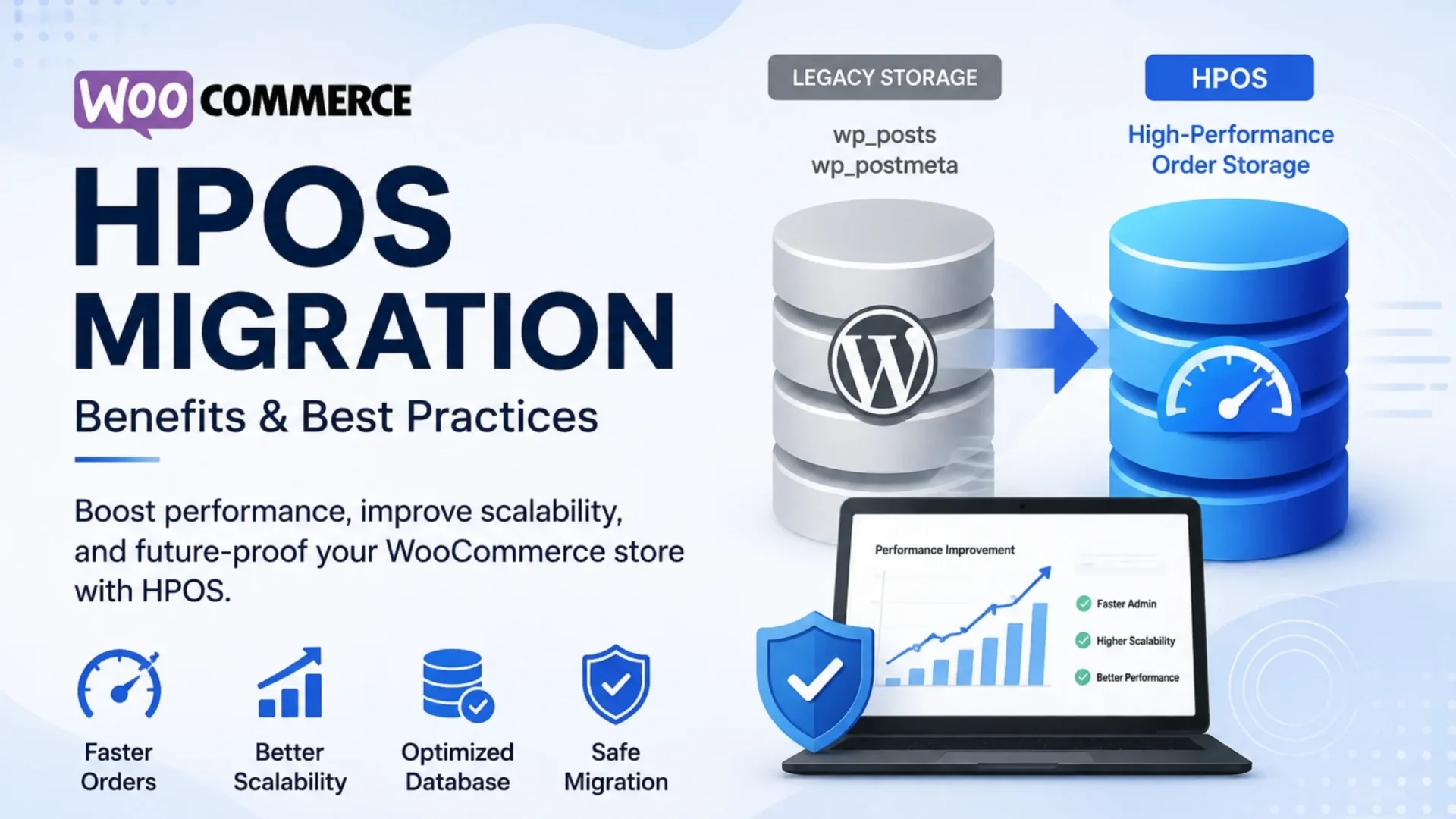
WooCommerce HPOS (High-Performance Order Storage) stores order data in dedicated, optimized database tables instead of the legacy WordPress wp_posts and wp_postmeta tables. This can improve order processing, scalability, and admin performance, especially for high-volume stores. For a safe migration, back up your store, test plugin compatibility in staging, synchronize and verify order data, and only then make HPOS the authoritative order storage system.
If your WooCommerce store has been growing, you’ve probably felt it. Things start slowing down. Orders take longer to load. Filters lag. The admin panel feels heavier than it should. And checkout? Sometimes it just drags.
The reason is simple. WooCommerce wasn’t originally built for handling large-scale transactional data. It stored orders in WordPress tables like wp_posts and wp_postmeta, which were designed for blog content, not ecommerce operations.
That’s where WooCommerce HPOS comes in.
In this guide, we’ll break it down in plain language. No heavy jargon. Just what you need to know. You’ll learn what HPOS is, why it matters, how it improves performance, and most importantly… how to migrate safely without breaking your store.
What Is WooCommerce HPOS (High-Performance Order Storage)?
HPOS stores your orders in their own database tables, made just for orders. Before, WooCommerce squeezed that data into WordPress’s generic post tables – the same ones used for blog posts. HPOS gives orders a proper home instead.
You might also see it called Custom Order Tables, or COT. That’s the older name. Same feature.
Orders now live in a table called wp_wc_orders, not scattered across wp_posts and wp_postmeta like before. This became the default back in October 2023, with WooCommerce 8.2. So if your store is a couple of years old or newer, you’re probably already using it – you just never had to turn it on.
HPOS vs Legacy Order Storage: What’s Actually Different
Under the old model, every order was technically a “post.” Order status, billing details, line items, shipping info, all of it got stuffed into wp_postmeta as loosely structured key-value pairs. That table was never indexed with orders in mind, so as it grew, queries got heavier. Worse, orders were competing for space and query time with actual posts, pages, and whatever else your theme or plugins were writing to the same tables.
HPOS separates that out entirely. Orders get their own indexed tables, sized and structured for exactly what an order needs. Fewer joins, fewer reads, fewer writes competing with unrelated data.
The Real Benefits of WooCommerce HPOS
Numbers help more than adjectives here, so let’s use them.
WooCommerce’s own benchmarks put order creation at up to 5x faster on HPOS, and filtering orders by status or date – the kind of thing you do constantly in the admin – at roughly 40x faster, since it’s now hitting indexed columns instead of scanning postmeta. Checkout itself sees a smaller but still meaningful bump, around 1.5x faster under load.
There’s a knock-on effect too. Order metadata used to make up a large chunk of the wp_postmeta table on busy stores. Moving that out doesn’t just speed up orders. It lightens the whole database, which quietly helps every other plugin that touches that table.
And then there’s the direction WooCommerce is heading. The platform’s own roadmap is built around HPOS as the foundation going forward; recent releases have leaned further into it, with performance work like cache priming for HPOS order queries showing up as recently as WooCommerce 10.8 in May 2026. Staying on legacy storage means you’re increasingly out of step with where core development is going.
Is HPOS Right for Your Store? (And When to Wait)
Not every store needs to rush this.
You’re a strong candidate if you’re running thousands of orders, your admin already feels slow, or you have real growth plans over the next year. If you launched recently, there’s a decent chance you’re already on HPOS by default and don’t need to do anything.
Where it makes sense to wait a bit: you’re relying on a critical plugin that’s flagged as incompatible and has no update timeline, you don’t have a staging environment to test on, or you’re heading into your peak season and don’t want to touch anything that isn’t broken. None of these are permanent blockers; just reasons to schedule the migration for a quieter month.
A quick gut check before moving forward:
- Do you have a staging site that mirrors production?
- Are your order-related plugins (subscriptions, bookings, loyalty programs) all on recent versions?
- Can you afford a maintenance window, even a short one, if something needs attention?
If you answered yes to all three, you’re in good shape to start your WooCommerce store development.
Before You Migrate: The Pre-Migration Checklist
This part isn’t optional, and honestly, it’s where most migration headaches actually come from, not from HPOS itself.
Start with a full backup, database and files both, and make sure you have a staging environment that actually resembles production, not a stripped-down test copy. Update WooCommerce and every order-touching extension you run – Subscriptions, Bookings, Points and Rewards, whatever’s in the mix – to their latest versions before you do anything else.
Then run the built-in compatibility scan under WooCommerce > Settings > Advanced > Features. It’ll flag anything that’s known to conflict. Leave any extensions that still rely on custom post types active during the migration itself; disabling them early is one of the more common ways stores end up with mismatched data.
Last thing, and it’s easy to overlook: check your stack. HPOS performs poorly, or can behave unpredictably, on outdated PHP (anything on 7.x) or an old MySQL version. If you haven’t touched your server config in a while, this is the moment to check.
How to Migrate to HPOS: Step-by-Step
Think of this as a phased handover, not a flip of a switch.
|
1
|
Test on staging firstNot a quick glance. Actually run through checkout, refunds, subscription renewals, and whatever flows matter most to your business. |
|
2
|
Turn on Compatibility ModeThis synchronizes orders between HPOS and the posts table, so both stay accurate while you transition. Find it under WooCommerce > Settings > Advanced > Features. |
|
3
|
Let sync finishSmall stores handle this fine through Action Scheduler in the background. If you’re running a large catalog, use wp wc hpos sync via WP-CLI instead – it’s faster and lets you control timing directly, which matters if you’re syncing tens of thousands of orders. |
|
4
|
Verify the dataRun wp wc hpos verify_cot_data –verbose and check the output before moving on. Don’t skip this step just because sync completed without errors. |
|
5
|
Switch the authoritative sourceSet the setting to “Use the WooCommerce orders tables”, but leave sync enabled for now. This keeps rollback instant if anything looks off. |
|
6
|
Disable sync graduallyMost guidance suggests waiting around 30 days of stable operation before turning sync off, and only cleaning up legacy data after that. Cleanup is destructive – once it’s done, there’s no quick undo, so make sure you have a fresh backup right before that step. |
Worth repeating: while sync is on, rolling back is instant. It’s only after cleanup that things become permanent.
Handling Plugin and Theme Compatibility
WooCommerce’s compatibility scanner isn’t there to slow you down. It’s a genuine safety net. If it flags an active plugin as incompatible, it’ll block the switch to HPOS entirely until that’s resolved.
Your options at that point: update the plugin if a compatible version exists, swap it for an alternative that supports HPOS, or reach out to the developer directly if there’s no clear answer in their changelog. Test any changes in staging before touching production.
Some plugins – often older reporting tools, warehouse integrations, or niche payment gateways – still write directly to legacy tables and haven’t caught up. If you’re relying on one of these, it’s worth checking with the vendor before you commit to a migration date.
HPOS Best Practices for Developers
If you’re writing custom code that touches orders, a few habits matter more now than they used to.
Stop reading or writing order data with raw SQL or get_post_meta(). Use WooCommerce’s WC_Order CRUD methods instead. They work correctly regardless of which storage mode is active, which is the whole point. If your code needs to know which mode is running, OrderUtil::custom_orders_table_usage_is_enabled() is the method built for that.
If you maintain a plugin, declare HPOS compatibility explicitly rather than leaving it to guesswork. And after any switch, actually test your custom order columns, meta fields, and anything that hooks into order data; don’t assume it carried over cleanly just because the migration completed without errors.
Common HPOS Migration Mistakes to Avoid
A few patterns come up again and again with stores that had a rough migration:
Migrating directly on the live site, no staging, no backup
Deactivating custom-post-type-dependent extensions before the sync finishes
Turning off sync too early, before the 30-day stability window
Ignoring compatibility scan warnings because “it’ll probably be fine”
Running the migration on an outdated PHP or MySQL version
None of these are HPOS problems. They’re all rushing problems.
How Elsner Helps With WooCommerce HPOS Migration
If this sounds fine in theory but a little scary with your real store data, that’s normal. Our WooCommerce team handles the whole thing: testing on staging first, checking your plugins for conflicts, fixing any old code that needs it, and switching things over with minimal downtime. We also test everything afterward, so you’re not the one finding problems later.
Need ongoing support after migration?
Explore our eCommerce maintenance and support services →
Conclusion
HPOS isn’t a passing trend. It’s where WooCommerce’s entire order architecture is headed, and the performance gains are real once your store has real volume behind it. The safe path is straightforward, if a little unglamorous: back everything up, test on staging, run compatibility mode, verify your data, then switch. The risk with WooCommerce HPOS was never the feature itself. It’s rushing the process. If you’d rather not navigate that alone, you can hire a WooCommerce developer, and we would be happy to walk through it with you.
Struggling With Your WooCommerce HPOS Migration?
From compatibility audits to custom order table optimization, our WooCommerce developers handle the entire HPOS migration process so your store stays fast, stable, and error free.
Frequently Asked Questions
What is WooCommerce HPOS in simple terms?
It’s a way of storing your store’s orders in their own purpose-built database tables instead of WordPress’s generic content tables. The result is faster order processing and a lighter, cleaner database, especially once your store has real order volume.
Is HPOS enabled by default in WooCommerce?
Yes, for any store set up since WooCommerce 8.2 in October 2023. If your store predates that, you’re likely still on legacy storage unless you’ve already migrated manually.
Will migrating to HPOS break my plugins?
Only if a plugin writes directly to the old post tables instead of using WooCommerce’s standard order APIs. The built-in compatibility scanner will catch most of these before you switch, which is exactly what it’s there for.
Can I roll back from HPOS to legacy order storage?
Yes, as long as compatibility mode and sync are still active. Rollback is effectively instant in that state. Once you’ve disabled sync and cleaned up legacy data, though, that option goes away.
How long does HPOS migration take for a large store?
It depends entirely on order volume. Smaller stores sync in the background within hours. Very large stores have reported sync times running into a week when using WP-CLI, so plan your timeline accordingly.
Does HPOS improve checkout and site speed?
Yes, though the size of the improvement depends on your store’s order volume and overall setup. Checkout itself sees roughly a 1.5x speed gain under load, and order-heavy admin screens tend to see a much bigger jump.